Developer Tools
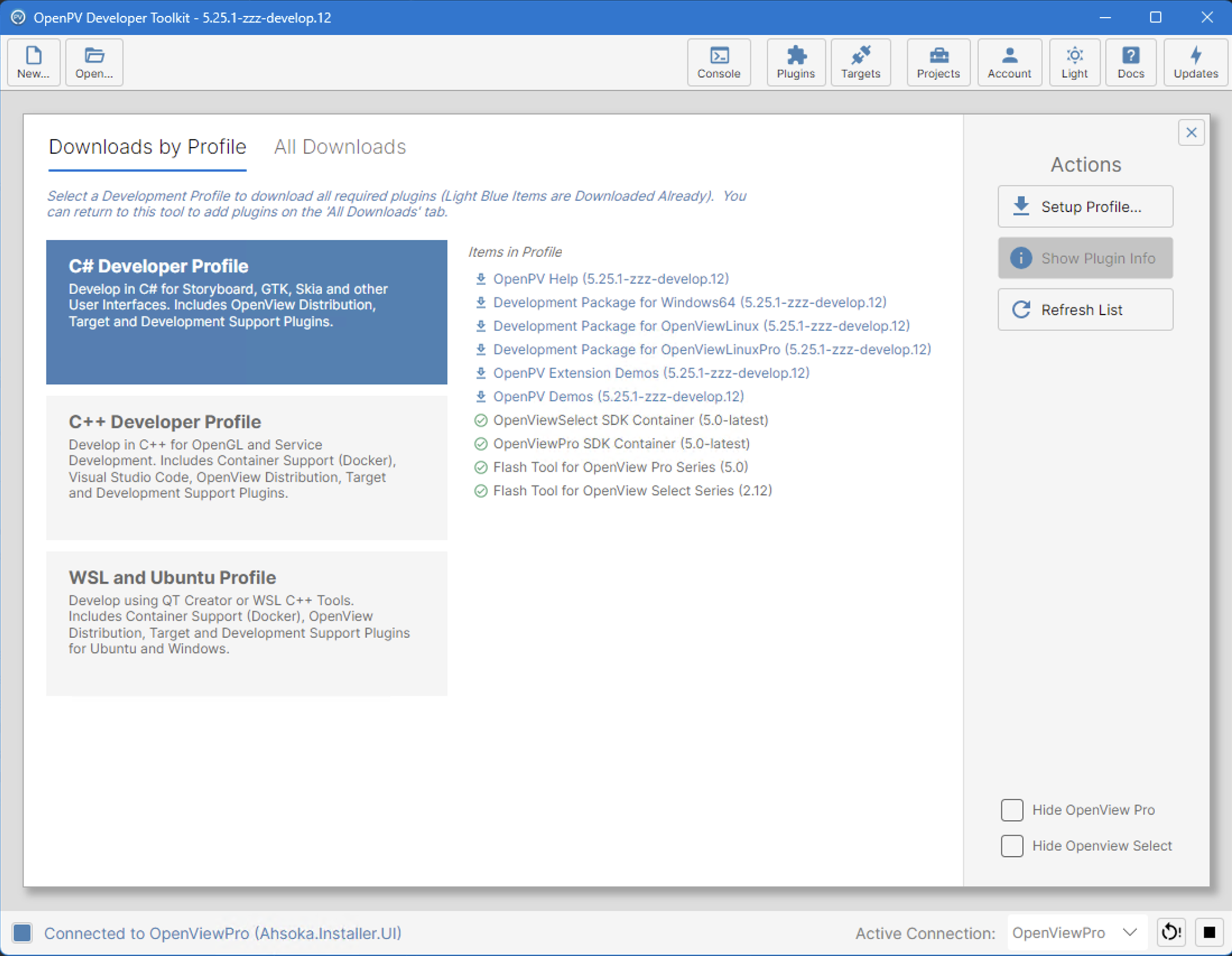
Plugins
The Plugin Manager allows you to download optional packages for your development workflow. It has two tabs:
Downloads by Profile - Select a Development Profile to download all required plugins at once. Light blue items are already downloaded. Available profiles include:
- C# Developer Profile - Develop in C# for Storyboard, GTK, Skia, and other User Interfaces. Includes OpenView Distribution, Target and Development Support Plugins.
- C++ Developer Profile - Develop in C++ for OpenGL and Service Development. Includes Container Support (Docker), Visual Studio Code, OpenView Distribution, Target and Development Support Plugins.
- WSL and Ubuntu Profile - Develop using QT Creator or WSL C++ Tools. Includes Container Support (Docker), OpenView Distribution, Target and Development Support Plugins for Ubuntu and Windows.
Actions: Setup Profile... downloads all plugins in the selected profile. Show Plugin Info shows details about the selected plugin. Refresh List refreshes available plugins. The Hide OpenView Pro and Hide OpenView Select checkboxes filter the item list.
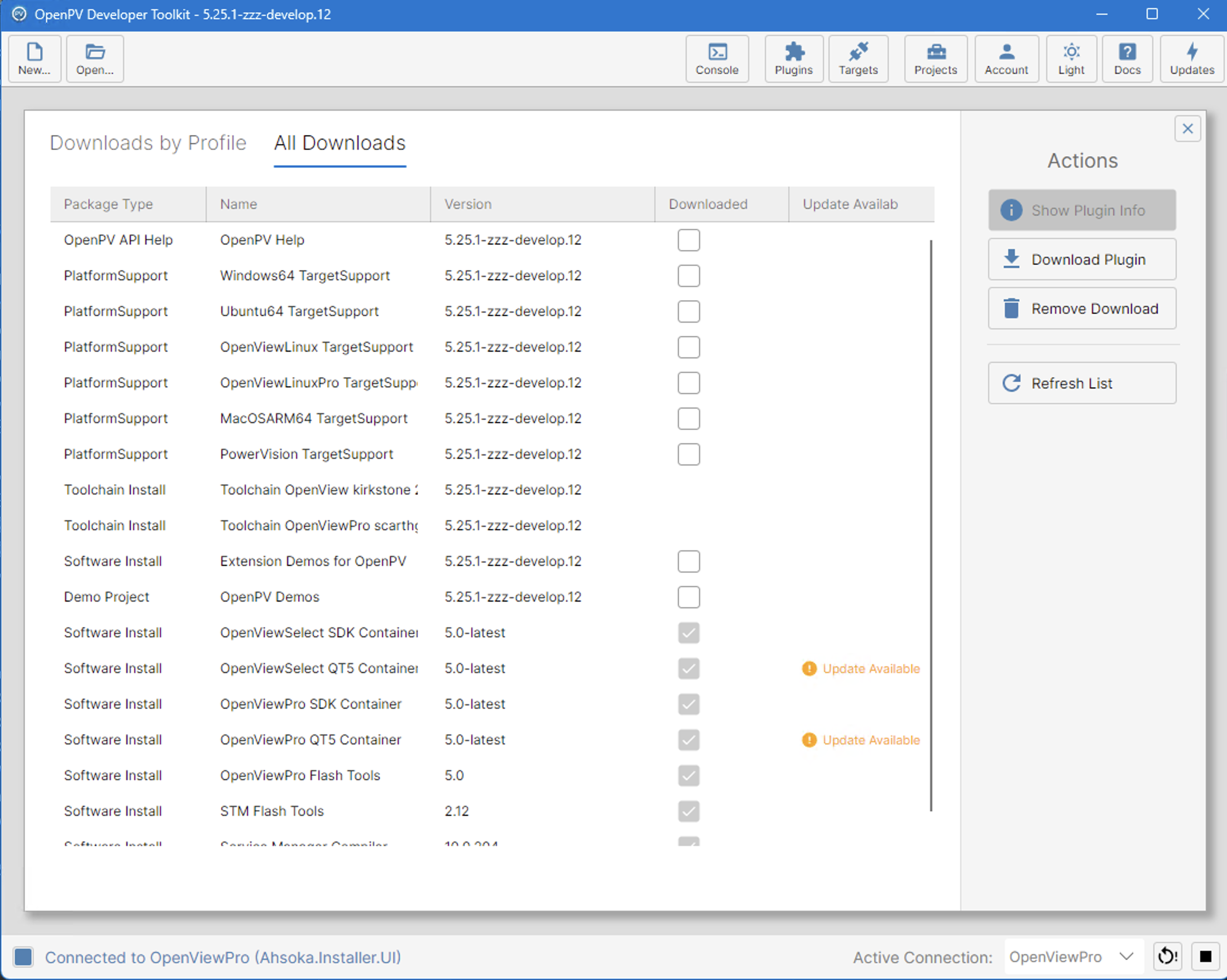
All Downloads - Shows a flat list of all available packages with columns for Package Type, Name, Version, Downloaded status, and Update Available. Package types include: OpenPV API Help, PlatformSupport, Toolchain Install, Software Install, and Demo Project.
Actions: Download Plugin downloads the selected plugin. Remove Download removes a previously downloaded plugin. Show Plugin Info shows details. Refresh List refreshes the list.
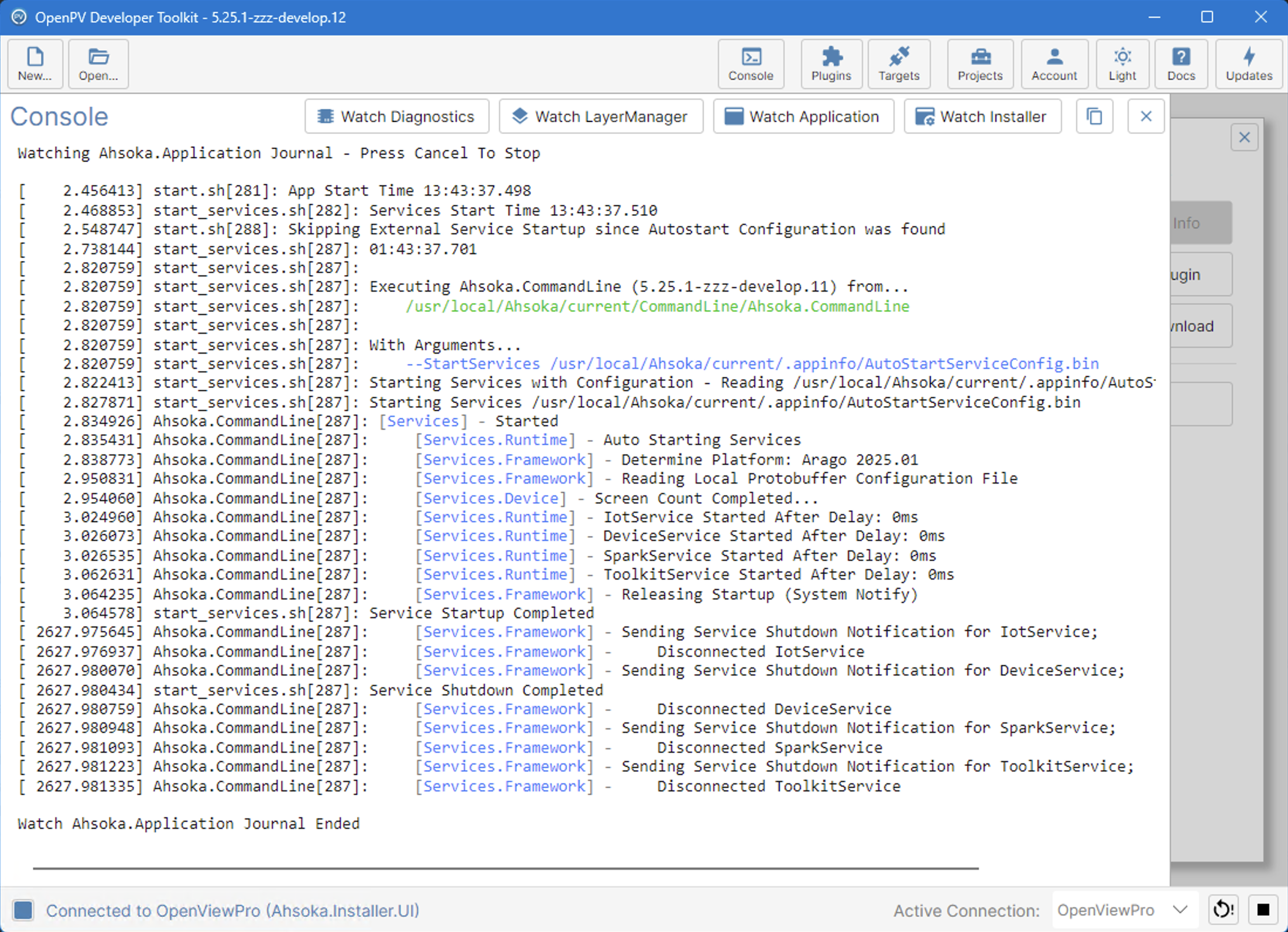
Console
The Console shows the live application journal from the connected display. Click the Console button in the toolbar to open or close the slide-in panel. Output is color-coded by service and a pinned last-message line appears at the bottom. Click Cancel to stop watching the journal.
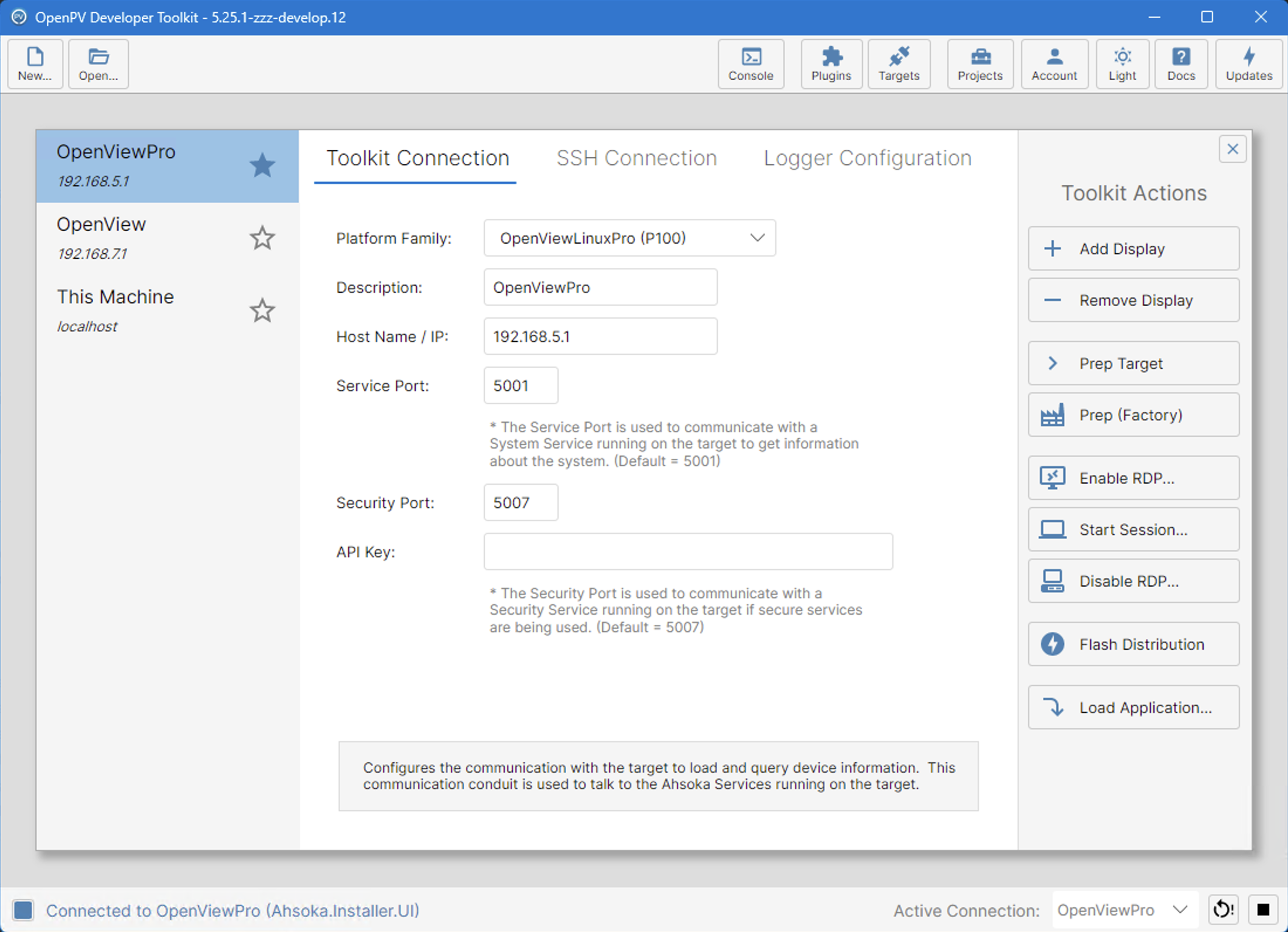
Targets
The Targets panel configures connections to Ahsoka Displays. This is the list of connections that appear in the Active Connection dropdown in the status bar. Click the star icon next to a connection to mark it as a favorite.
Each connection has three tabs:
Toolkit Connection - Configures the communication channel used to load packages and query device information. Fields: Platform Family, Description, Host Name / IP, Service Port (default 5001), Security Port (default 5007), API Key.
SSH Connection - Configures SSH credentials for the connection.
Logger Configuration - Configures log capture settings for the connection.
Toolkit Actions:
Add Display - Adds a new display to the connections list.
Remove Display - Removes the selected display from the connections list.
Prep Target - Clears much of the file system, installs the Visual Software Installer, and prepares the system for Ahsoka Applications. Required after a Firmware Flash as it restores factory data removed during the flash.
Prep (Factory) - Performs a factory-level prep of the target.
Enable RDP... - Enables Remote Desktop Protocol access on the target.
Start Session... - Starts a remote session to the target.
Disable RDP... - Disables Remote Desktop Protocol access on the target.
Flash Distribution - Flashes the OpenPV distribution image to the target.
Load Application... - Side-loads an OPV file directly to the target.