Change Info
Utilities Account Always enabled
Shows your Email Address, First Name, Last Name, and the Spark Server you're signed into. Update the fields and click Update Info to save the change to your account.
Update Info
-
Click Account on the toolbar. The panel opens on the Change Info tab, showing your current account details.
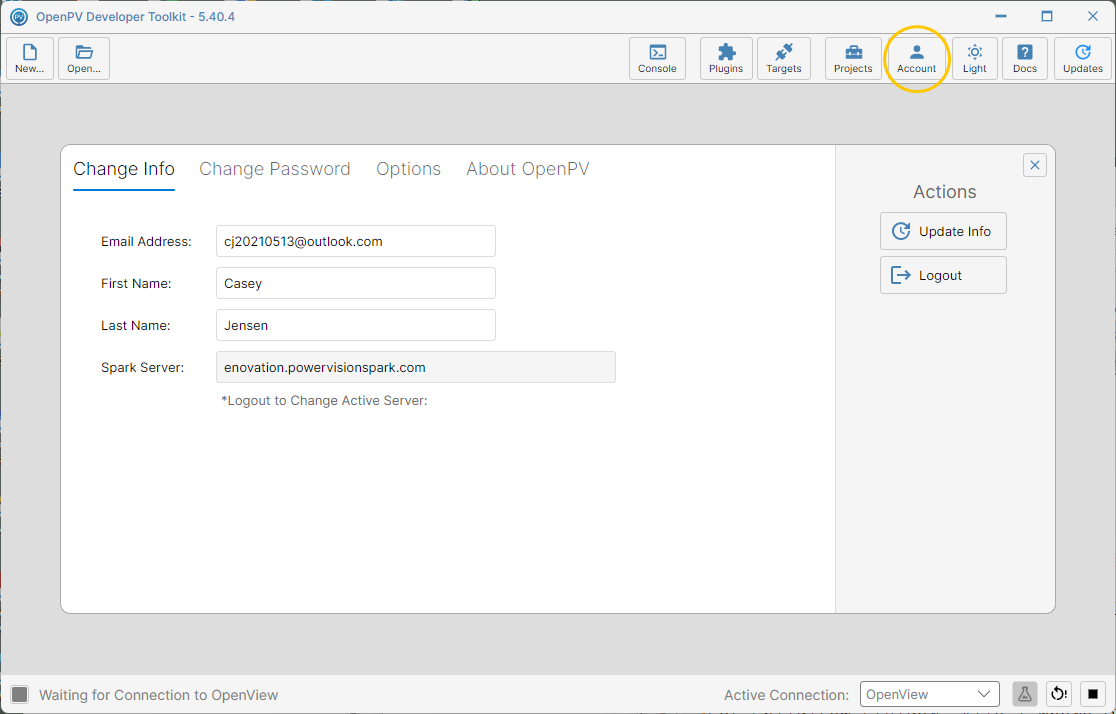
The Change Info tab -
As a worked example, here's the full save flow (it makes a real change to this account): click into the First Name field, select the existing text, and type a nickname in its place — changing Casey to CJ.
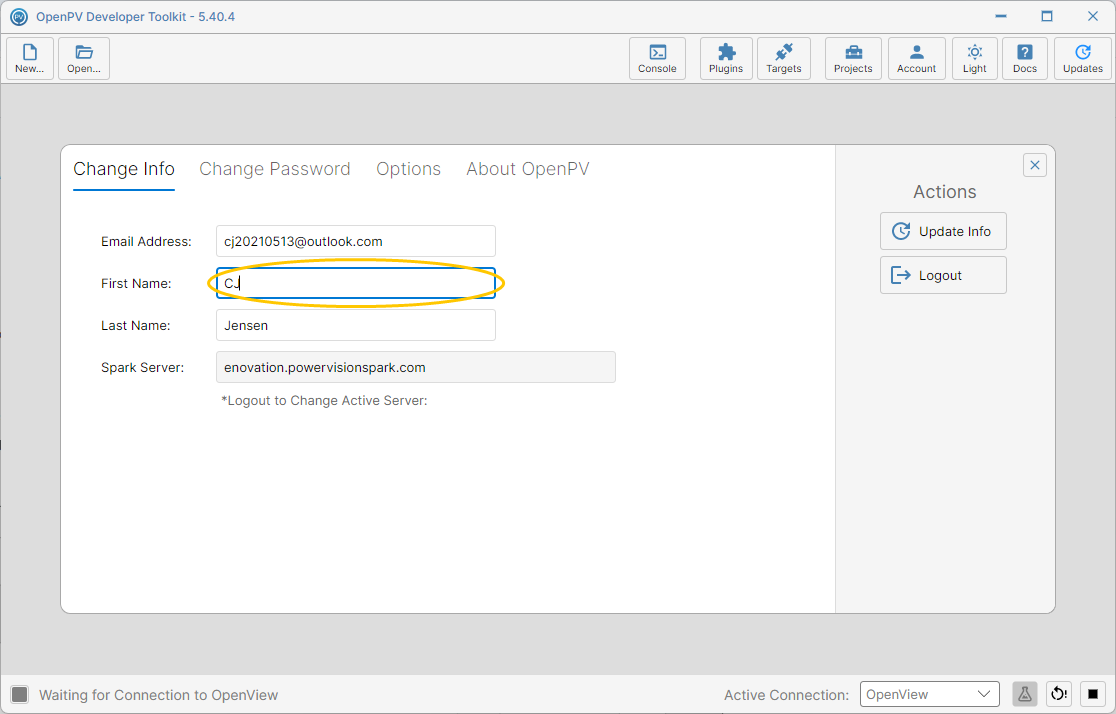
Replacing First Name with a nickname -
Click Update Info to save it. Once saved, Update Info grays out again since there's nothing left to update.
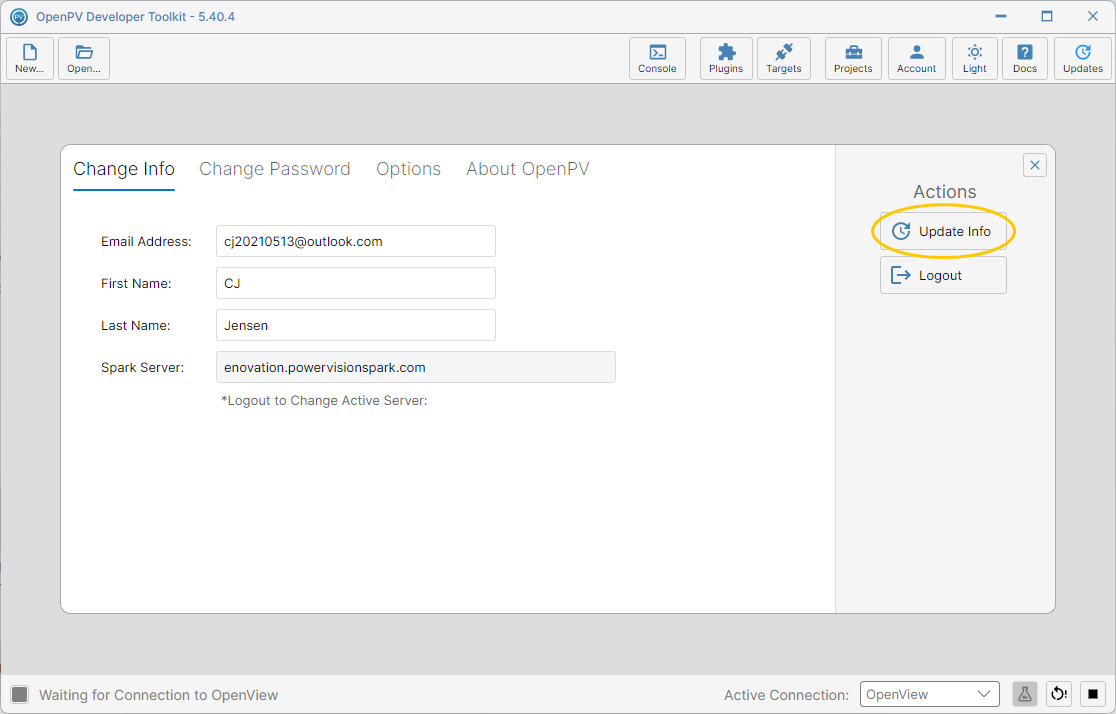
The nickname saved
Logout
-
Logout (also available on the Change Password tab) signs you out immediately — no confirmation prompt first.
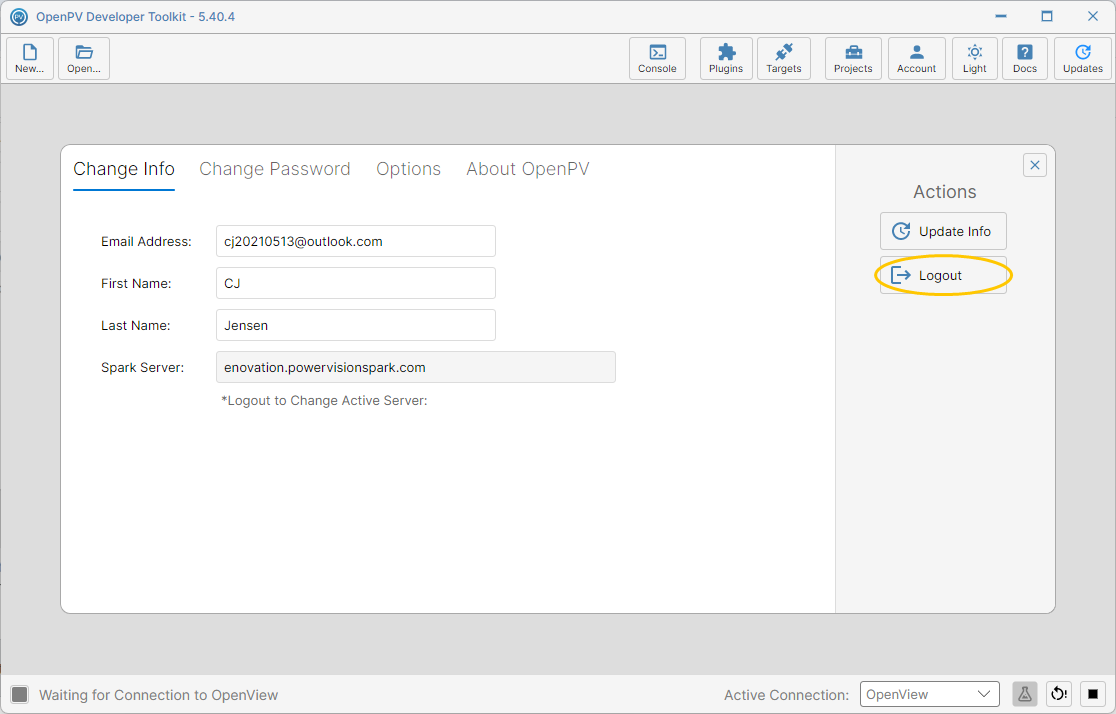
About to click Logout -
You're back at the sign-in screen. From here you'd sign in again with your Spark URL, User Name, and Password.
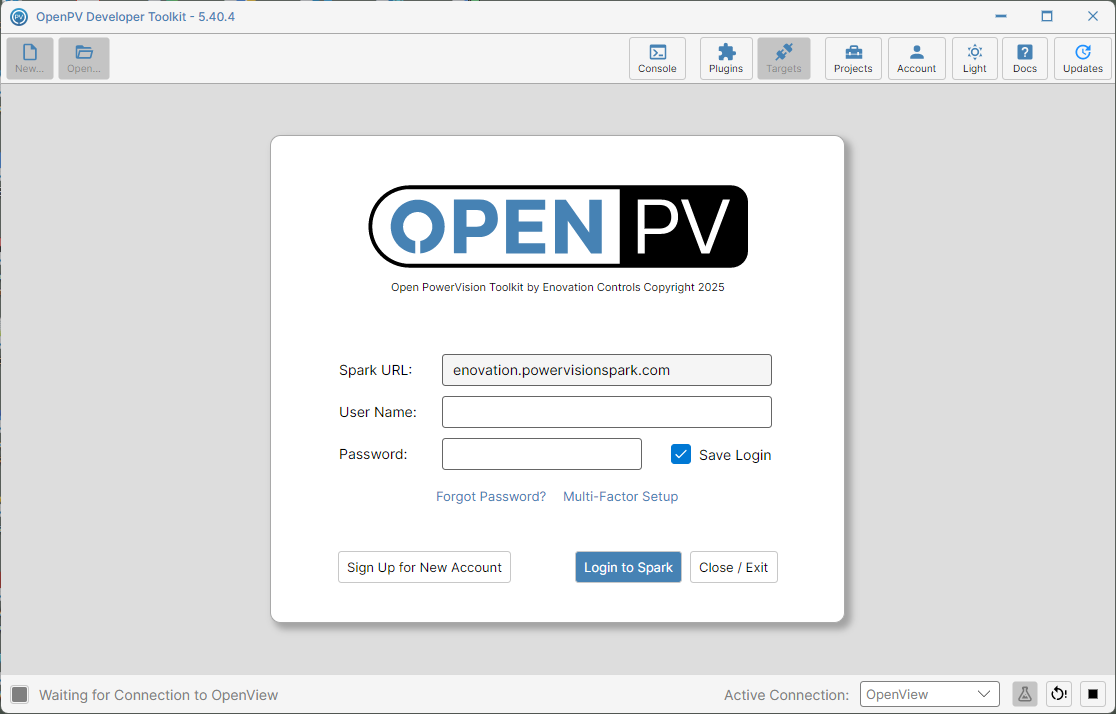
Signed out, back at the sign-in screen