Sign-In
General Shown while signed out
Sign in to your Spark account to use the toolkit.
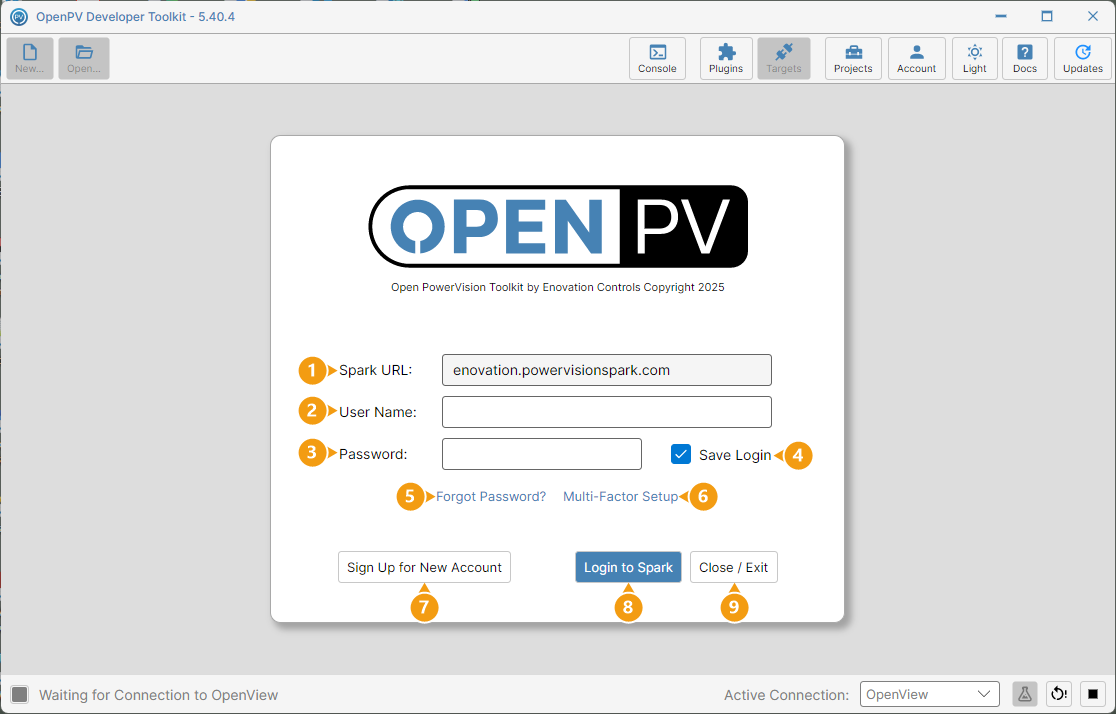
This screen appears automatically on startup if you aren't signed in yet — and immediately after Logout (see step 4 of Change Info). Each numbered item below describes the sign-in screen:
- Spark URL — defaults to Enovation's Spark server.
- User Name — your Spark account's user name.
- Password — your Spark account's password.
- Save Login — remembers your credentials for next time.
- Forgot Password? — request a password-reset email.
- Multi-Factor Setup — opens multi-factor authentication setup in your browser.
- Sign Up for New Account — register a new Spark account.
- Login to Spark — signs in with the credentials entered above.
- Close / Exit — quits the app entirely from this screen.
Forgot Password?
-
Click Forgot Password?.
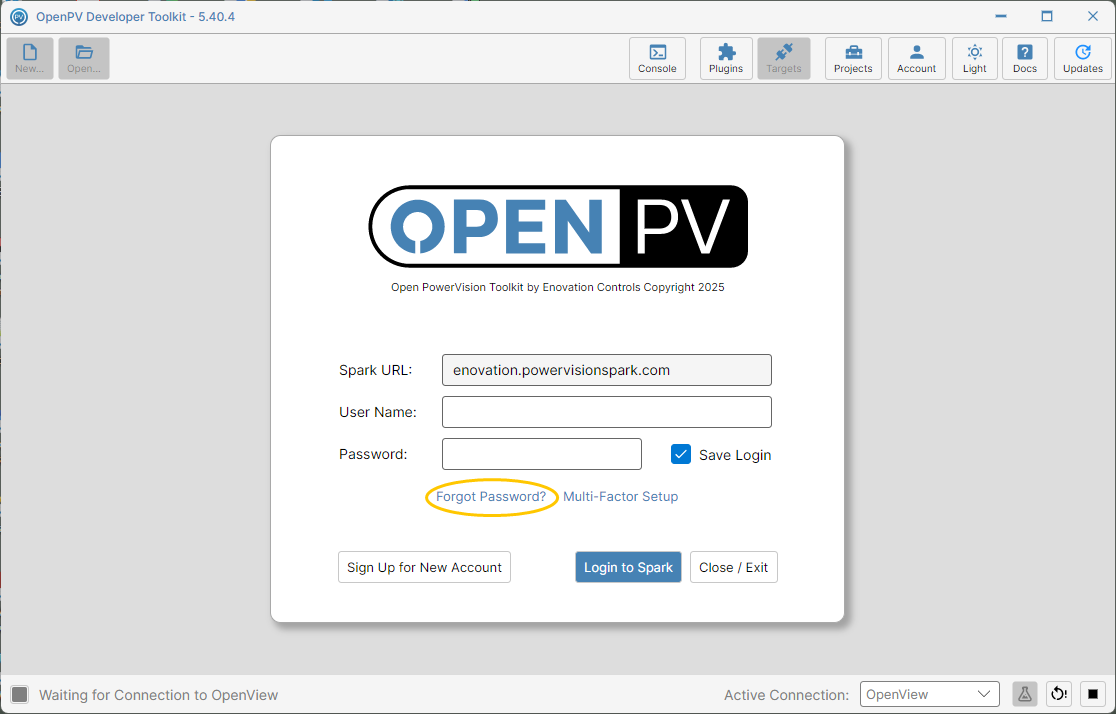
The Forgot Password? link on the sign-in screen -
Without a User Name entered, you'll get an error — it needs an address to send the reset to.
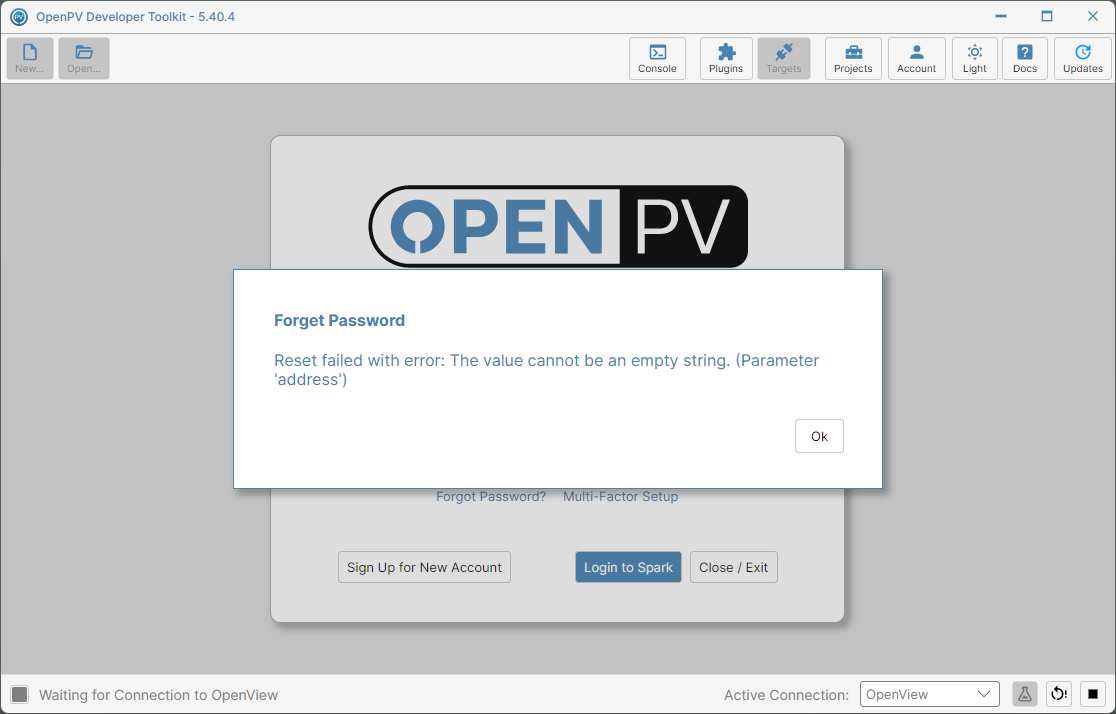
Forgot Password with no User Name entered -
Type your account's User Name (email), then click Forgot Password? again.
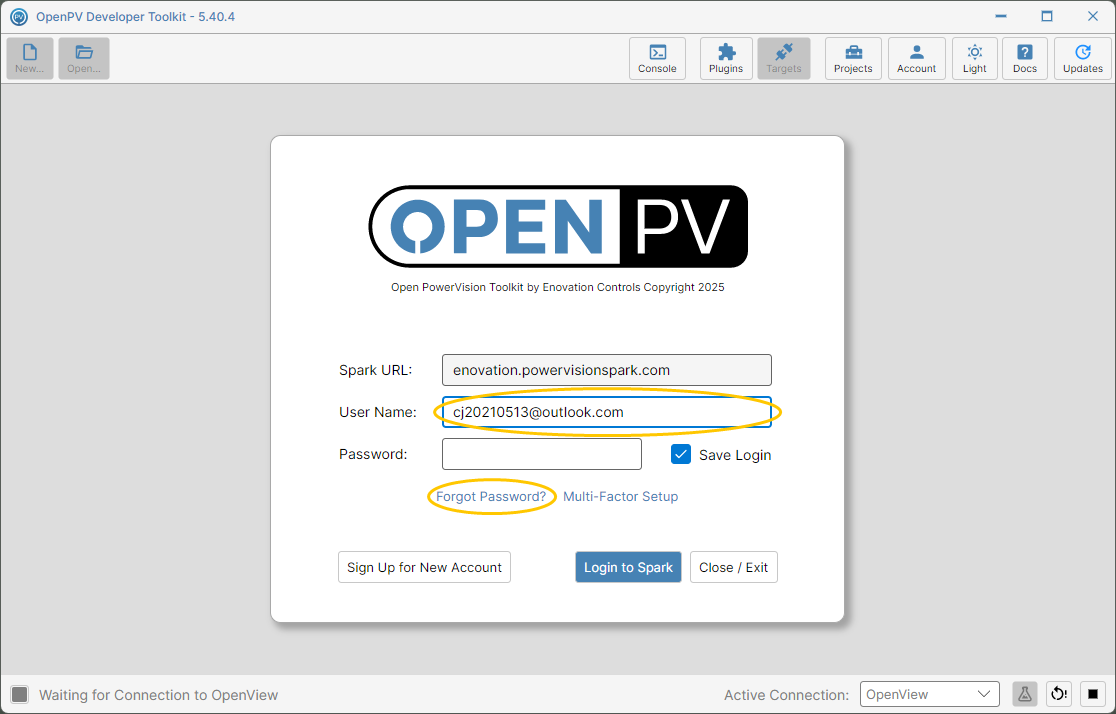
User Name filled in -
A reset email is sent to that address.
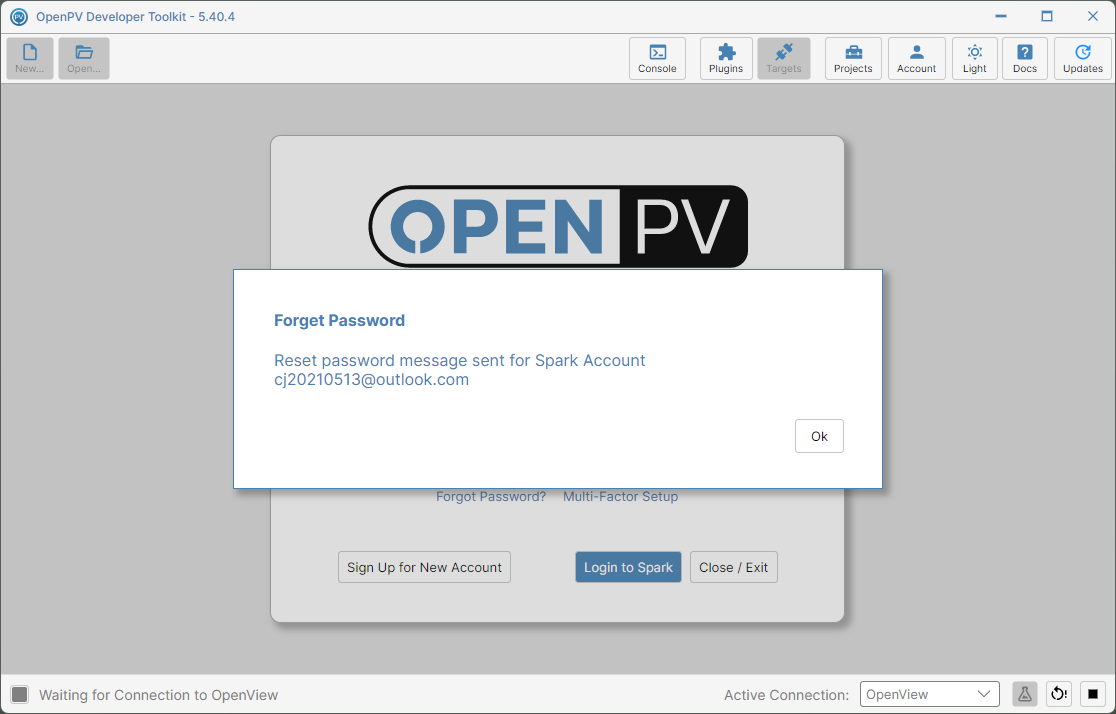
Reset email sent
Multi-Factor Setup
-
Click Multi-Factor Setup.
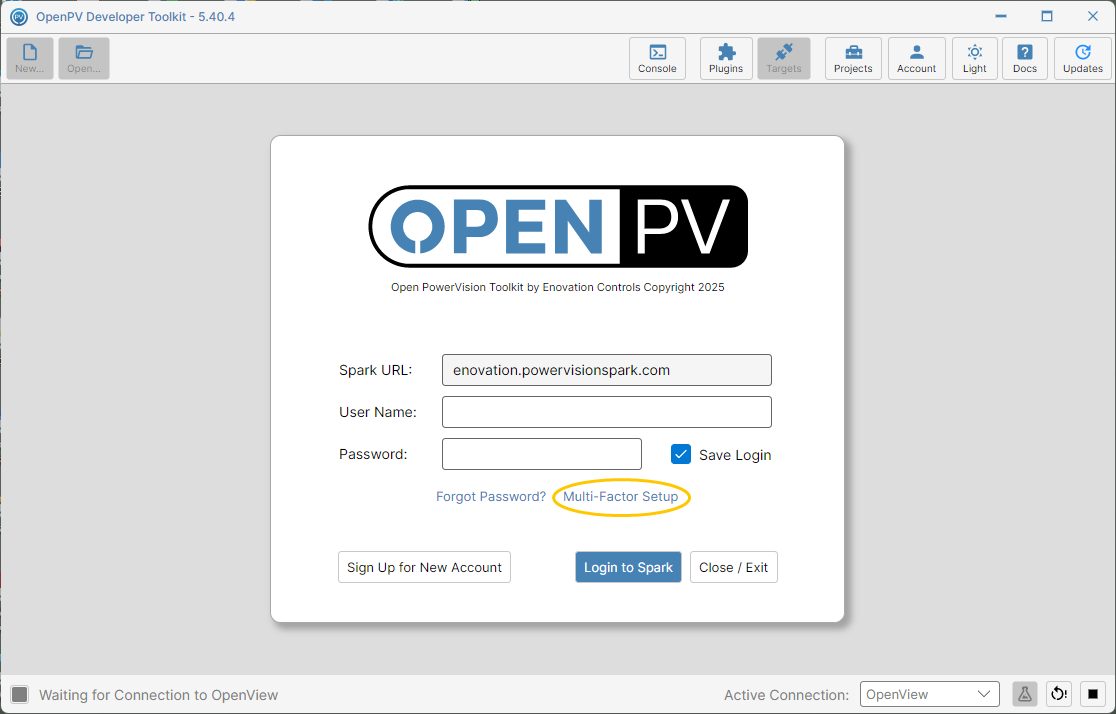
The Multi-Factor Setup link on the sign-in screen -
Your browser opens to the Enovation Cloud Account Services login page — the app's own window is unaffected. Follow the instructions there to set up multi-factor authentication for your account.
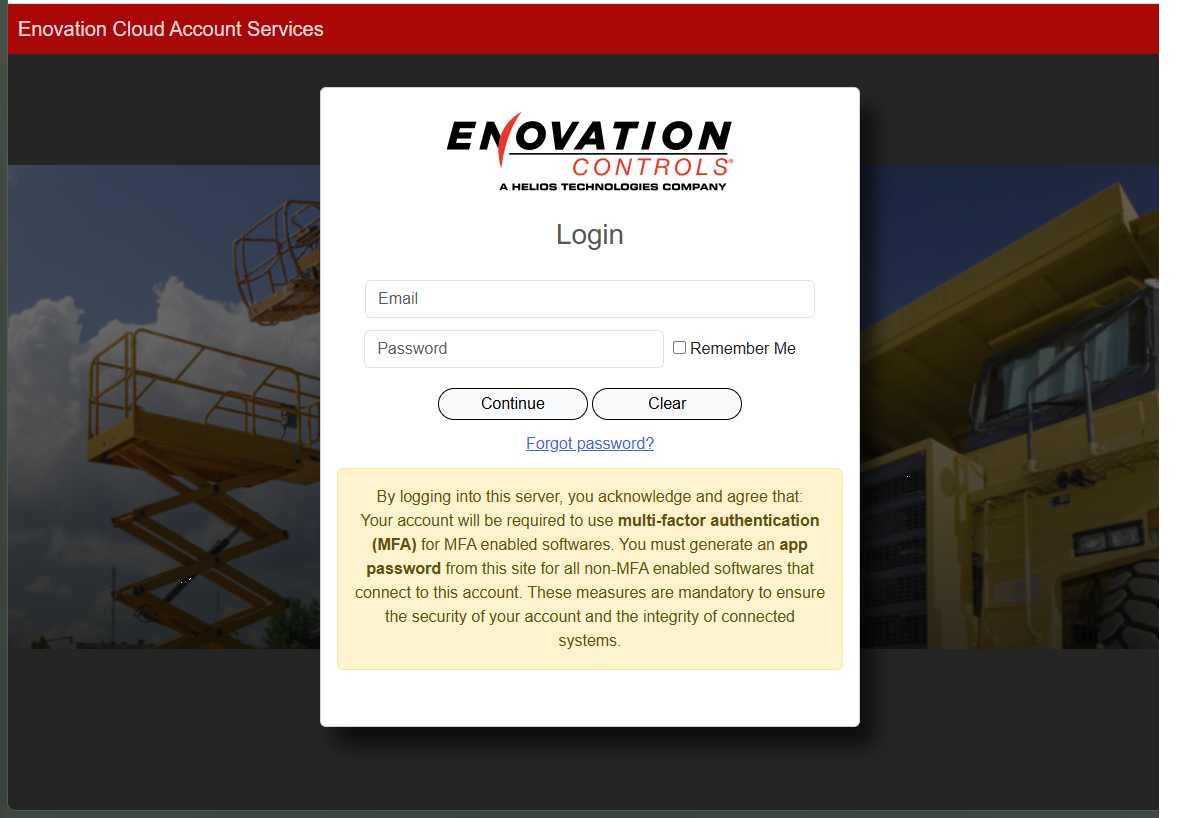
The Enovation Cloud Account Services login page, opened in your browser
Sign Up for New Account
-
Click Sign Up for New Account.
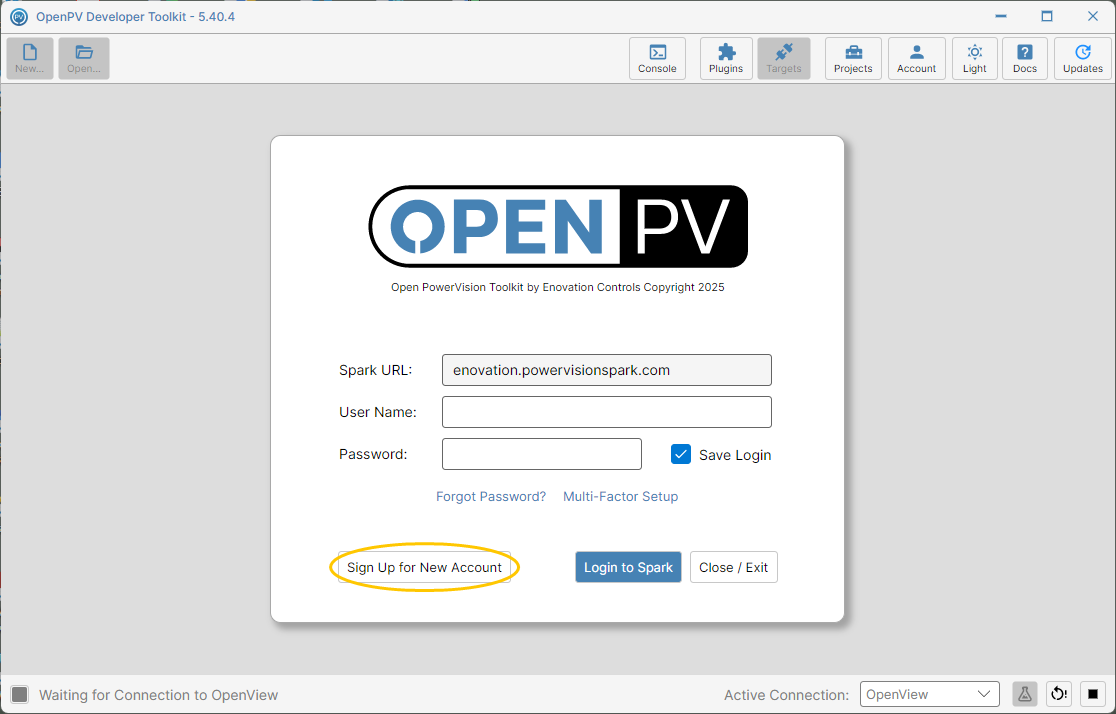
The Sign Up for New Account button on the sign-in screen -
Fill in your Name, Company, and Email, then click Signup.
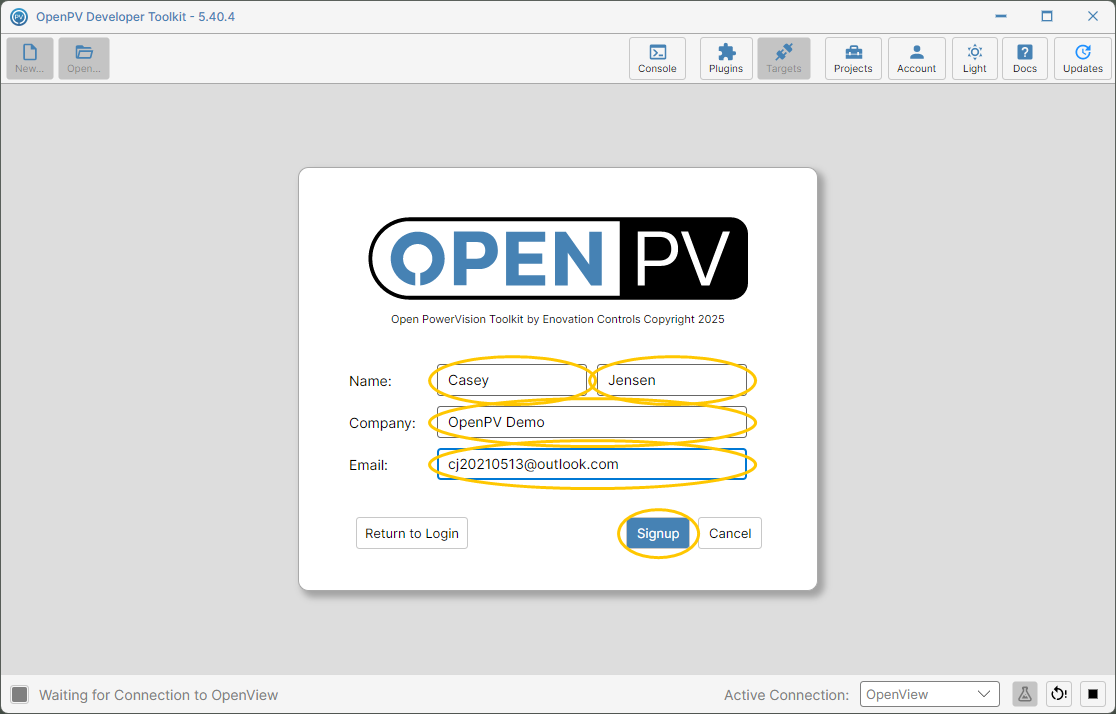
The Sign Up for New Account form -
A confirmation email is on its way to the address you entered. Click Ok, then check your inbox and follow the link to verify your email before signing in.
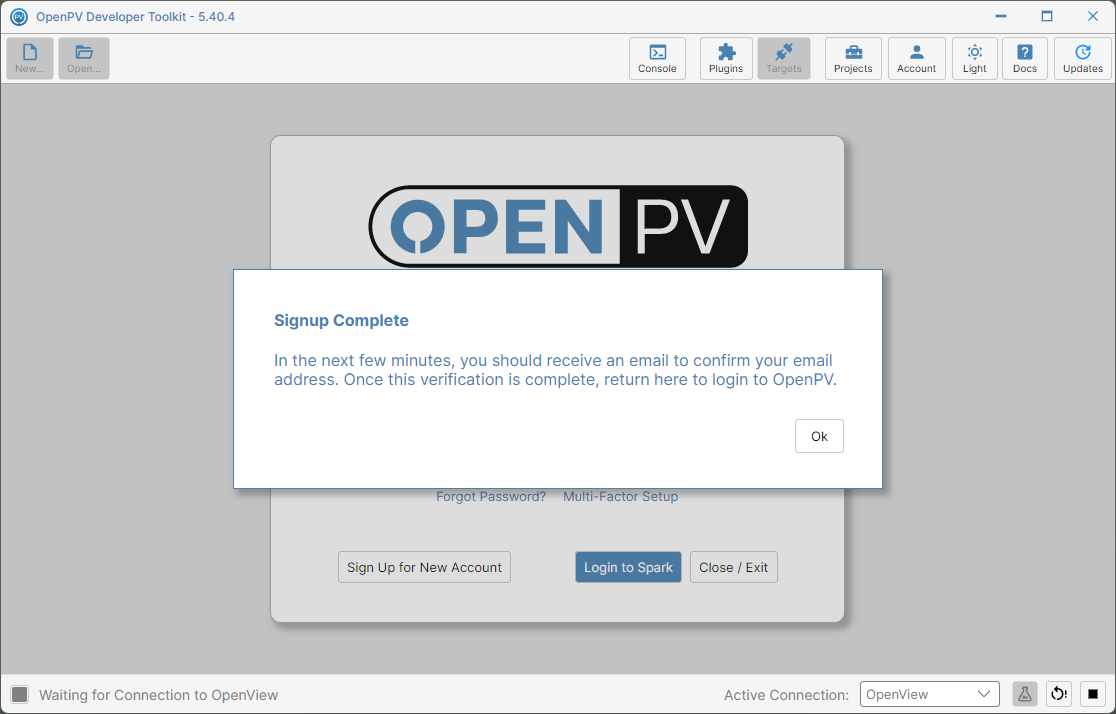
Signup complete