Console
Utilities No project needed
Watch live output and device logs without leaving the toolkit.
The Console shows a running log of what the toolkit is doing — build output, load progress and other tasks — and can stream live logs from the connected display. Click Console on the toolbar to show it, and again to hide it.
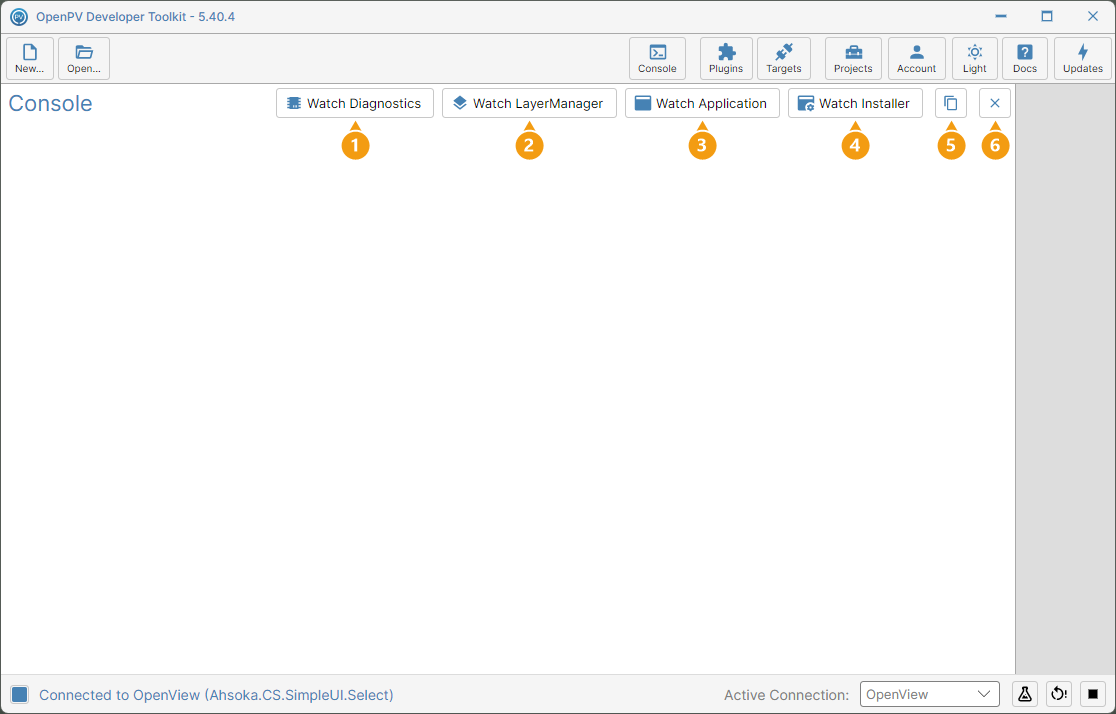
The Console panel is shown below, idle, with each numbered button described in turn:
- Watch Diagnostics — streams the display's kernel and system log (
dmesg -w). - Watch LayerManager — streams the log of Ahsoka.LayerManager, which manages the display's screens and surfaces.
- Watch Application — streams the log of your app: its Ahsoka.Application, Ahsoka.UserInterface and Ahsoka.Services units, plus every service your package installs (such as the ones ticked on the Service Manager panel).
- Watch Installer — streams the log of Ahsoka.Installer, which installs packages on the display.
- Copy — copies the whole log to the clipboard, as plain text.
- Close — hides the Console. The log is kept, so it's still there when you open the Console again.
Watch a Device Log
-
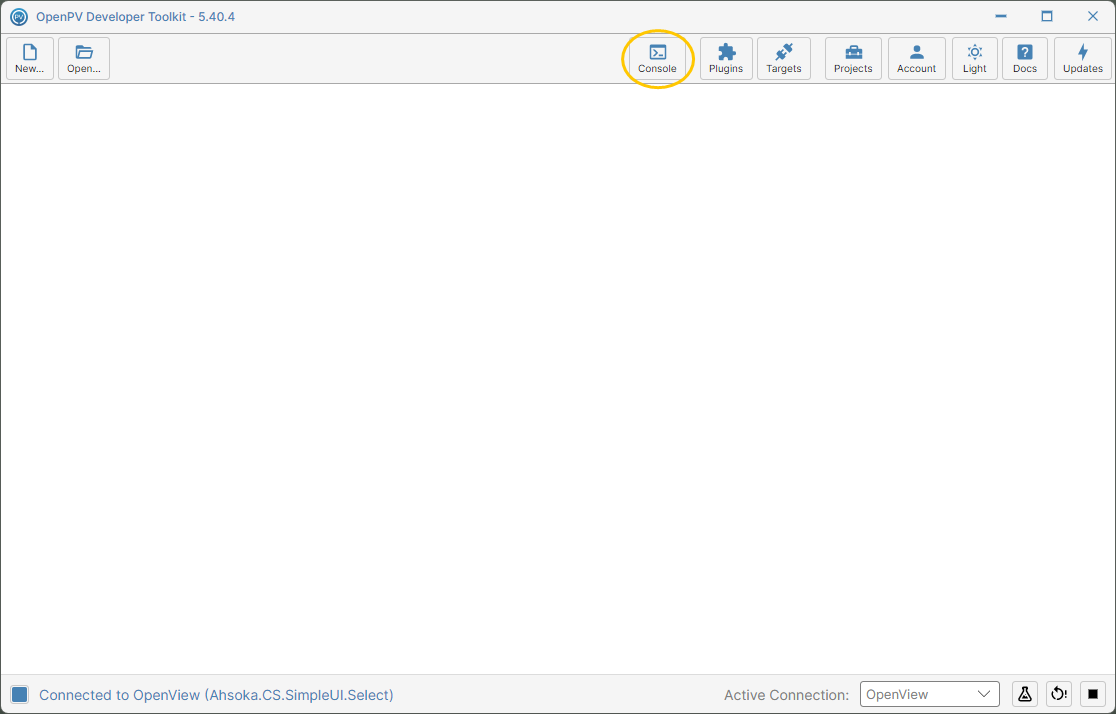
On the toolbar, click Console.
The Console button -
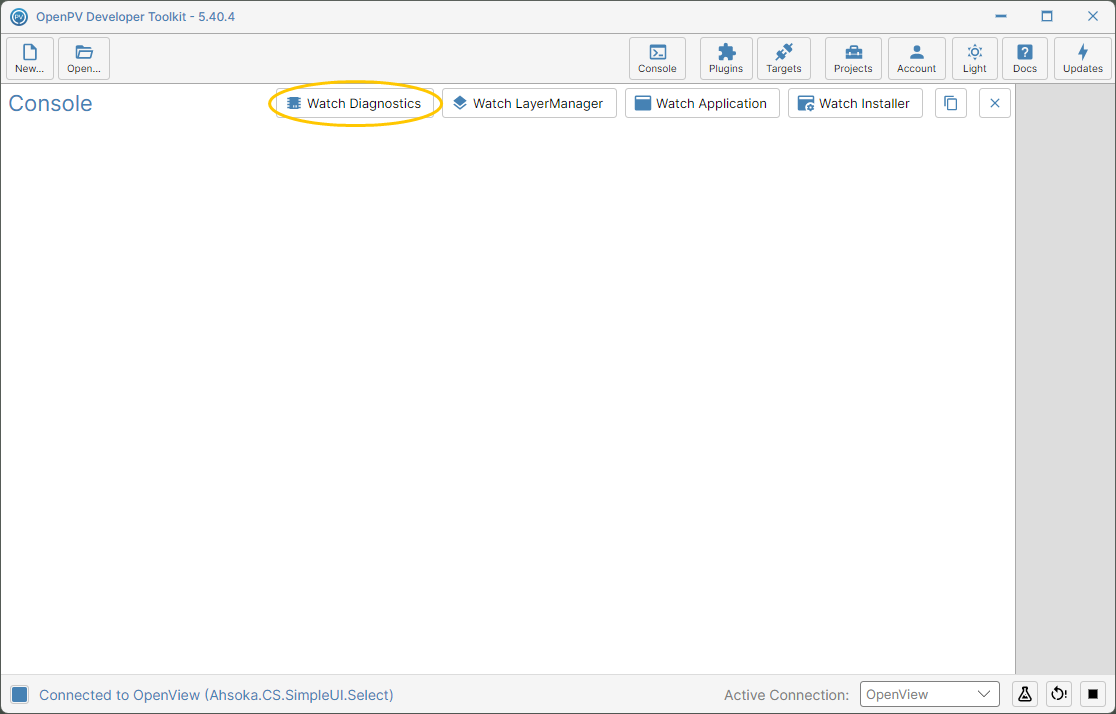
Click a Watch button — here, Watch Diagnostics.
The Watch Diagnostics button -
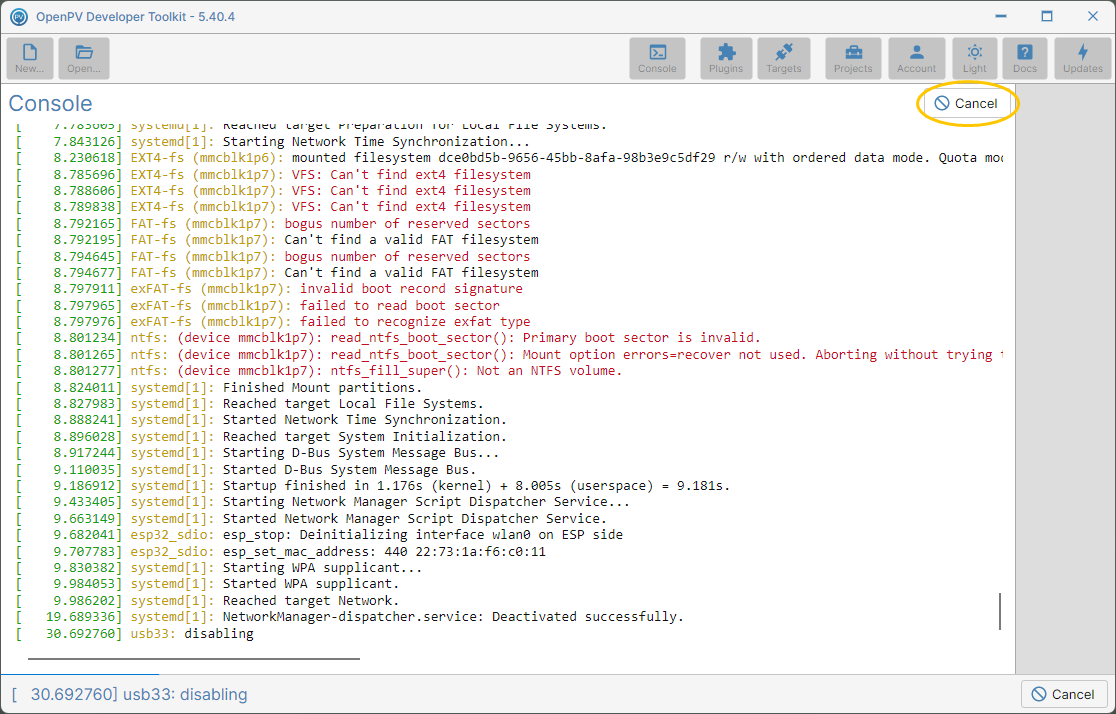
The log is cleared, and the display's log streams in live — first everything already in it, then each new line as it happens. While it runs, the toolbar is greyed out, and the Watch buttons are replaced by Cancel. The bar at the bottom shows the newest line, with a second Cancel button. To stop, click Cancel.
Watch Diagnostics streaming, with the Cancel button -
The log ends with Watch Diagnostics Messages (dmesg) Ended, and the Watch buttons are back.
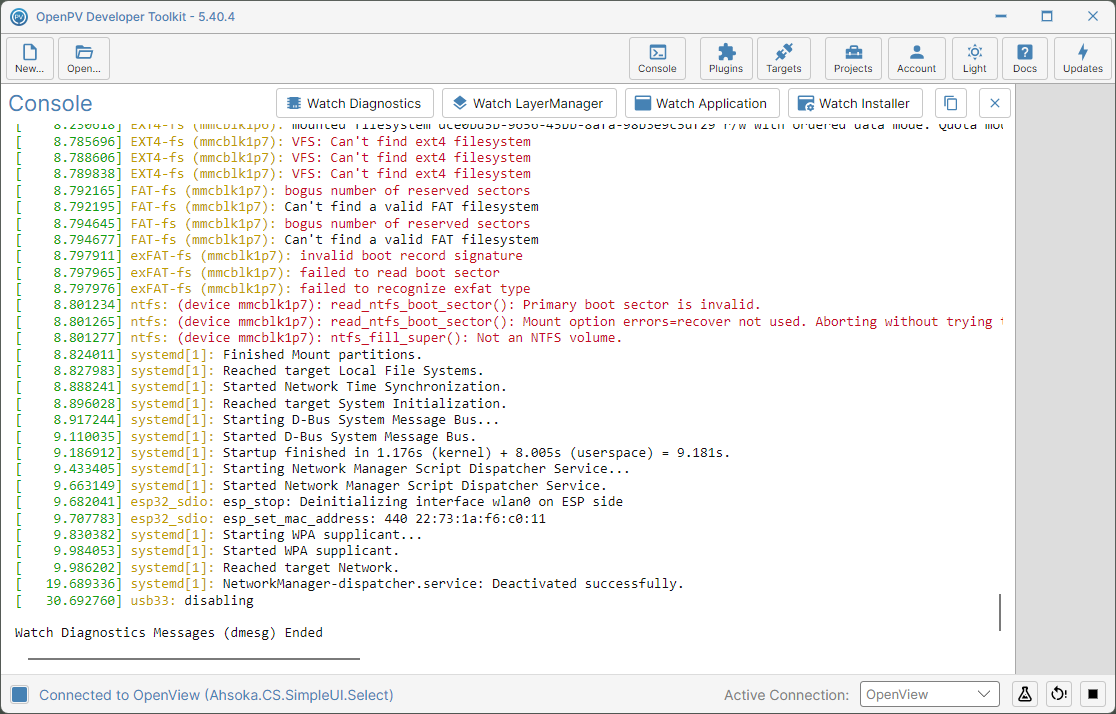
The watch stopped
What Each Watch Shows
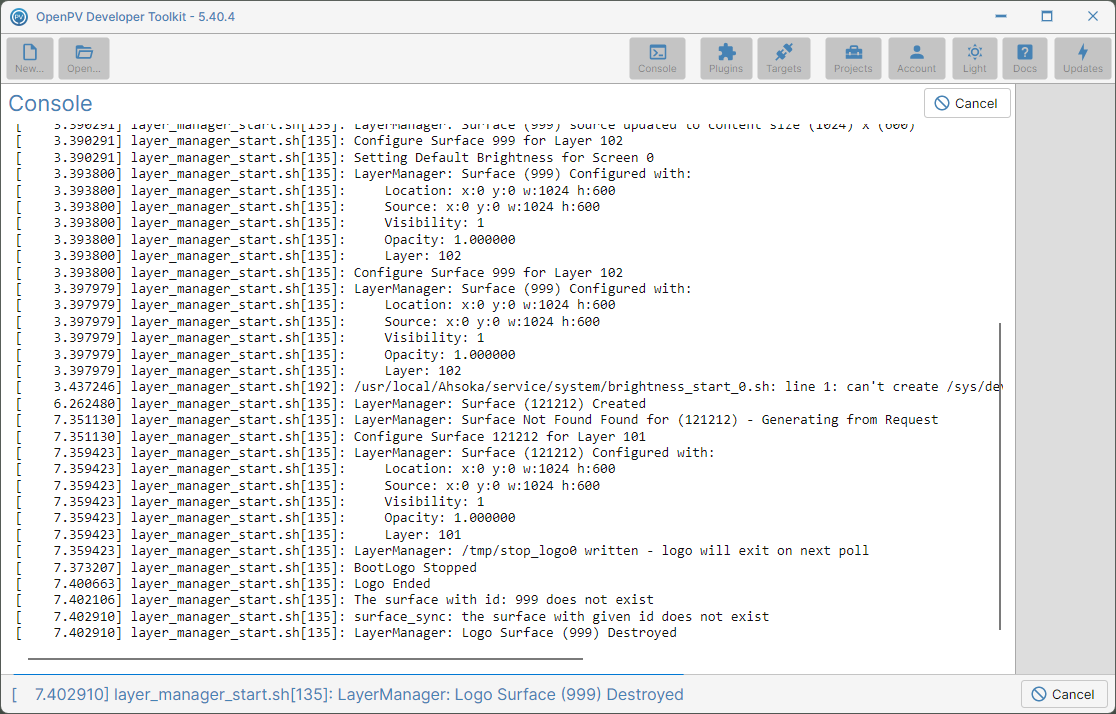
Watch LayerManager shows the screens and surfaces being set up — here, the startup logo surface being created, configured and then removed.
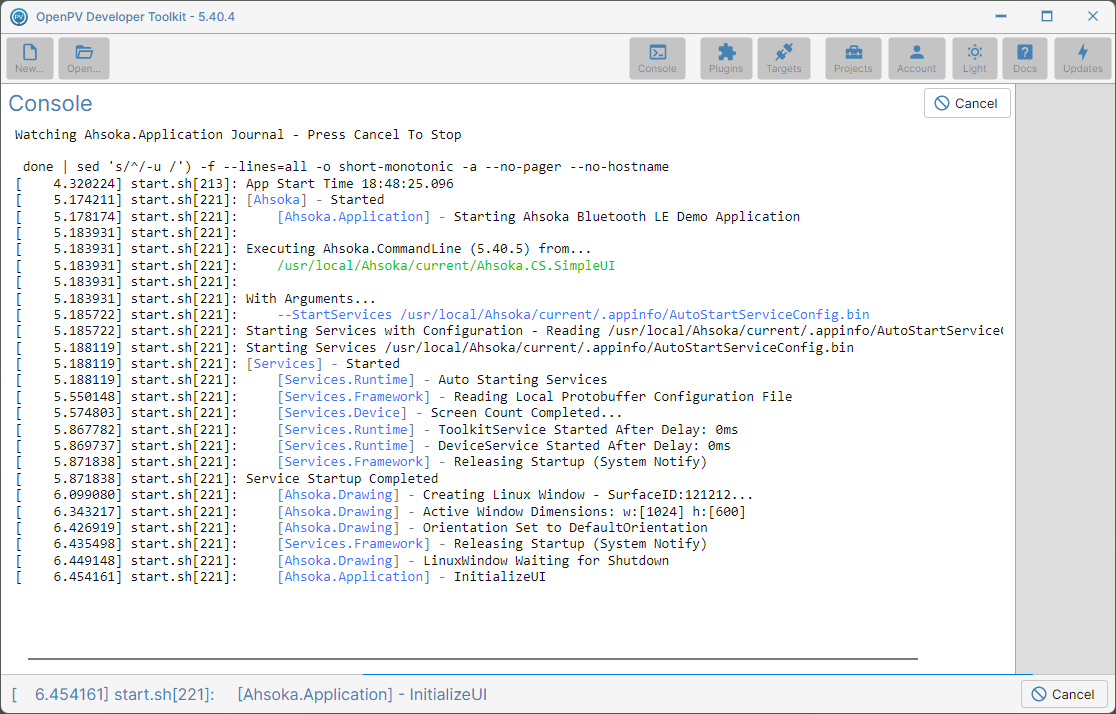
Watch Application shows your app starting — here, Ahsoka.CS.SimpleUI starting its services and creating its window.
Watch Installer shows the log of the display's Installer, so it only has data while the display is running the Installer — while a package is being installed, or after you stop your app. When the display is running your app, it's empty. See Watch the Installer below.
Watch the Installer
-
Watch Installer only has data while the display is running the Installer. To switch the display to the Installer, click Stop Application (■) in the bar at the bottom.
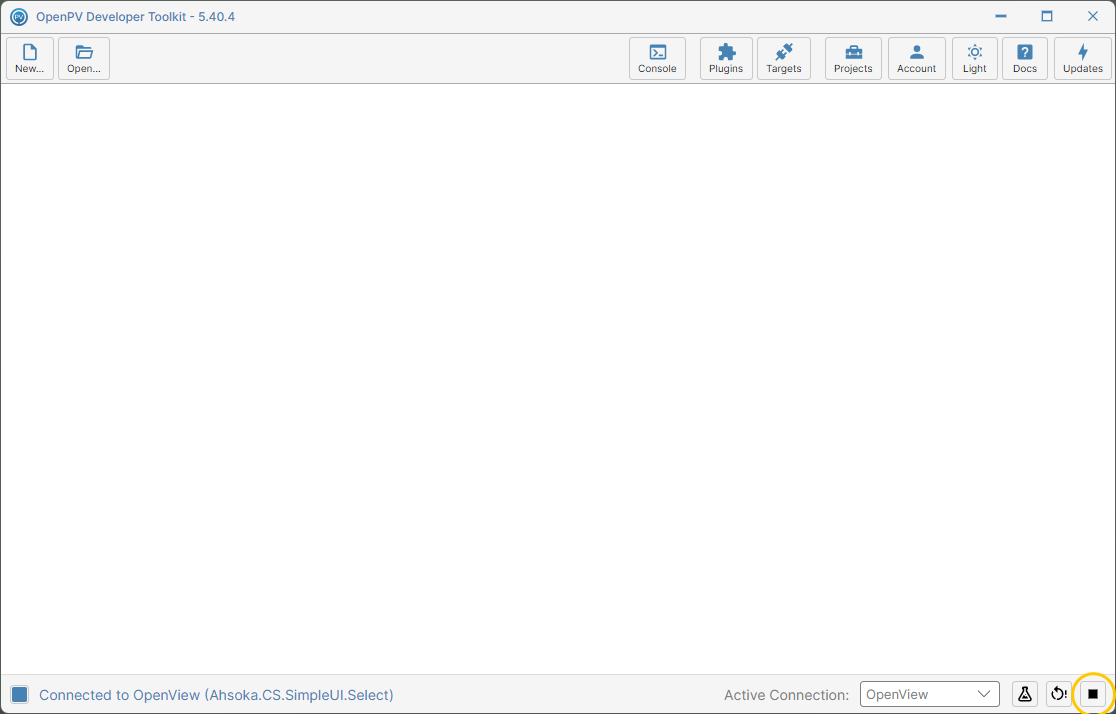
The Stop Application button -
Your app stops and the display restarts into the Installer. Once it's back, the bar shows Connected to OpenView (Ahsoka.Installer.UI).
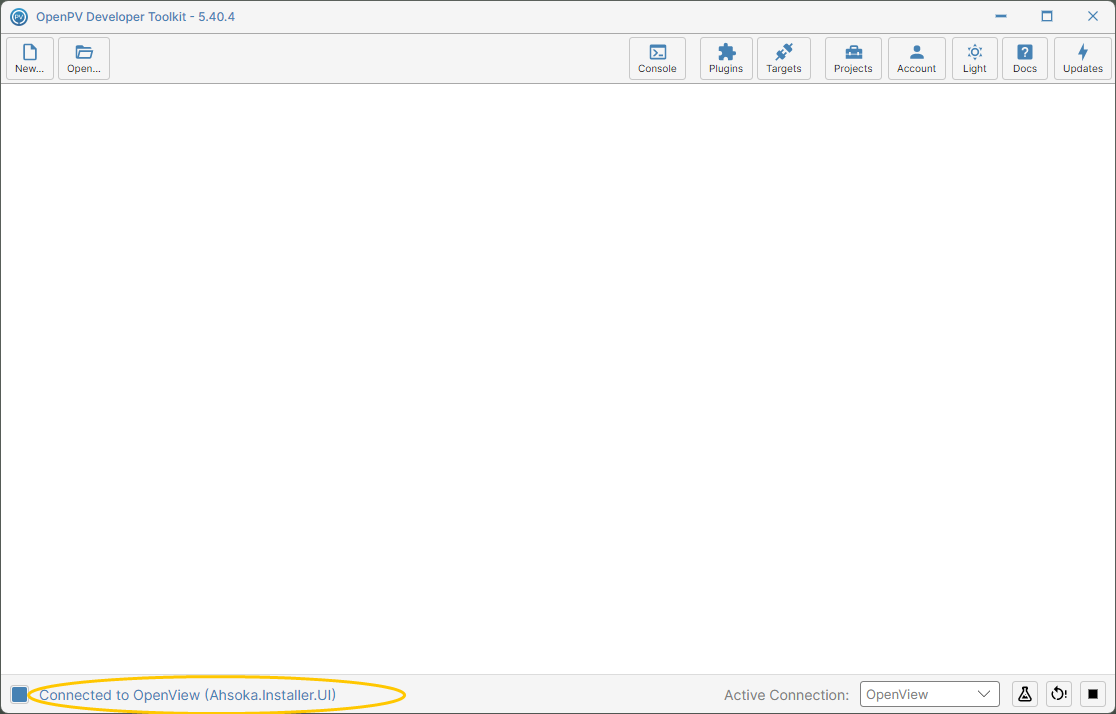
Connected to the Installer -
On the toolbar, click Console, then click Watch Installer. The Console shows Stop Application Sent from the step before.
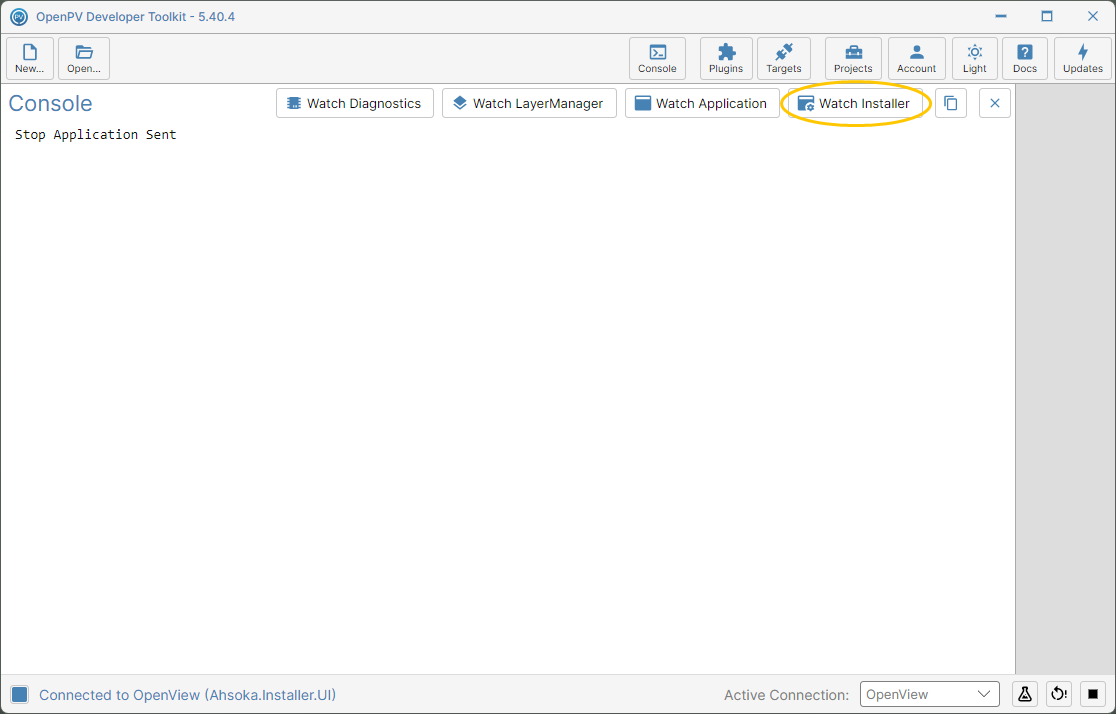
The Watch Installer button -
The Installer's log streams in — here, the Installer starting its services, its screen, USB and WiFi. Click Cancel to stop watching.
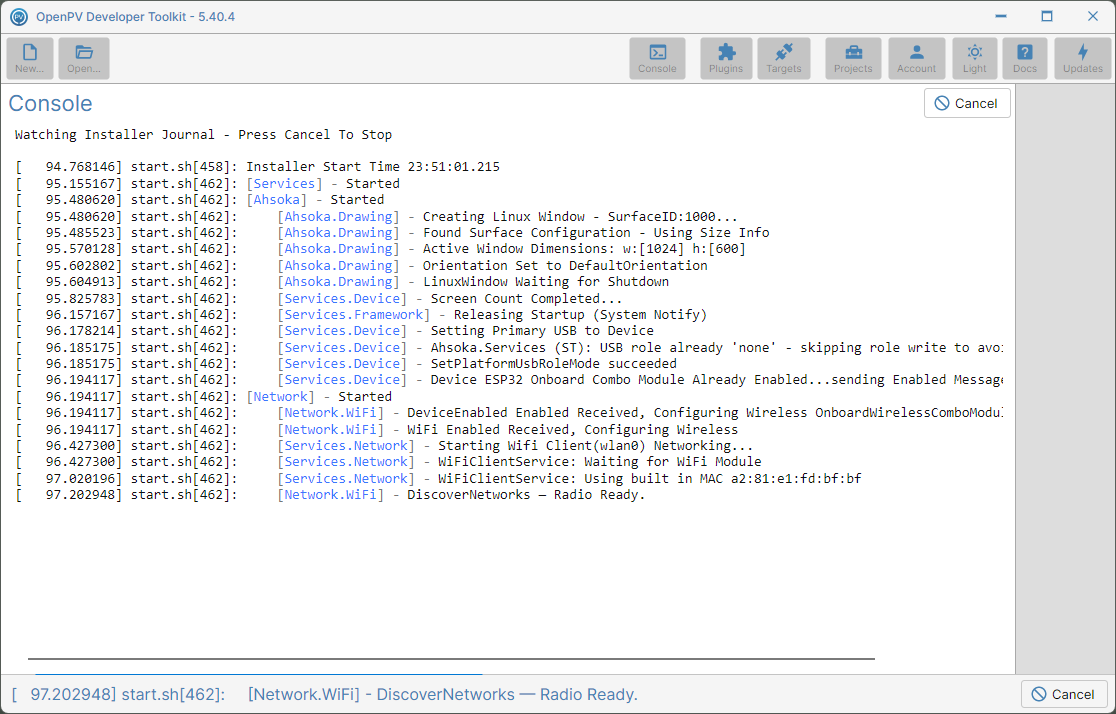
Watch Installer streaming the Installer's log