Theme Toggle (Dark/Light)
Utilities Always enabled
Switches the app's color theme.
Hover over the button to see: "Cycle theme: Light → Dark → Auto (follows your computer's setting)"
Clicking the button cycles the app's color theme in order: Light → Dark → Auto, then back to Light. "Auto" matches your computer's own light/dark setting. The button's icon and label always show the current theme, and your choice is remembered the next time you open the app.
-
Starting on Light, click the button. The app switches to dark mode.
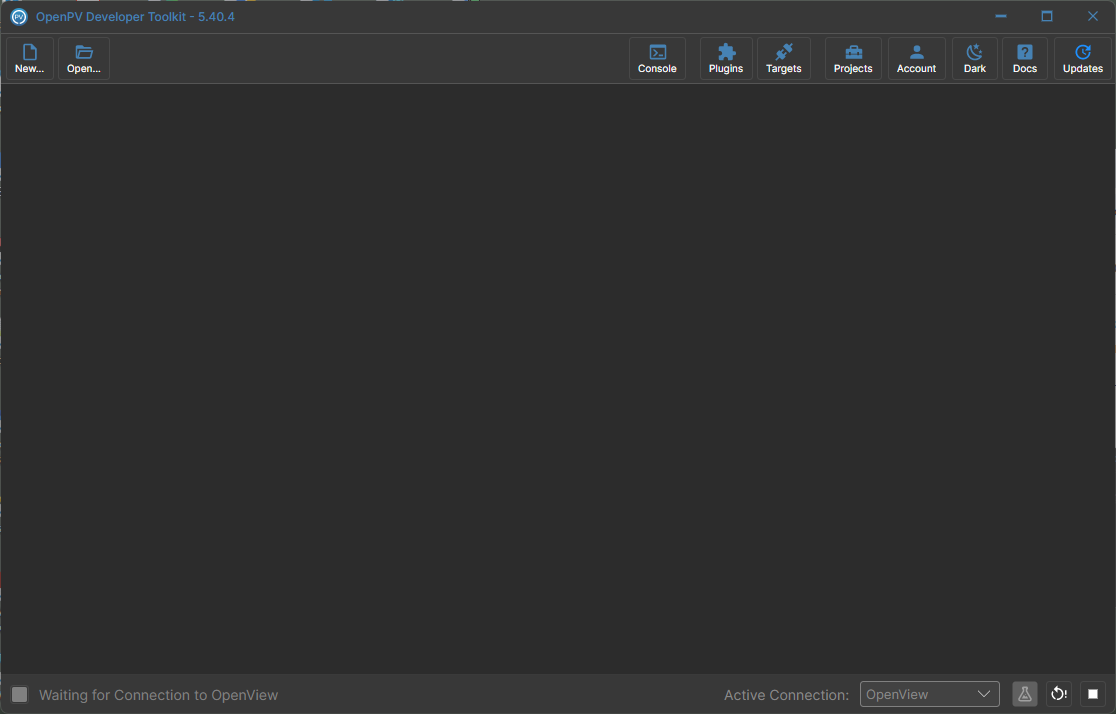
The whole app in dark mode, right after clicking Light -
Click it again. The app's appearance follows this computer's own setting — light, here.
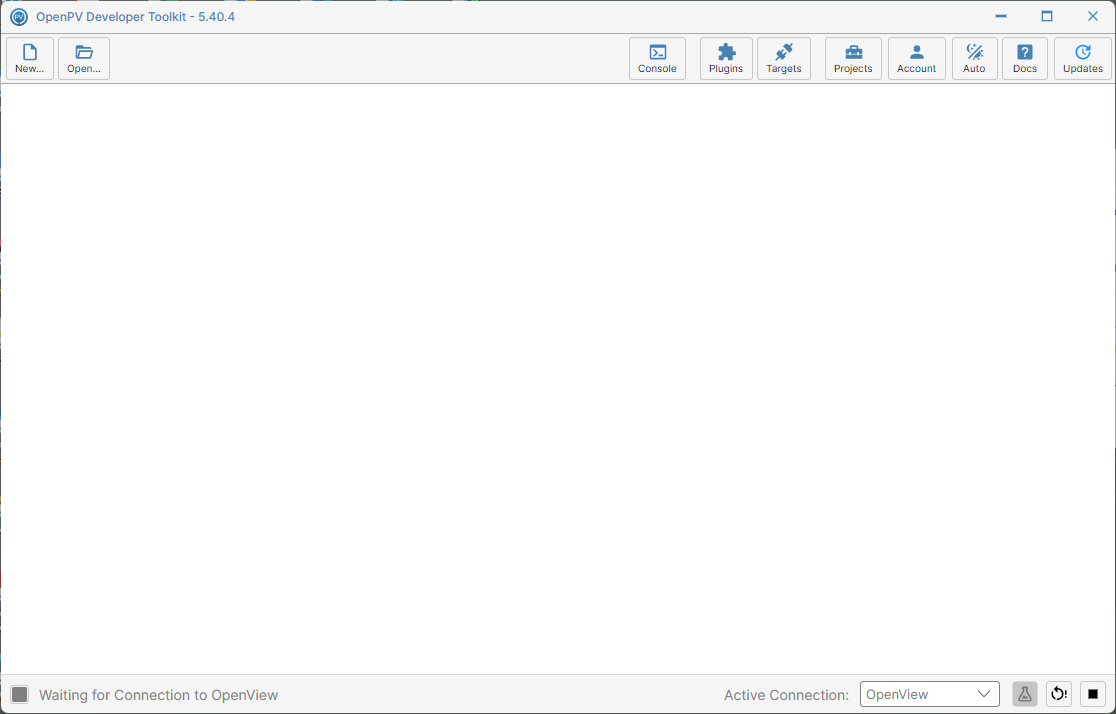
The app back in a light appearance under Auto, matching this computer's own setting -
Click it a third time to return to Light, completing the cycle.
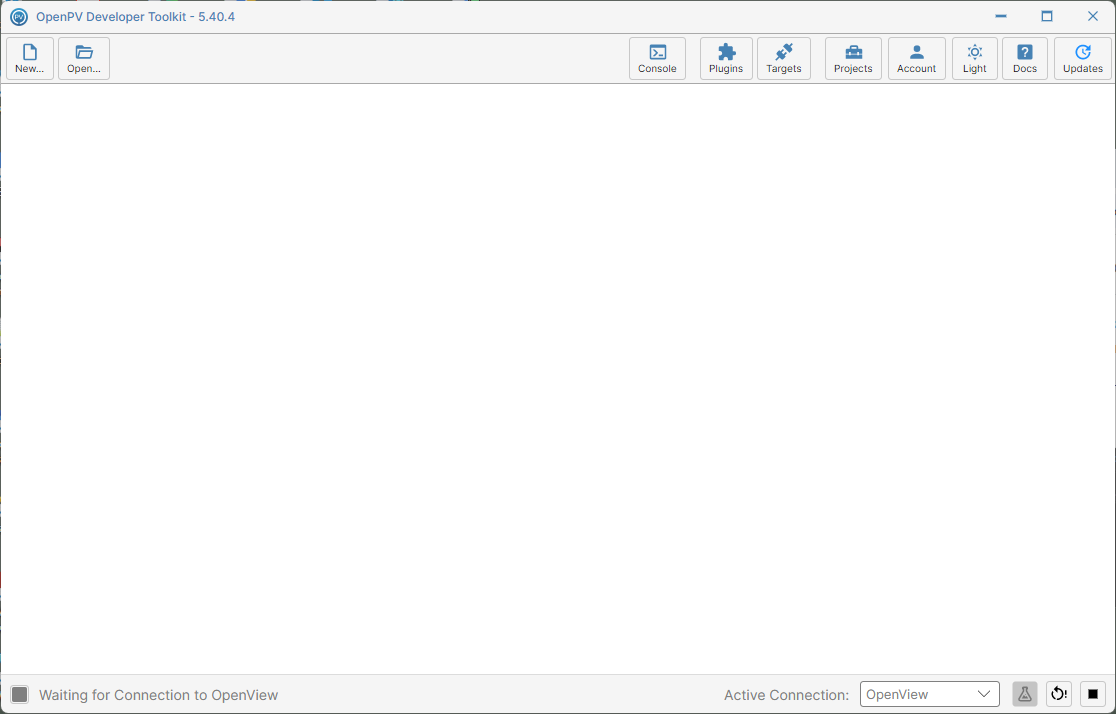
Back to Light, completing the Light → Dark → Auto → Light cycle