Hardware
Packaging Tools Requires: project open
Configure the optional devices your app's DeviceService knows about, and which state its primary USB port starts in.
Lists the optional devices — such as a WiFi module, Ethernet, or a USB cell modem — that your app's DeviceService can start, stop and query at runtime. The toolkit itself doesn't talk to the hardware; these settings are written into the package and used on the display. DeviceService also tells your app when a supported USB device (a USB WiFi module or cell modem) is plugged in or removed — there's nothing to set up for that here.
On the right, Hardware Actions offers Reset to Defaults, Add Hardware, and Remove Hardware.
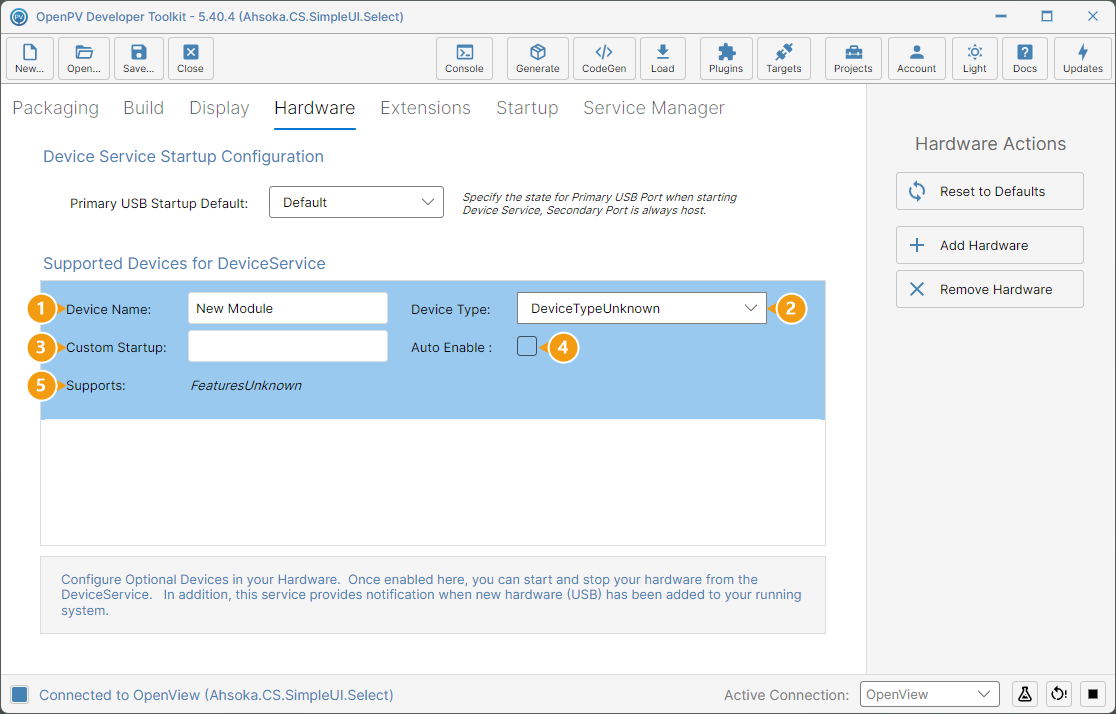
Supported Devices for DeviceService lists one row per device. Some templates come with devices already in the list, and some start with it empty. The panel below shows a device just added with Add Hardware, with each numbered field described in turn:
- Device Name — the name your app sees for the device. Give each device a different name.
- Device Type — what kind of device it is.
- Custom Startup — saved with the device, but not used by DeviceService in this version.
- Auto Enable — turns the device on automatically when DeviceService starts, or when it's plugged in.
- Supports — read-only: what that type of device can do, such as Wifi,BluetoothLe,BluetoothClassic.
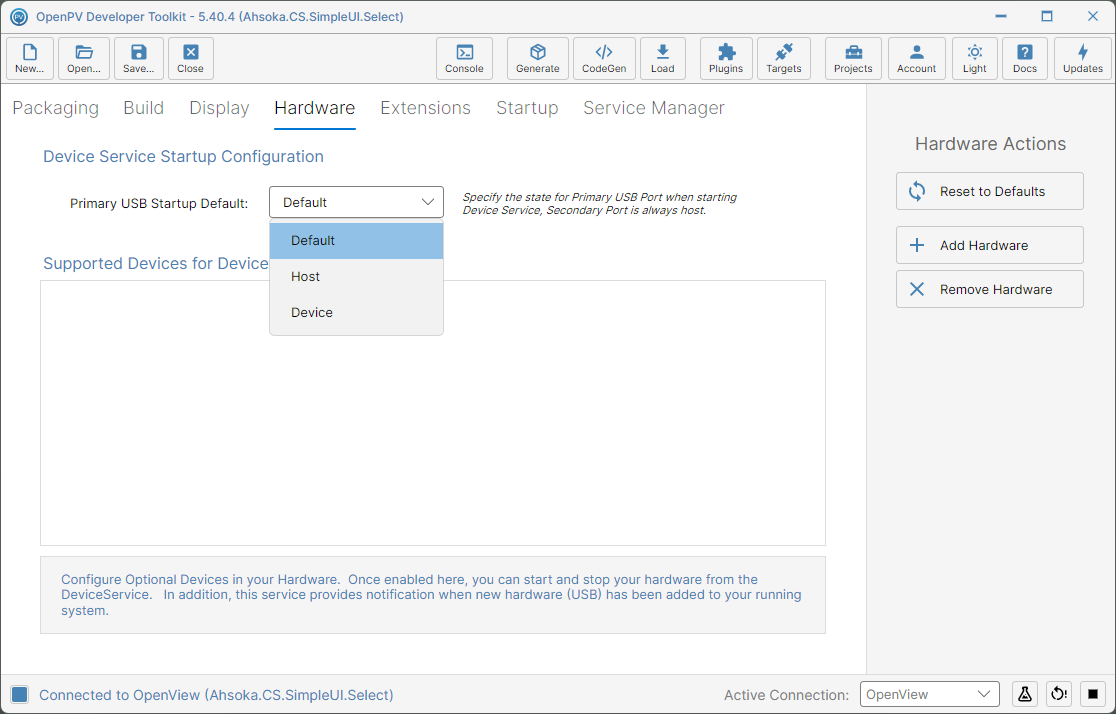
Primary USB Startup Default sets which state the display's primary USB port starts in when DeviceService starts: Default leaves the port as it is, Host lets you plug in USB devices such as a USB stick, and Device lets the display connect to your PC as a USB device. The secondary USB port can't be changed here.
Add a Device
-
Click Add Hardware. There's no dialog — a new row is added straight away as New Module, with Device Type set to DeviceTypeUnknown and Auto Enable off.
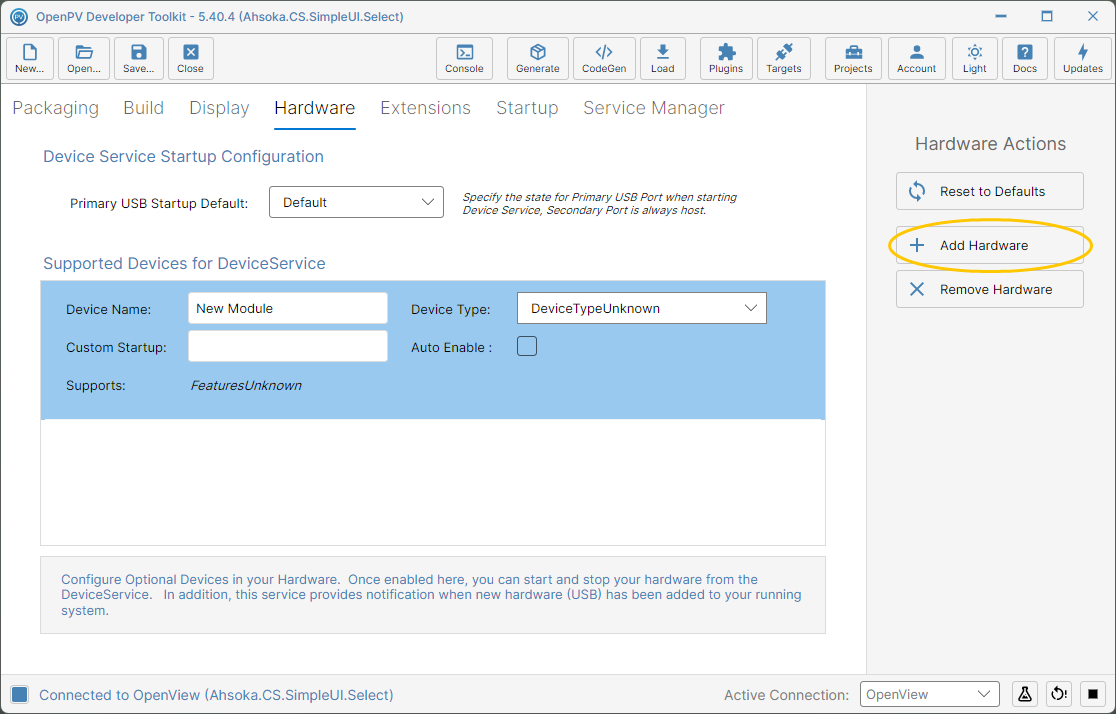
New Module, added by Add Hardware -
Click Device Type and choose the device — here, OnboardWirelessComboModule, the onboard WiFi and Bluetooth module the Ahsoka.CS.BLE demo uses.
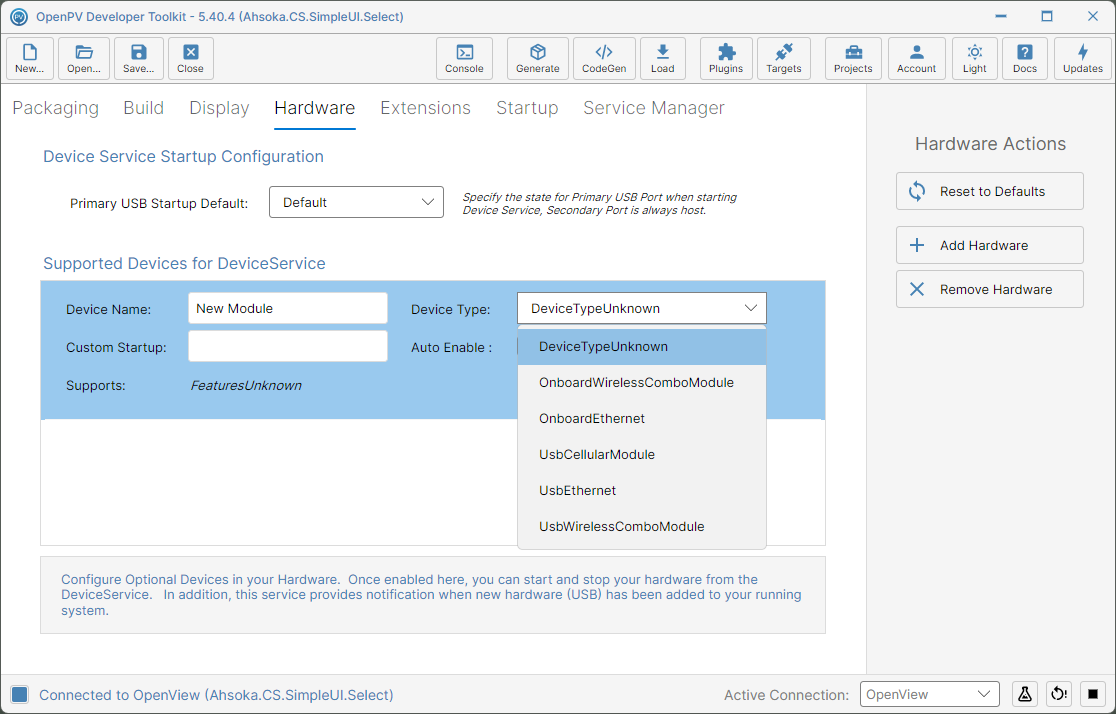
The Device Type choices -
Type a Device Name — here, WiFi Combo Module — and tick Auto Enable if DeviceService should turn the device on by itself. Supports still shows FeaturesUnknown at this point.
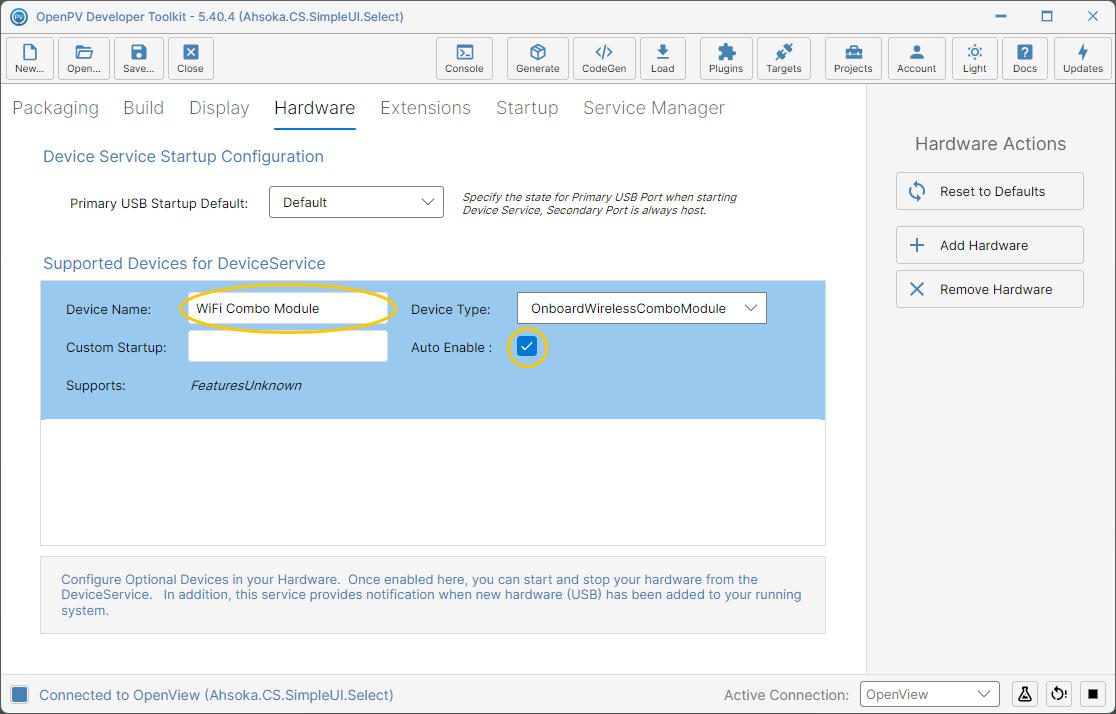
The device named, with Auto Enable ticked -
Click Save... on the toolbar. Supports now shows what the device can do — here, Wifi,BluetoothLe,BluetoothClassic.
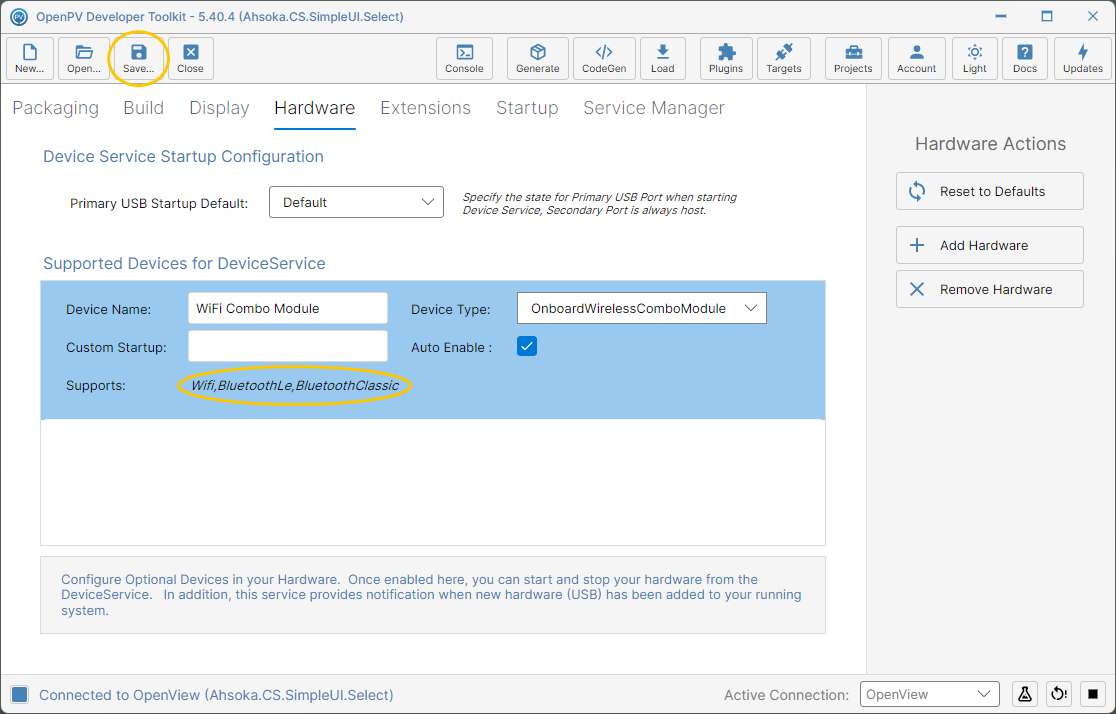
Supports updated after saving the project
Remove a Device
-
Select the device and click Remove Hardware.
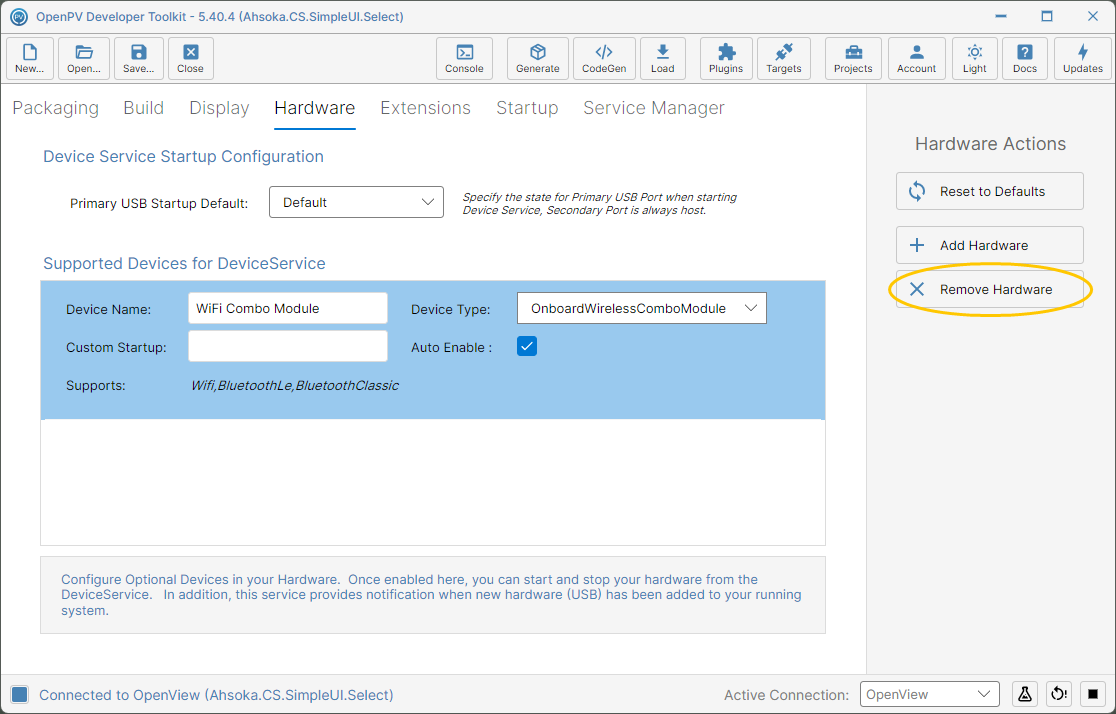
The device selected, and the Remove Hardware button -
It's removed right away, with no confirmation, and the next device in the list is selected.
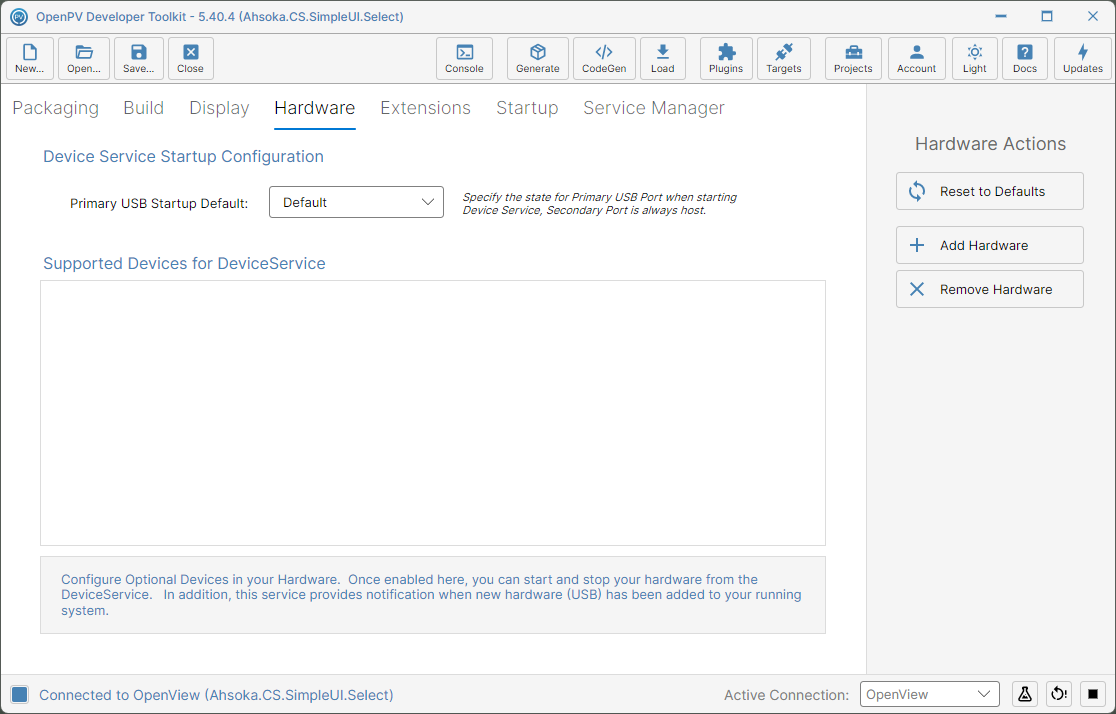
The device list after removing the device
Reset to Defaults
-
Click Reset to Defaults to replace the whole list with the platform's default devices — on OpenViewLinux, a single WiFi Combo Module (OnboardWirelessComboModule). There's no confirmation, and Auto Enable is off on every device it adds.
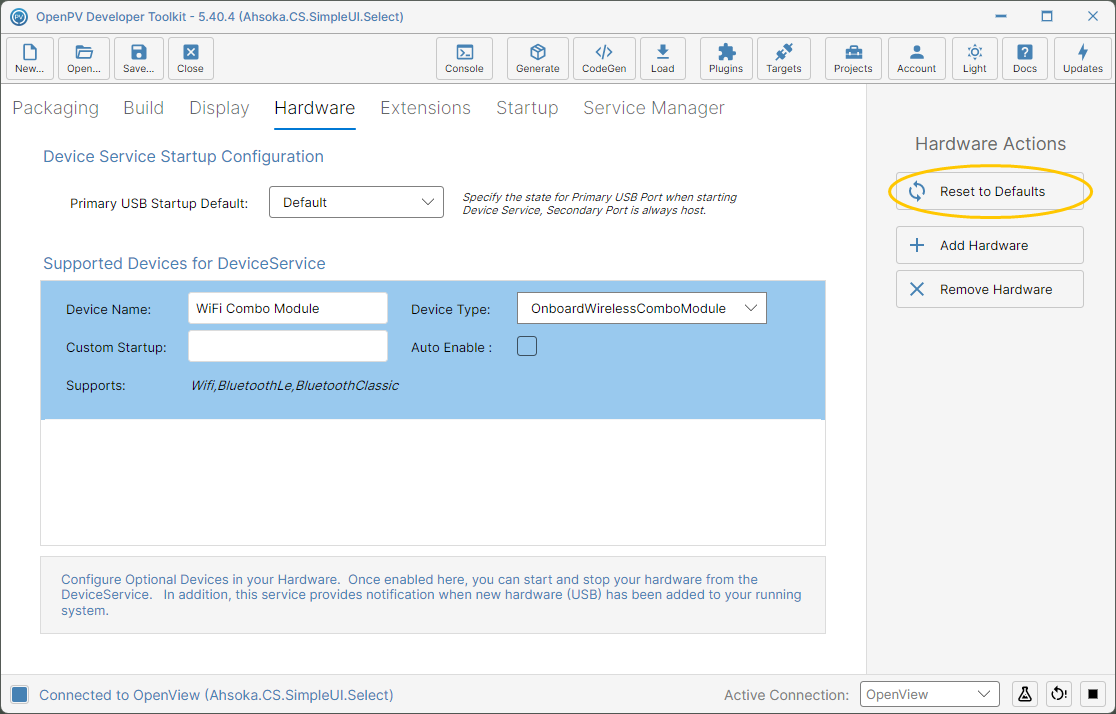
The device list after Reset to Defaults