Manage Applications
Utilities Projects Requires: internet connection
View and manage the list of application releases in this project.
A release's track controls which connected devices can see it: a device on the Development track can see releases on any track, one on Beta can see Beta and Release, and one on Release can only see Release.
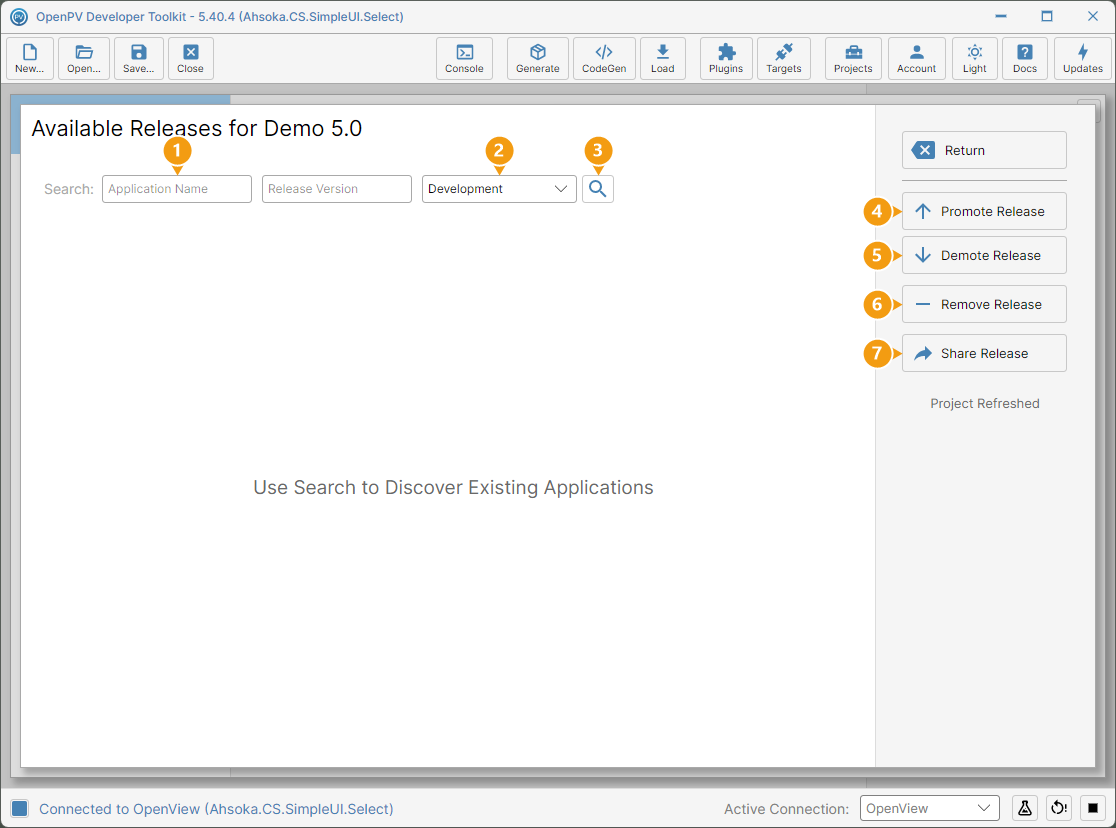
On the toolbar, click Projects, then click MANAGE APPLICATIONS on the Applications card. The Available Releases panel opens, showing Use Search to Discover Existing Applications until you search:
- Application Name and Release Version — optional search filters. Leave them blank to list every release.
- Track — the track to search. With Development selected, releases on every track are listed.
- Search — lists the project's releases that match.
- Promote Release — moves the selected release up one track.
- Demote Release — moves the selected release down one track.
- Remove Release — asks Are you sure you want remove the selected Application Container?, then deletes the release from Spark.
- Share Release — makes a download link for the selected release, to give to someone outside the project. The link lasts 1 day by default, and up to 30 days.
Each release is listed with its Application Name — the package name without punctuation, cut off if it's long — and its Current Track, Release Version and Created On date. Releases get here through Upload To Spark on the Packaging panel.
Promote Release
-
Click Search.
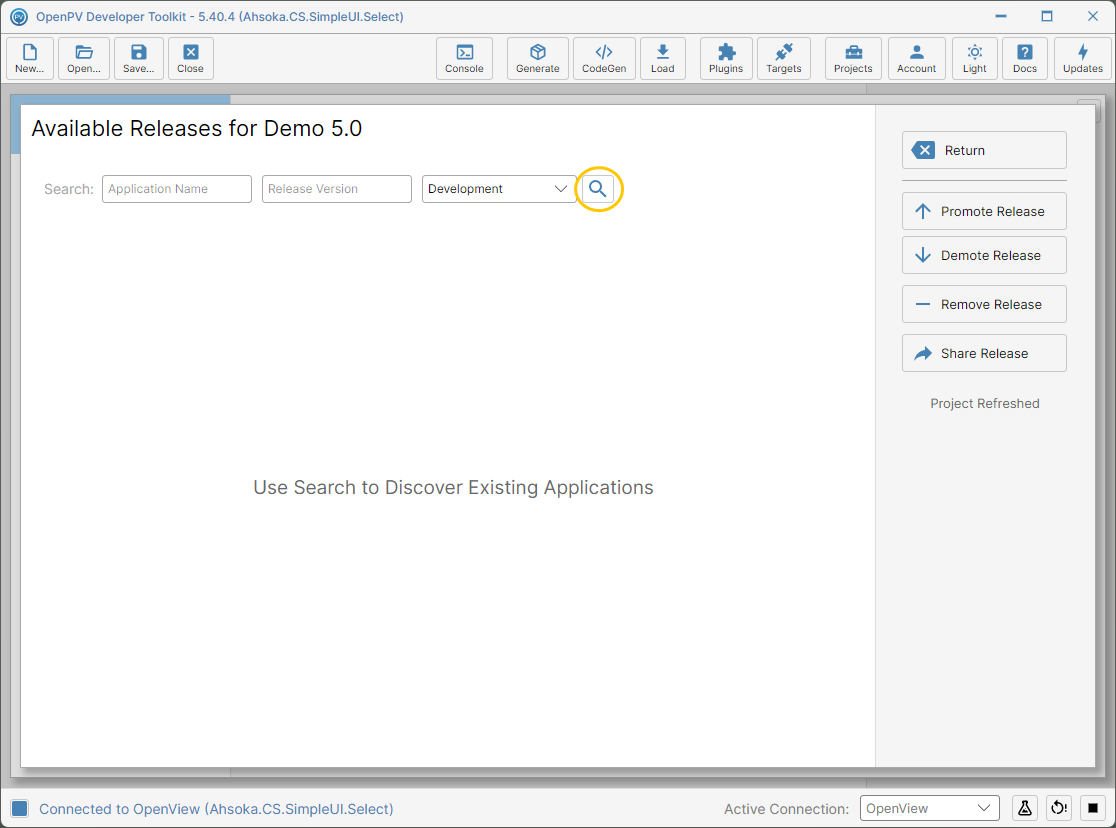
The Search button -
The project's releases are listed — here, AhsokaCSSimpleUISelect version 1.0, on the Development track. Click it to select it.
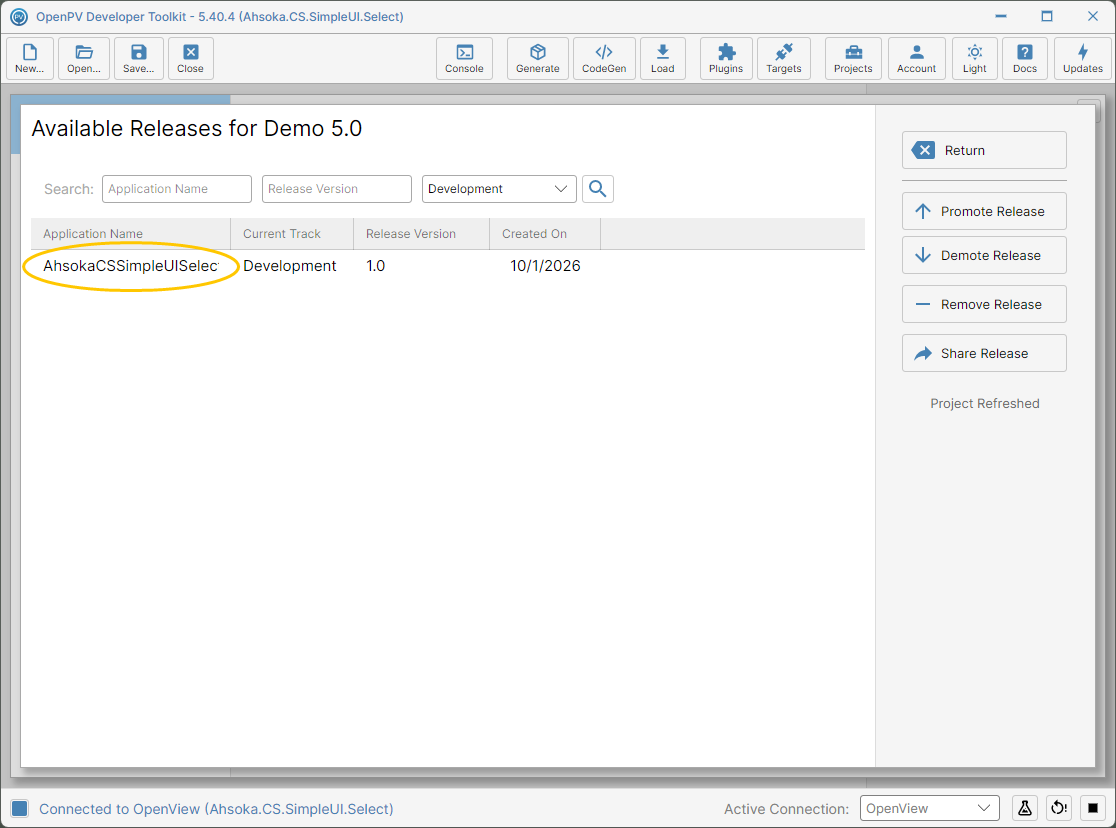
AhsokaCSSimpleUISelect listed on the Development track -
Click Promote Release.
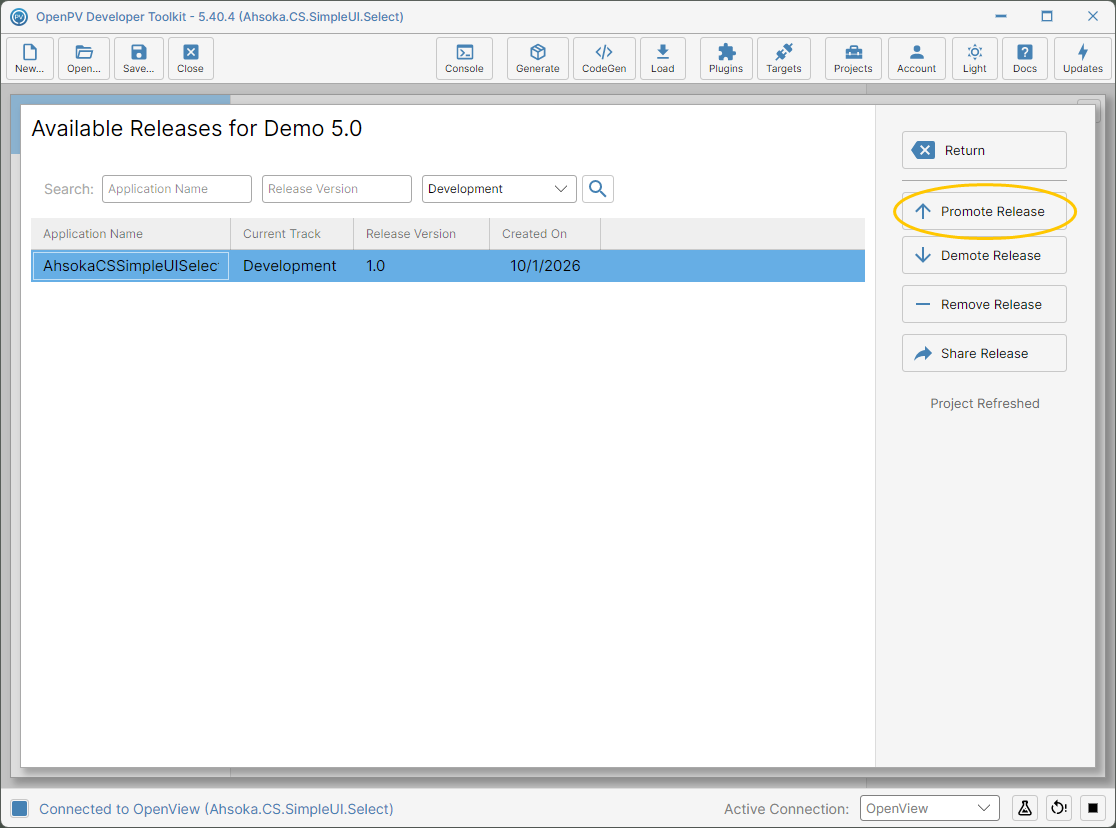
The release selected, and the Promote Release button -
It moves up one track straight away — here, to Beta — and the status shows Track Changed. Click Promote Release again.
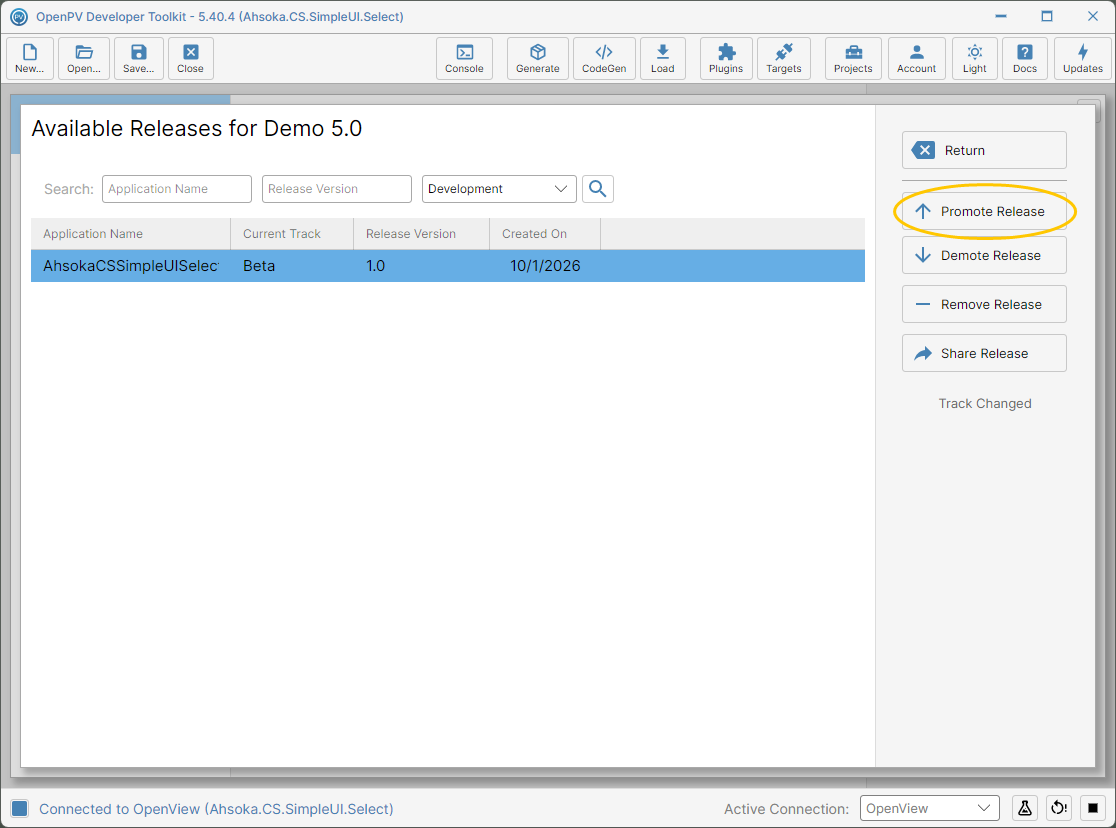
The release on the Beta track -
Current Track now reads Release, the top of the chain: Development → Beta → Release.
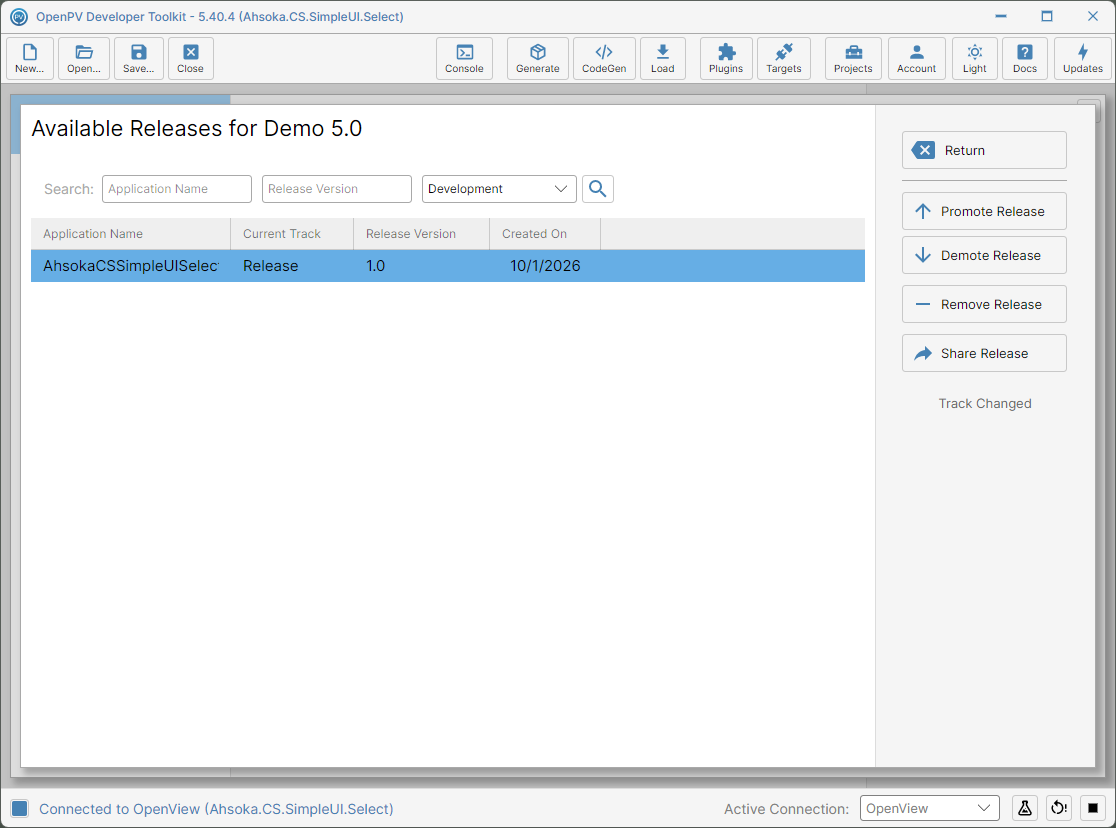
The release promoted to the Release track
Demote Release
-
Click Search, then click the release to select it — here, AhsokaCSSimpleUISelect, on the Release track.
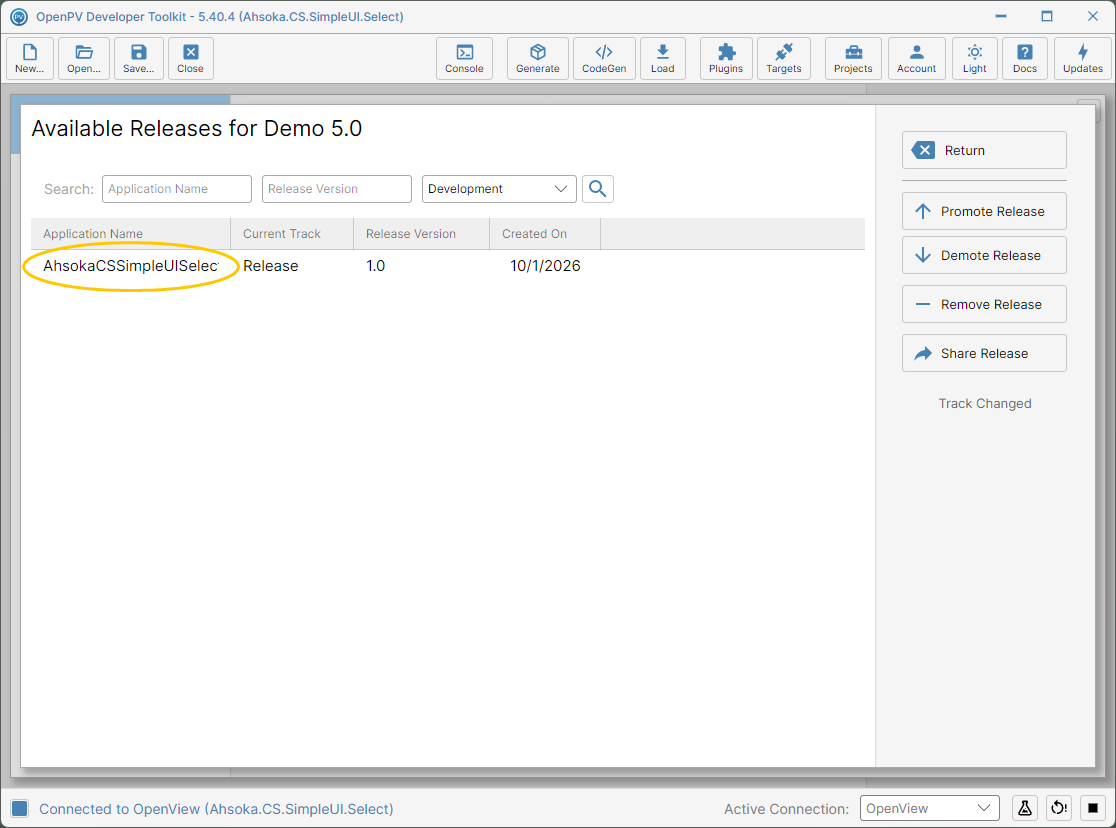
AhsokaCSSimpleUISelect listed on the Release track -
Click Demote Release.
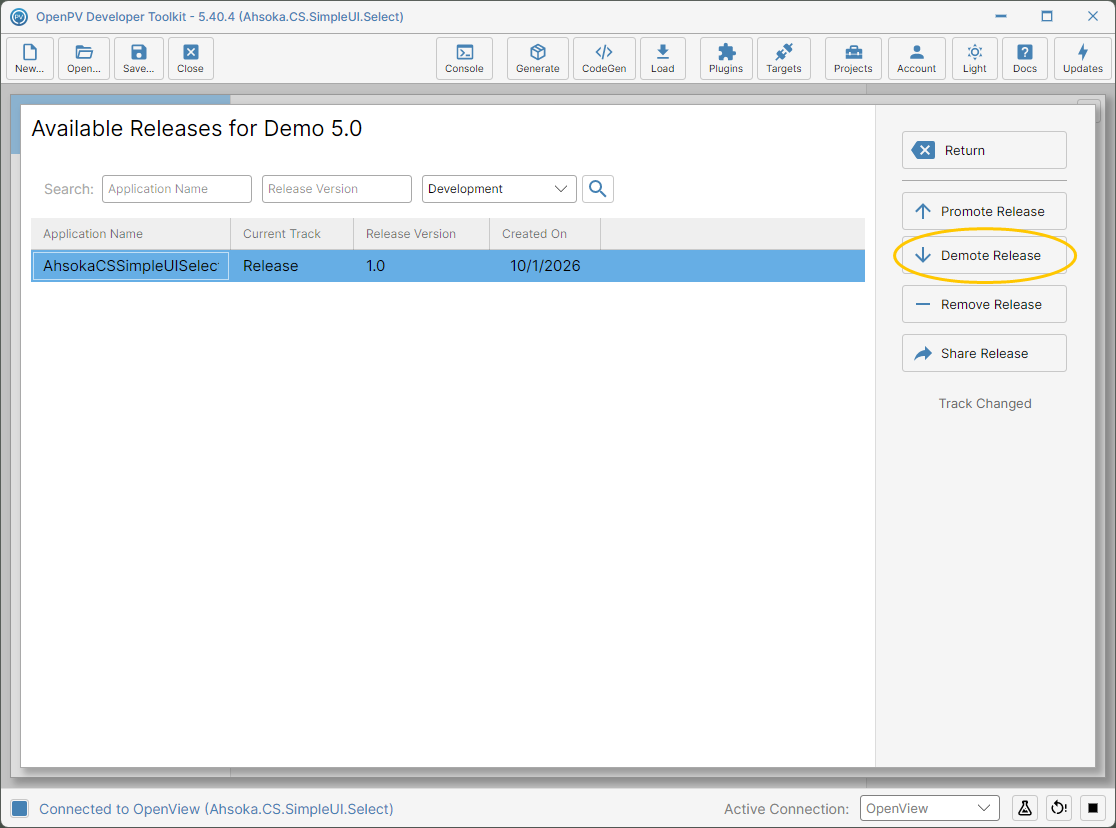
The release selected, and the Demote Release button -
It moves down one track — here, to Beta — and the list reloads with nothing selected. Click the release again, then click Demote Release again.
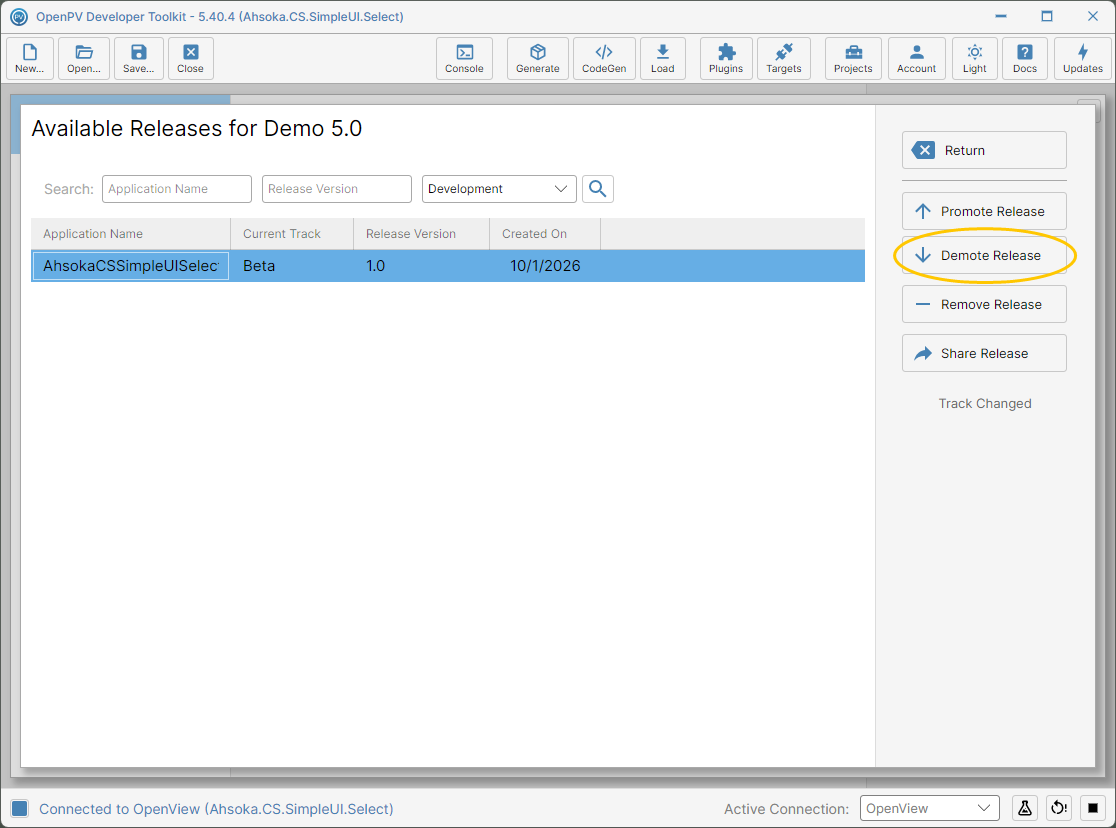
The release on the Beta track, selected again -
Current Track now reads Development, the bottom of the chain: Release → Beta → Development.
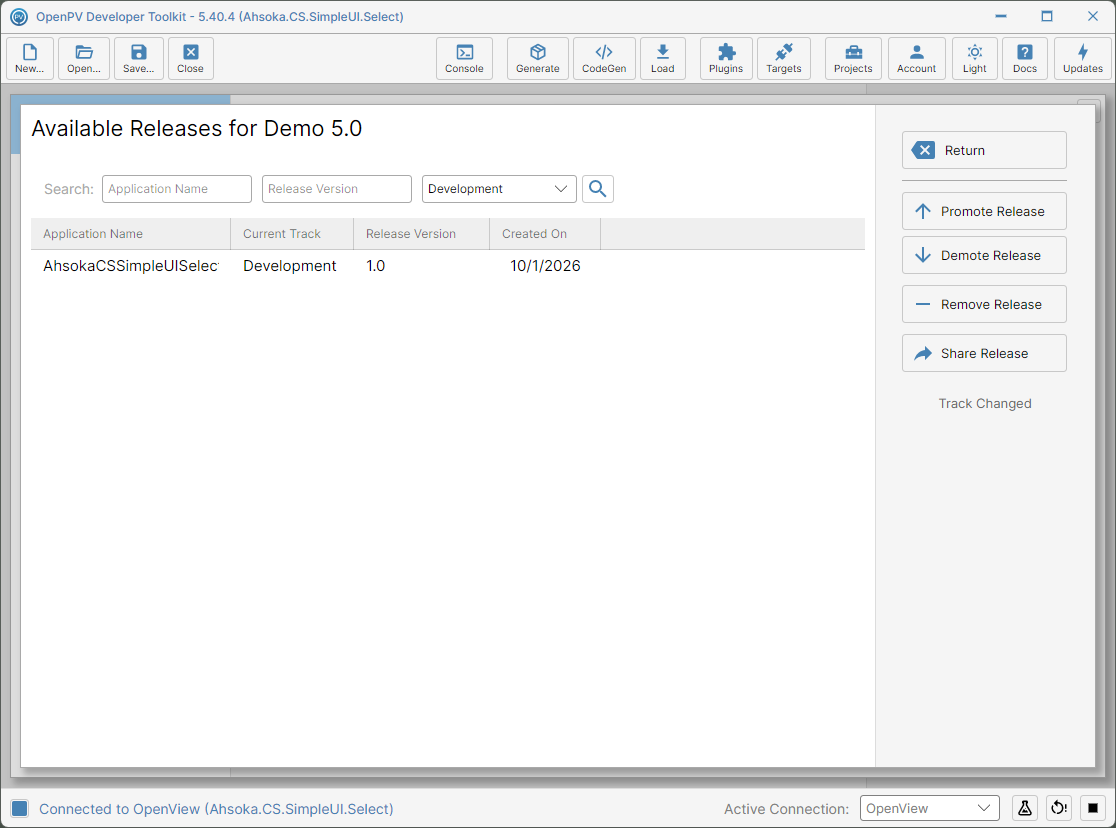
The release demoted to the Development track