Plugins
Utilities Requires: internet connection
Shows or hides the Available Plugins panel: everything you can download, update, or remove outside of a specific project. It's grouped into two sections — Core Tools (host-side build tools shared by every project) and Platform Support Packages (the device platform families you can target). Each time you upgrade OpenPV itself, this panel is where you come to catch up any Core Tools it depends on.
Overview
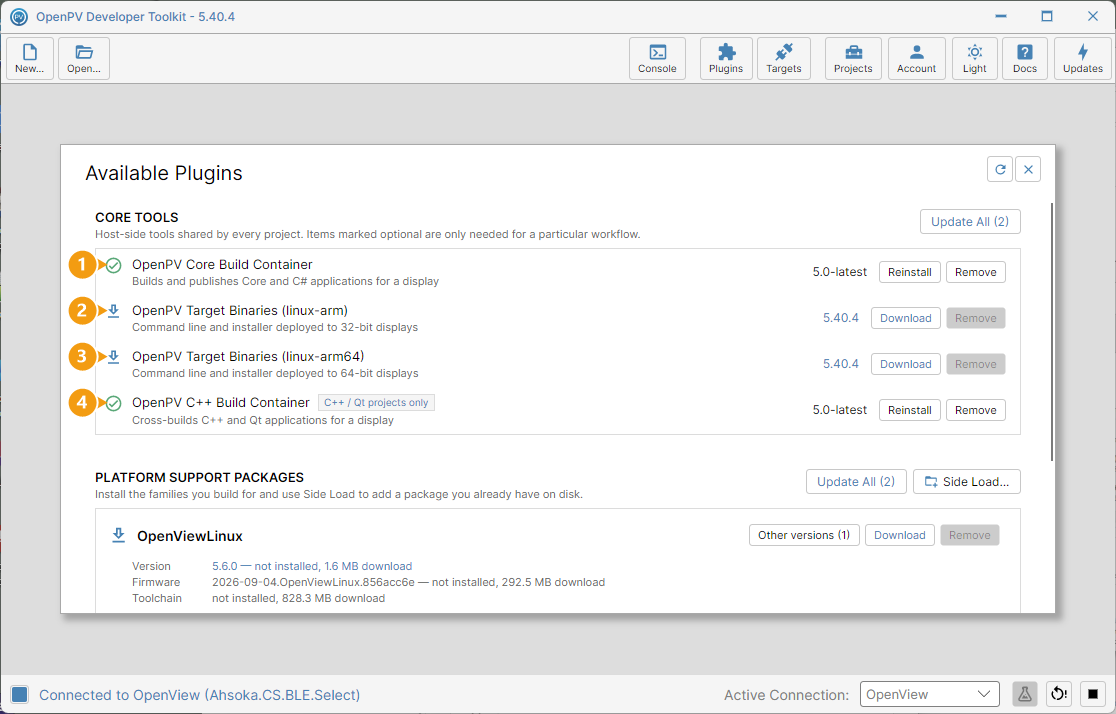
The Available Plugins panel. Core Tools lists host-side build tools; each shows its installed version (or Download/Update if it isn't current) and a Remove button. Update All (N) updates every out-of-date Core Tool in one step. Each numbered tool below:
- OpenPV Core Build Container — Builds and publishes Core and C# applications for a display. Built locally using Podman (see the prerequisite above).
- OpenPV Target Binaries (linux-arm) — Command line and installer deployed to 32-bit displays.
- OpenPV Target Binaries (linux-arm64) — Command line and installer deployed to 64-bit displays.
- OpenPV C++ Build Container — Cross-builds C++ and Qt applications for a display. Marked C++ / Qt projects only — skip it otherwise. Also built locally using Podman (see the prerequisite above).
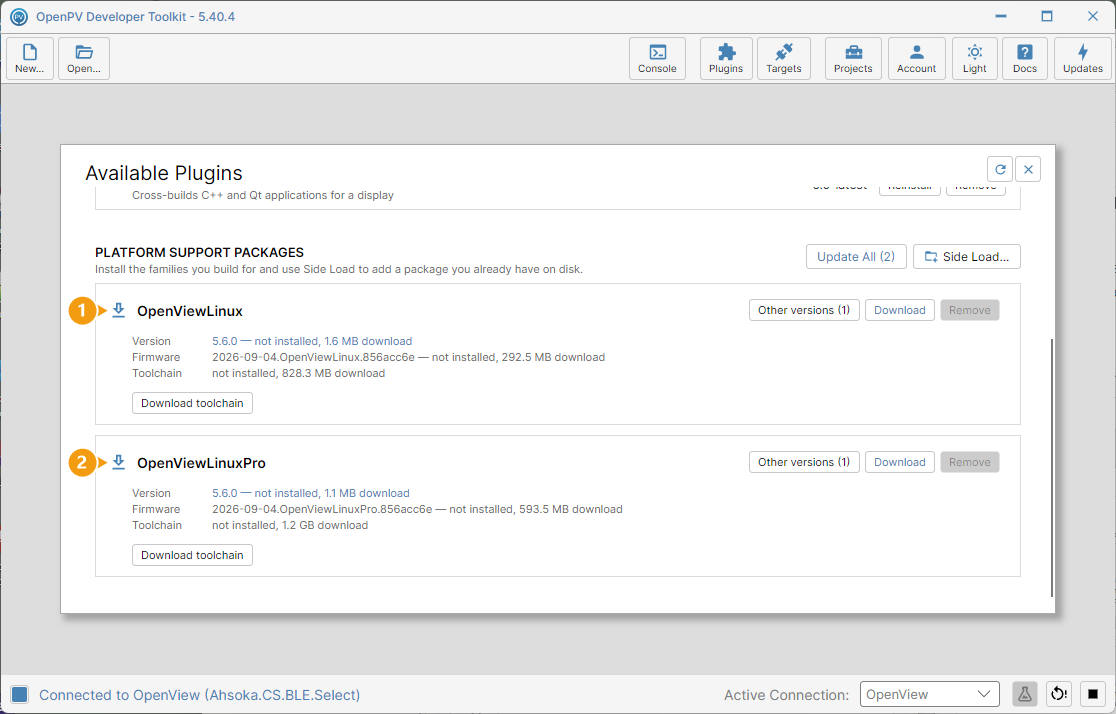
Platform Support Packages lists the device platform families available to target, each with its installed Version, Firmware, and Toolchain identifiers, plus Download toolchain, Install drivers, and Validate target. Update All (N) updates these independently of Core Tools; Side Load... adds a package you already have on disk instead of downloading one — a side-loaded package is marked side loaded and only offers Validate target, not the download/driver actions. Each numbered package below:
- OpenViewLinux — The standard OpenView display platform.
- OpenViewLinuxPro — The higher-spec OpenViewPro display platform, with its own firmware and toolchain versions.
Updating Core Tools
-
With Podman already running (see the prerequisite above), click Update All (N) under Core Tools (highlighted).
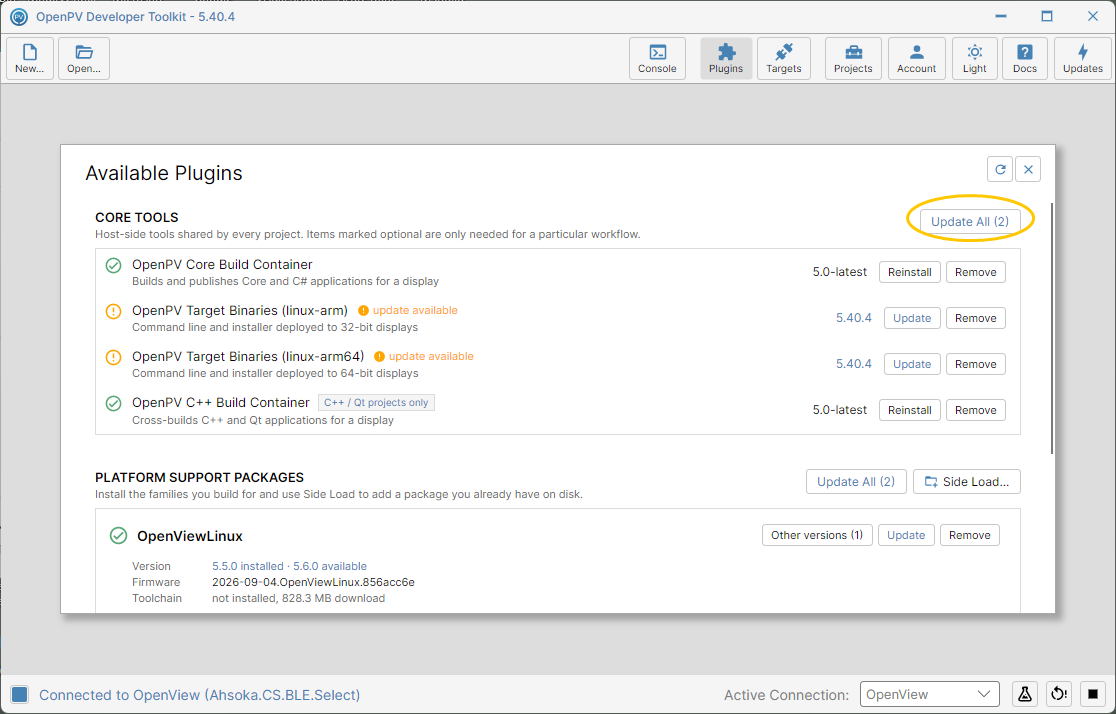
The Update All button under Core Tools -
A confirmation lists exactly what it's about to download and install, and notes that Platform Support Packages are not included — update those from their own section's Update All instead.
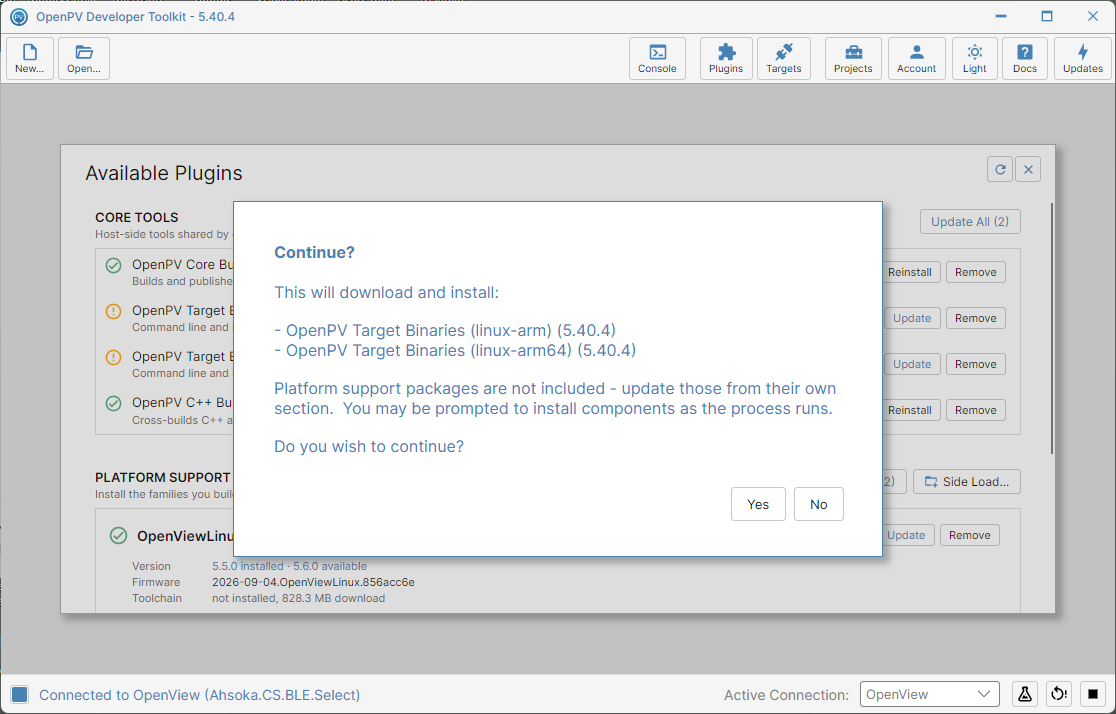
The confirmation dialog listing what Update All will do -
Click Yes. The app switches to Console to show progress for each item in turn — including Podman's own build output (pulling the base image, installing packages, tagging the result) for OpenPV Core Build Container.
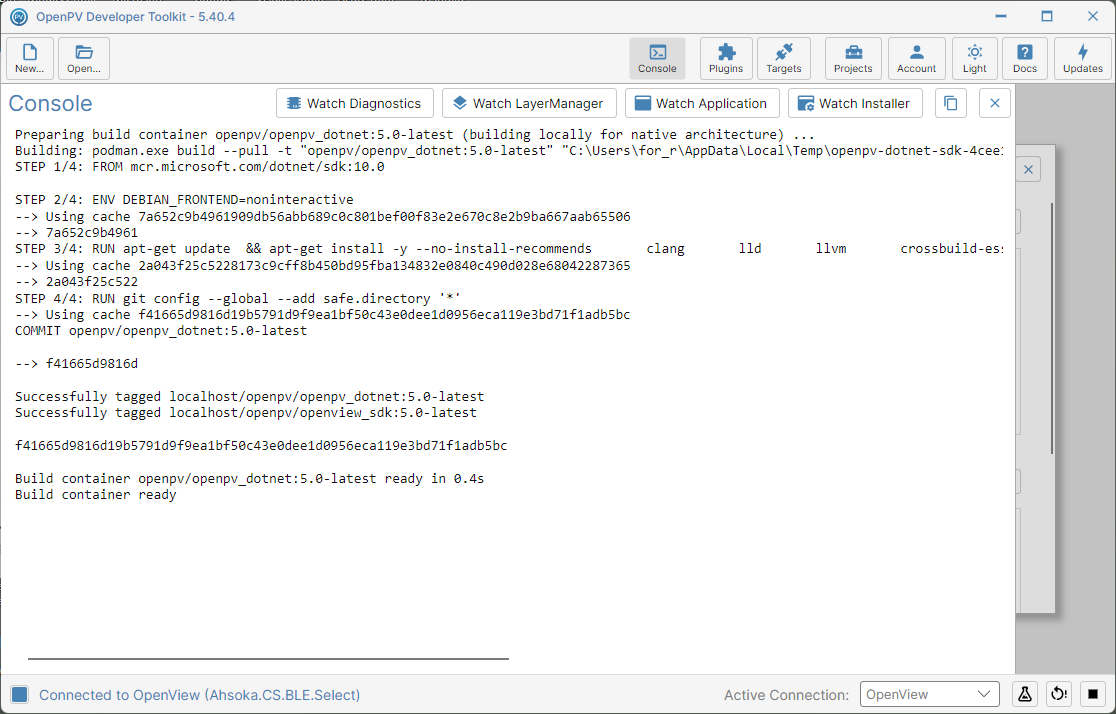
Console showing Podman successfully building the Core Build Container image -
With Podman running, all three succeed: every item under Core Tools now shows a green checkmark and Reinstall instead of Update, and Update All drops to (0).
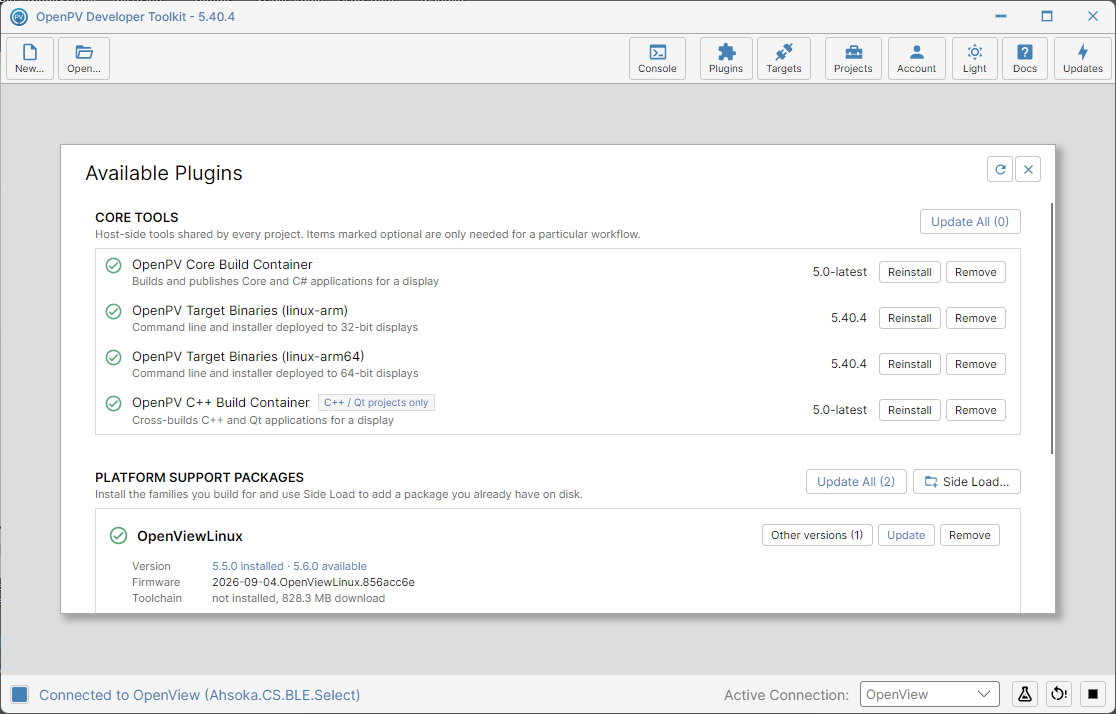
Back on the panel — all three Core Tools updated, Update All (0)
Updating Platform Support Packages
-
Click Update All (N) under Platform Support Packages (highlighted).
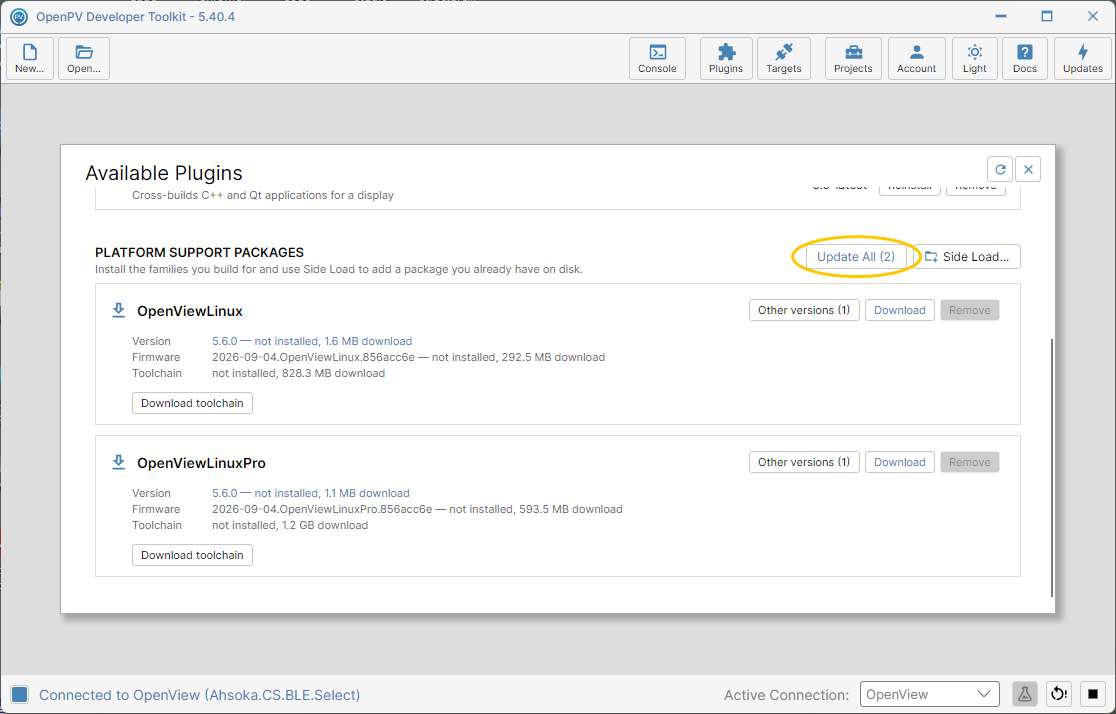
The Update All button under Platform Support Packages -
A confirmation lists exactly what it's about to download and install — including any family not installed yet, so check the list before continuing.
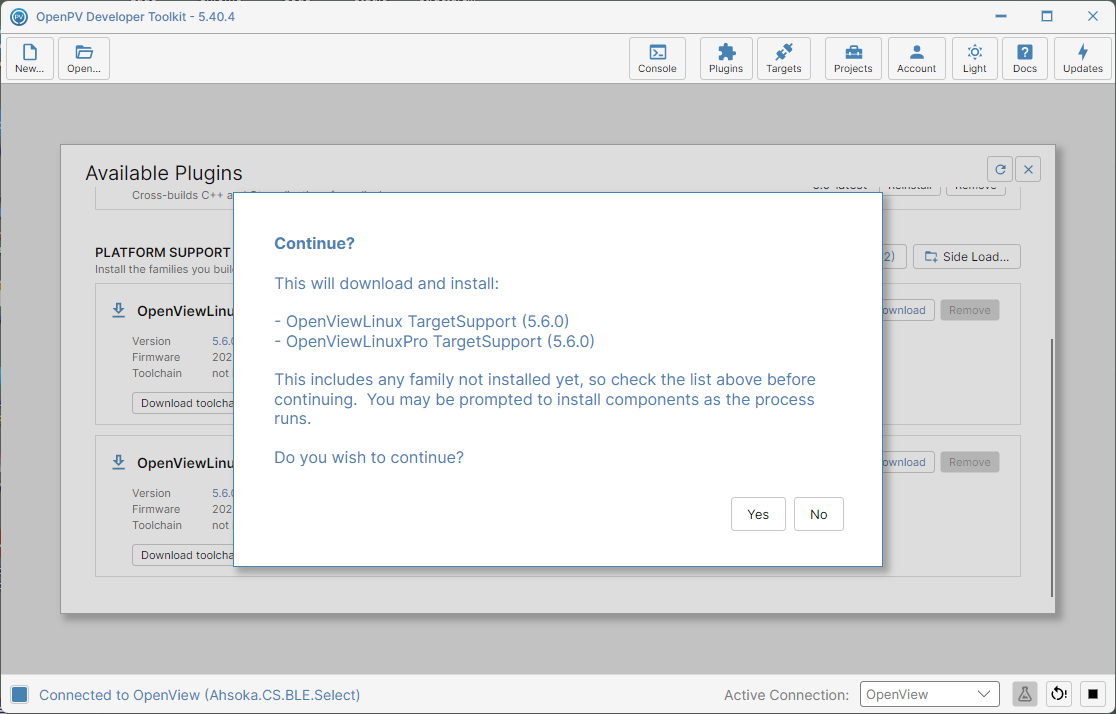
The confirmation dialog listing what Update All will do -
Click Yes. A progress dialog shows each package's download in turn.
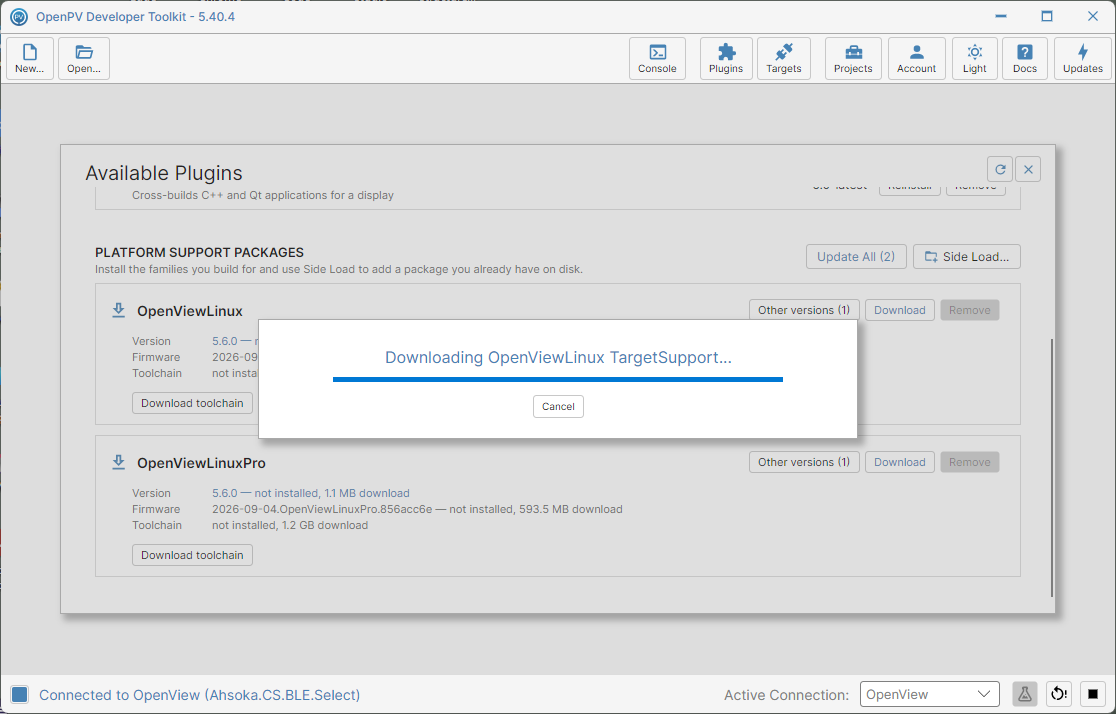
The download progress dialog for a platform package -
Once every package finishes, each shows a green checkmark and Reinstall instead of Update, and Update All drops to (0).
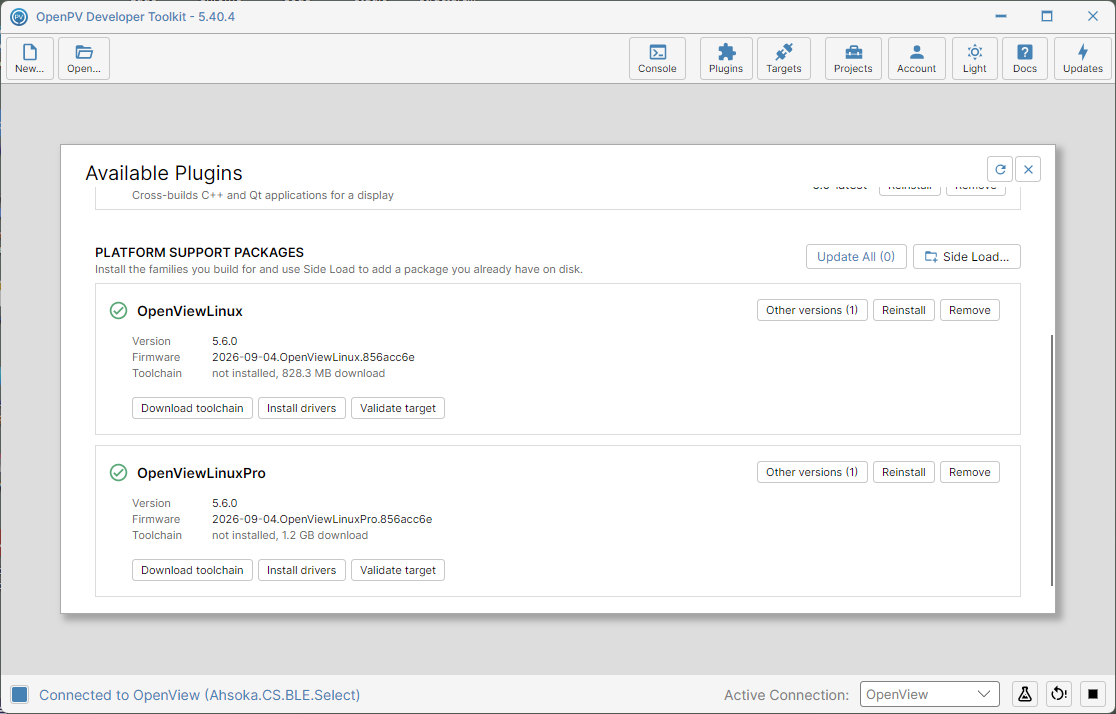
Back on the panel — both platform packages updated, Update All (0)
Removing a Tool
-
Click Remove next to any installed tool or platform package — here, the side-loaded package Windows64.
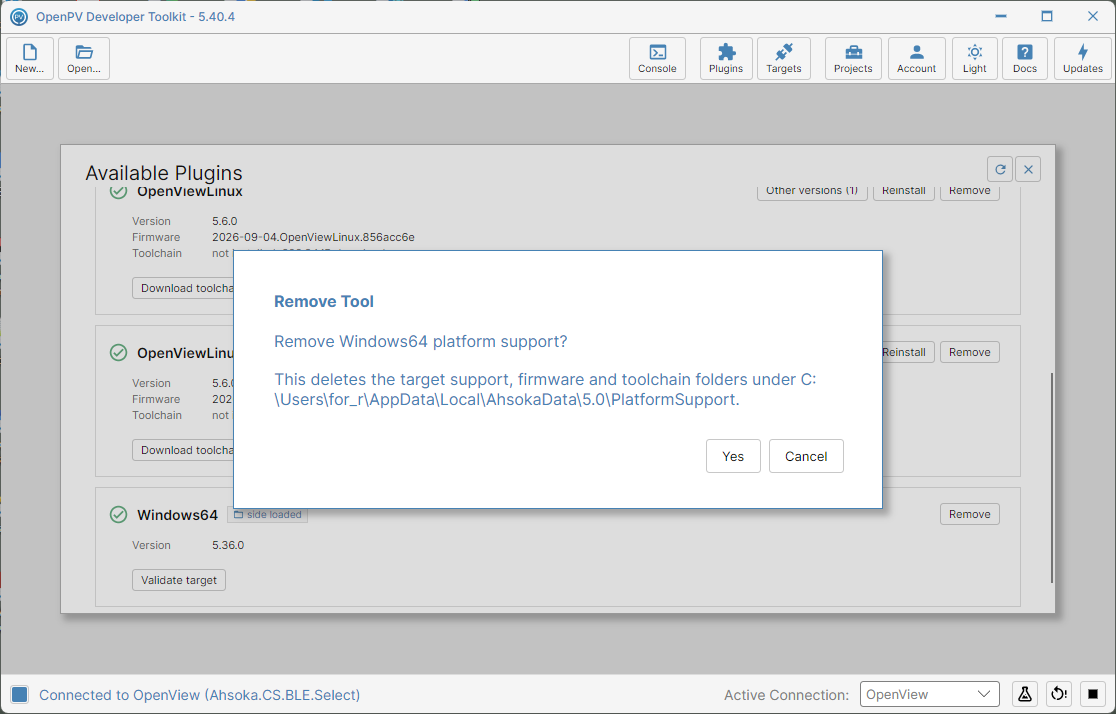
The Remove Tool confirmation dialog -
Remove Tool asks you to confirm before doing anything — for a platform package, this also deletes its downloaded target support, firmware, and toolchain folders.
(Confirming the removal)
-
Click Yes. The tool is removed immediately — no Console progress screen. A downloaded tool switches back to a download icon and a Download button, with Update All picking it back up as outstanding; a side-loaded package like this one just shows not installed and keeps its side loaded tag for the rest of the session.
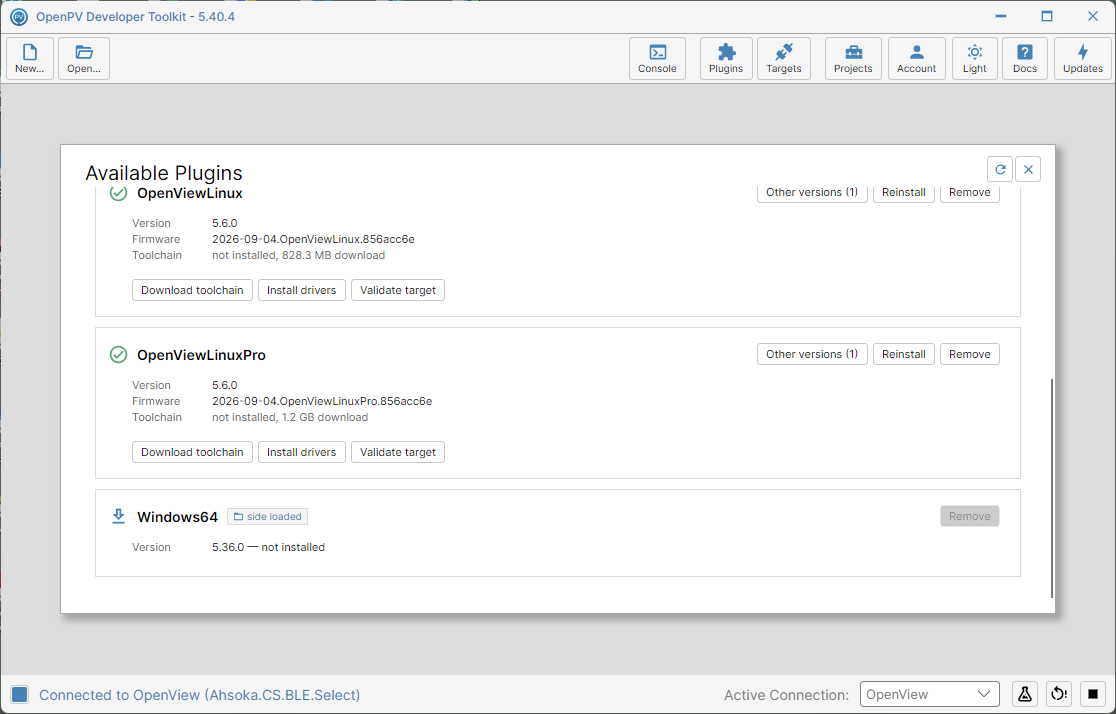
Back on the panel — Windows64 shows not installed, still marked side loaded -
Close and reopen the toolkit. A side-loaded package has no catalog entry to restore it from, so once the plugin list reloads, it's gone from the list entirely — only Side Load... can bring it back.
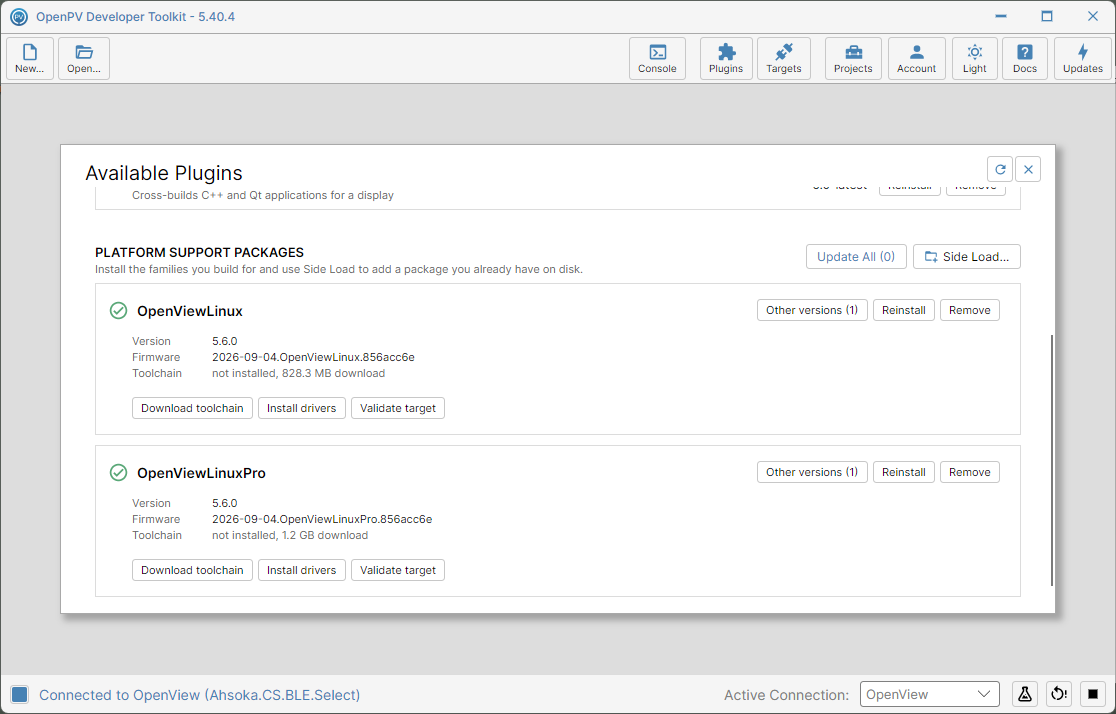
After restarting the toolkit — Windows64 no longer appears in the list
Side Loading a Package
-
Under Platform Support Packages, click Side Load.... A folder-picker opens, starting in the toolkit's own
PlatformSupportdata folder.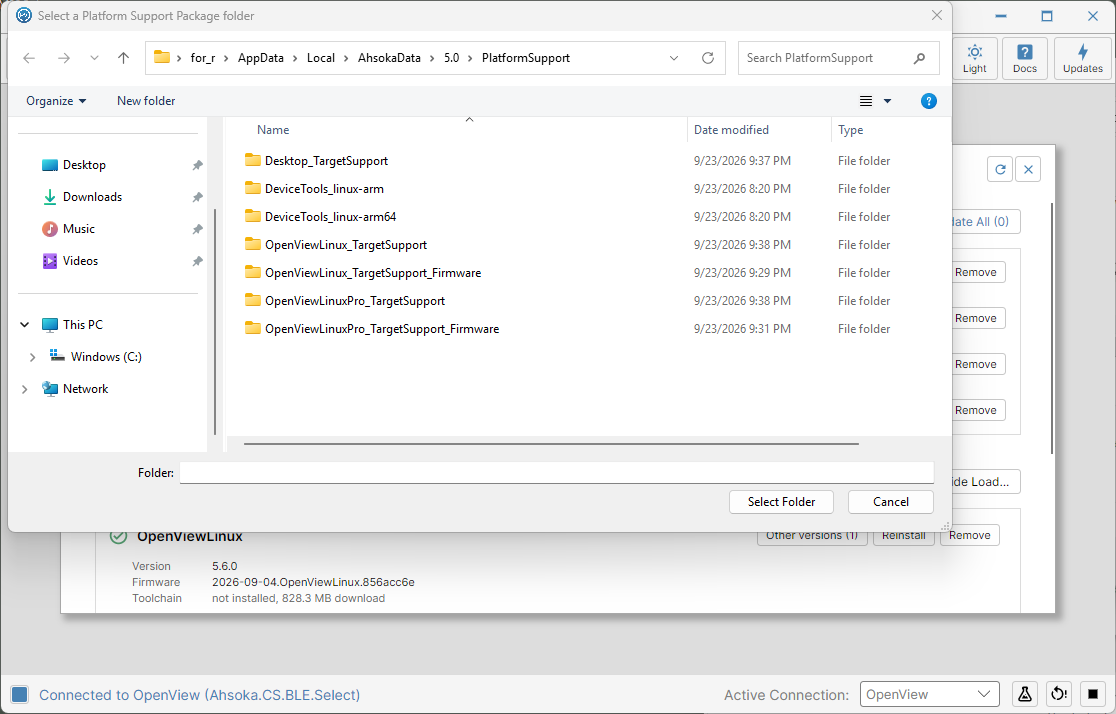
The Select a Platform Support Package folder dialog -
Browse to the folder for the platform package you want to add, then click Select Folder. A confirmation names the package and version it found, and calls out anything notable — here, that no toolchain folder was found alongside it, so C++ cross builds for this platform will need one downloaded separately.
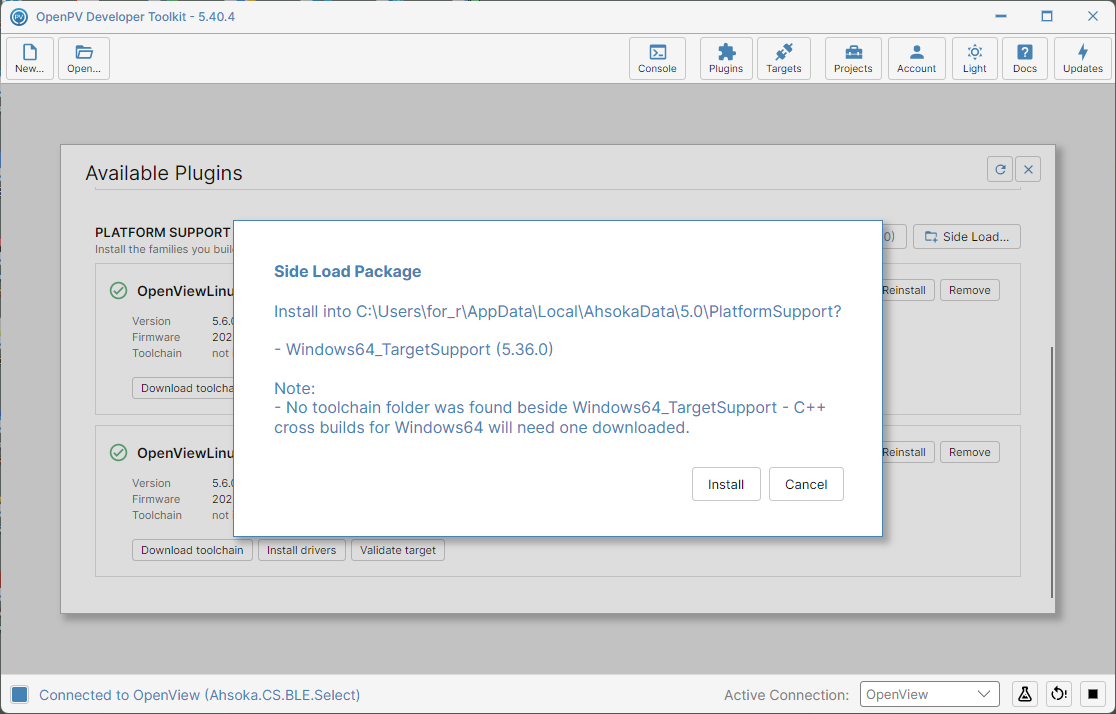
The Side Load Package confirmation, naming the package and a missing-toolchain note -
Click Install. The toolkit downloads its plugin list to register the new package — no Console progress screen for the package files themselves, since they're already on disk.
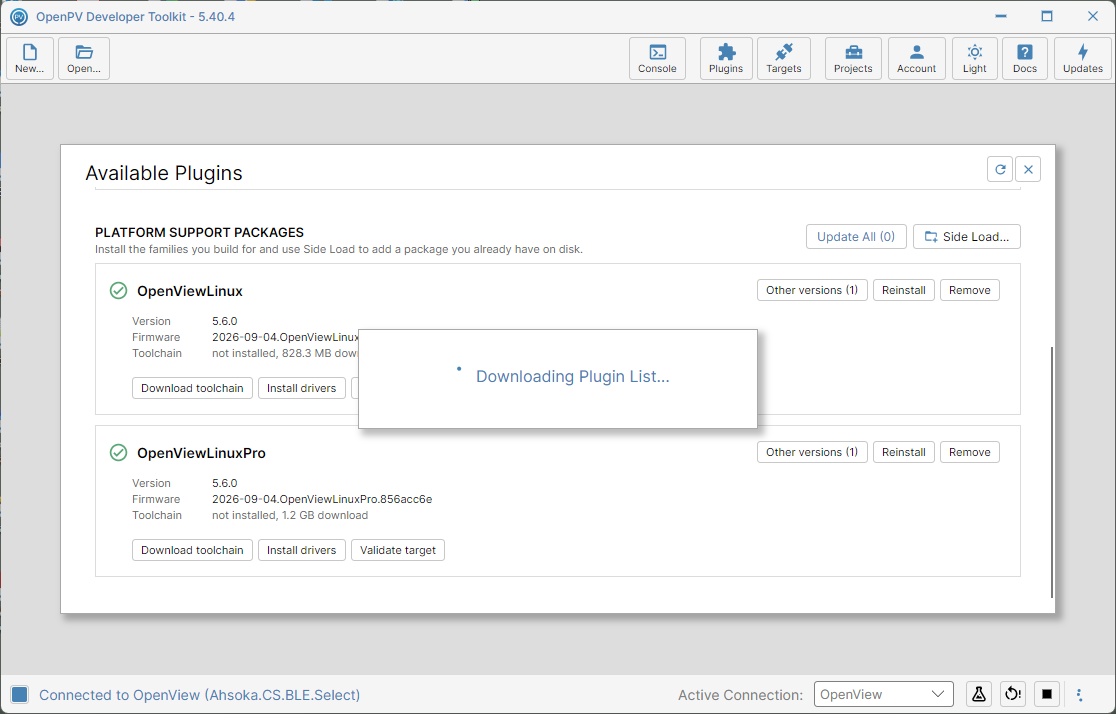
The brief Downloading Plugin List progress dialog -
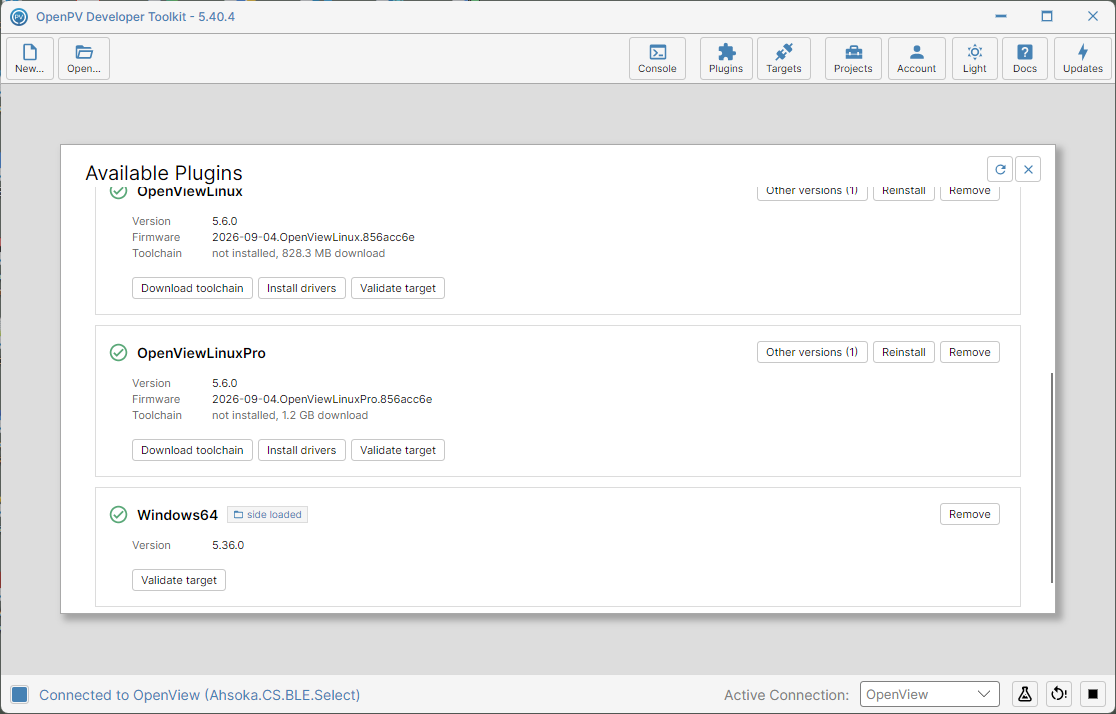
The package now appears under Platform Support Packages, marked side loaded — as noted in the Overview above, it only offers Validate target, not the download/driver actions the downloaded packages get.
The newly side-loaded package, marked side loaded