Updates
Utilities Requires: internet connection
Shows or hides a panel listing available updates and releases you can download. The toolbar icon itself changes to let you know when something's new: it shows an animated icon labeled "Updates Available" when a new update is ready, or a plain icon otherwise.
Overview
Click Updates on the toolbar to open the panel, listing Available Releases — each showing its name, track, version, upload date, and whether it's already installed. The filter bar is hidden by default. Each numbered action below:
- Updates — click again while the panel is open to close it; it doesn't download or install anything by itself.
- Download... — saves the installer to a location you choose, without installing it. A standard Save File dialog opens, pre-filled with the installer's file name.
- Release Notes.. — with a release selected, opens what's changed in it in your default browser, separately from the app.
- Toggle Filters — shows the filter bar above the list (release-track and name filters); click it again to hide it.
- Refresh List — re-fetches the list of available releases.
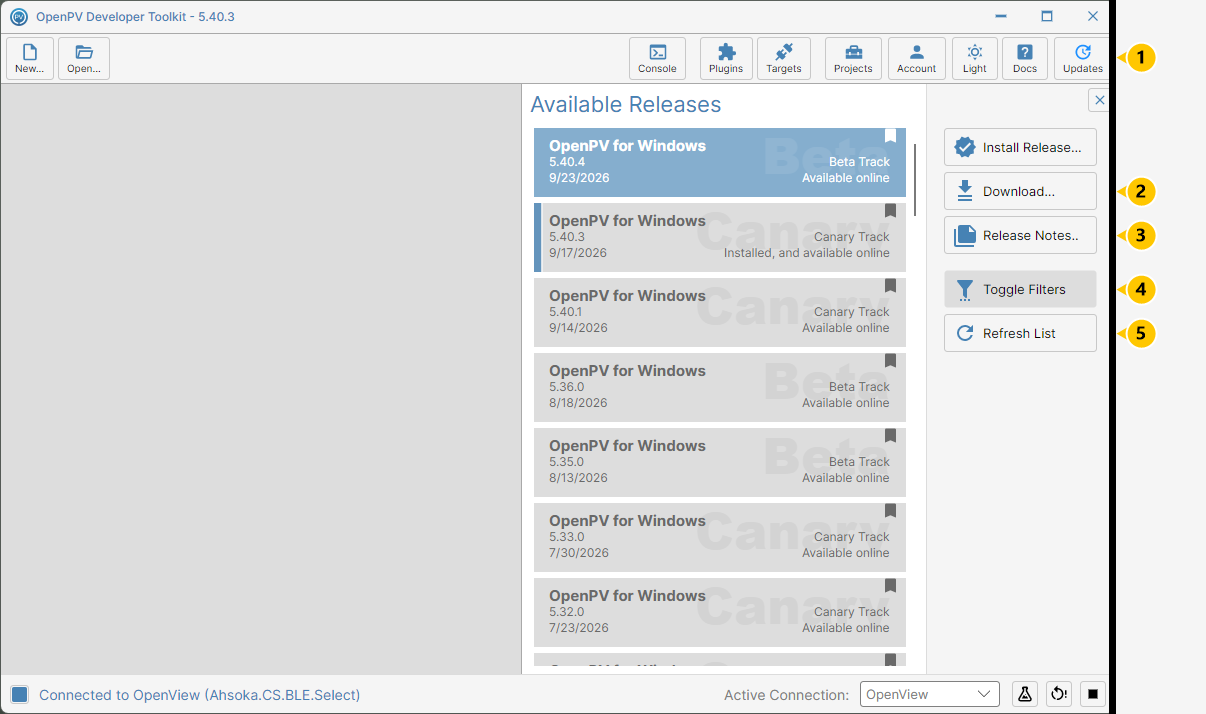
Install Release
-
With a newer release selected, click Install Release.... It goes straight to downloading — no "are you sure" prompt first.
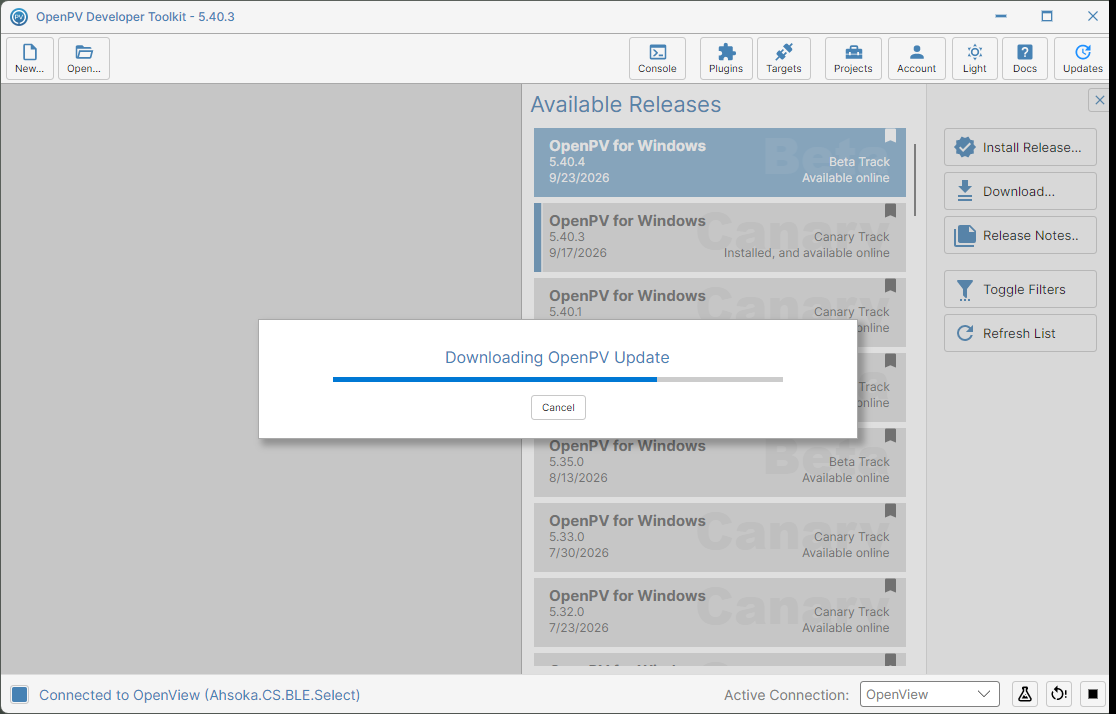
The Downloading OpenPV Update progress dialog -
Once the download finishes, Download Complete asks you to confirm: closing the current version to begin the install.
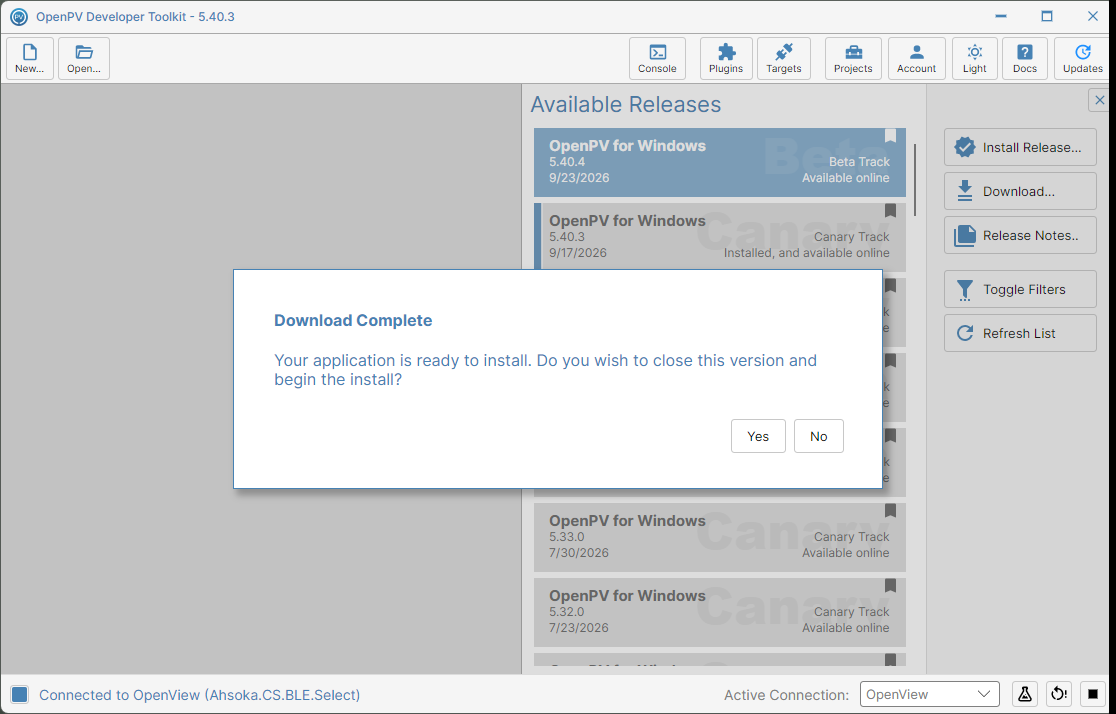
The Download Complete confirmation dialog -
Click Yes. The toolkit closes, a native Windows Installer window briefly appears on top of everything (outside the app itself), and the toolkit relaunches at the new version — landing on Available Plugins, which may flag its own updates for platform-specific packages (e.g. Target Binaries) tied to the new release.
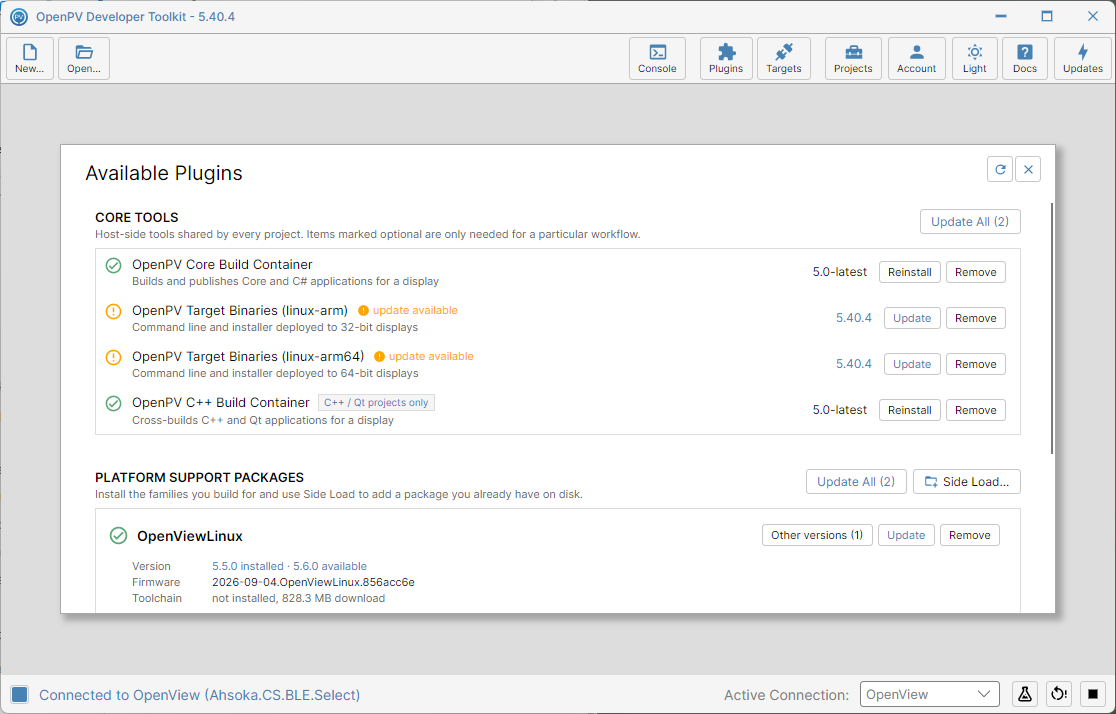
Back up and running at the new version, on the Available Plugins panel -
Reopening Updates confirms it: the new release now shows Installed, and available online, and the previous version no longer does.
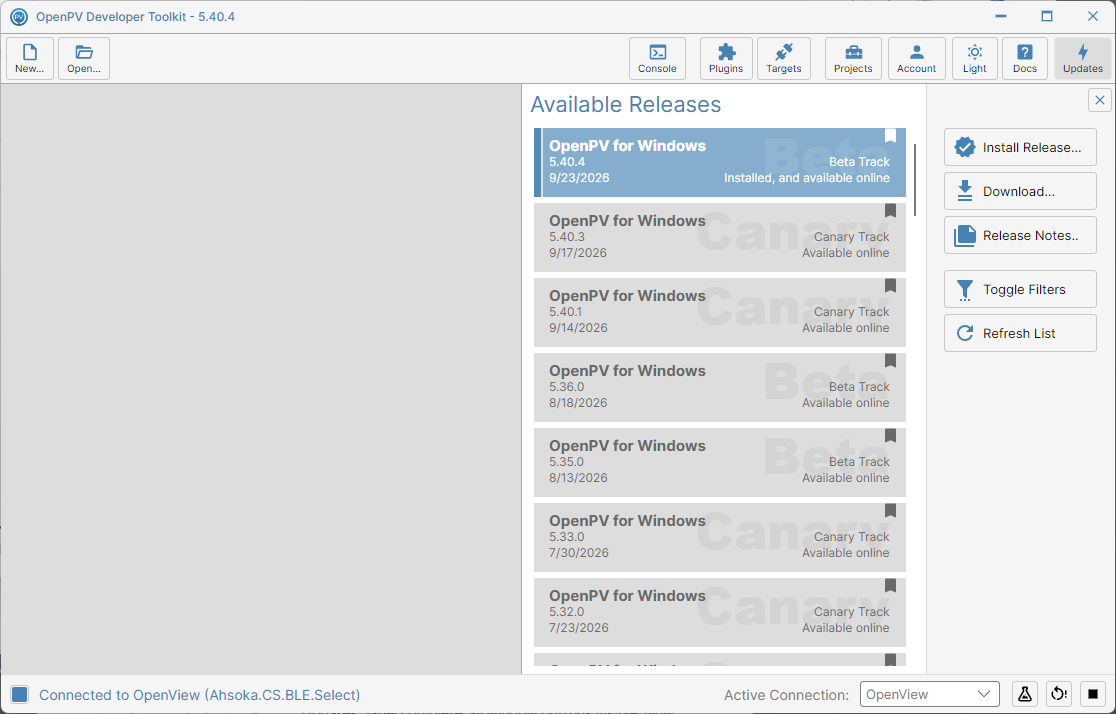
The Updates panel confirming the new version is installed