Options
Utilities Account Always enabled
Troubleshooting settings for how the toolkit runs its build tools on this machine.
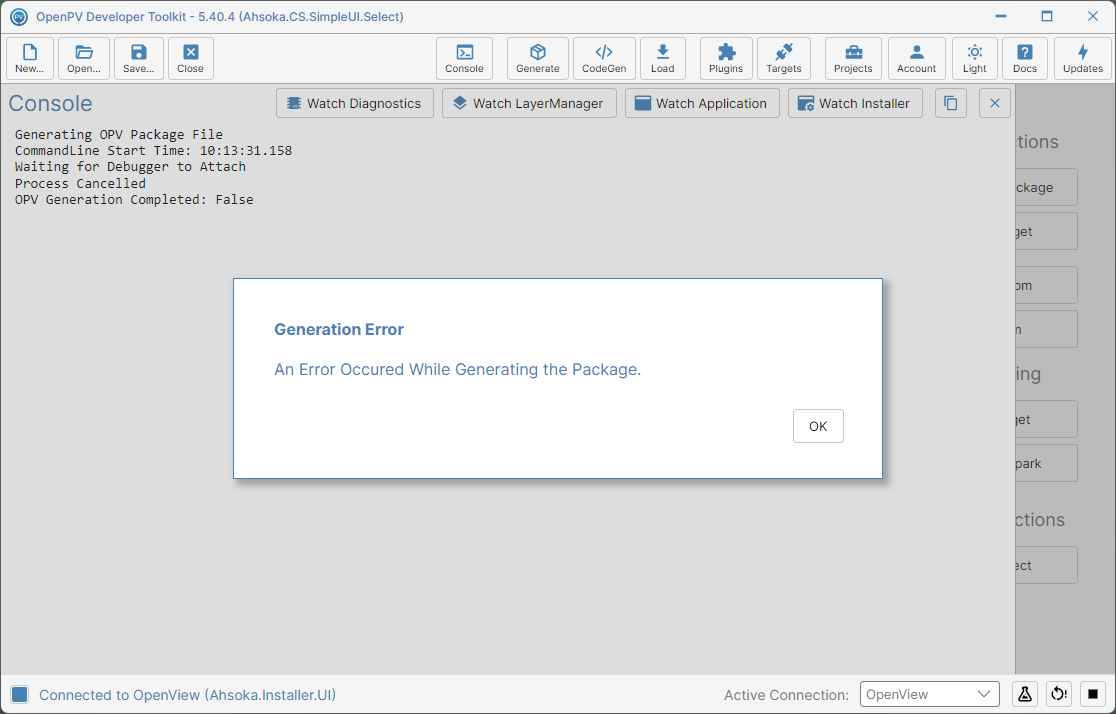
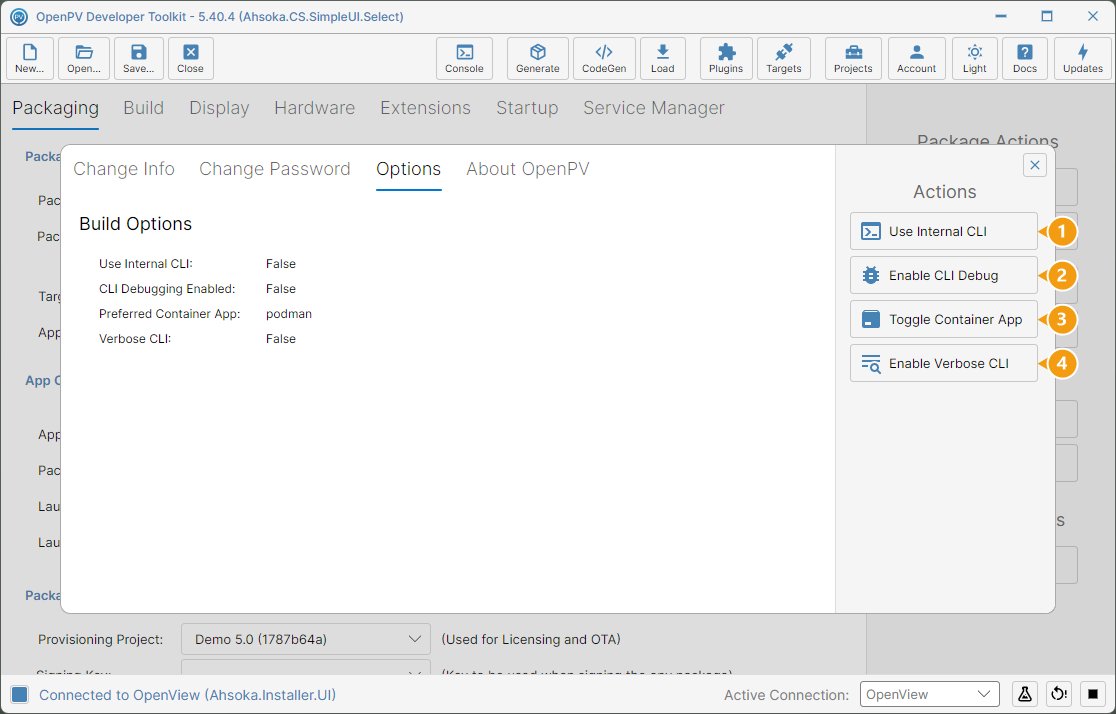
General build settings, under Build Options: Use Internal CLI, CLI Debugging Enabled, Preferred Container App (Docker or Podman), and Verbose CLI. On the right, matching Actions toggle each one.
Behind most jobs — generating a package, adding the SDK or extensions to a project, prepping a target — the toolkit runs its command-line tool (the CLI) and streams the output to the Console. Three of these settings change how that CLI runs; the fourth picks the container program. Clicking an action flips its setting immediately, the value on the left updates to match, and the action's label swaps (e.g. Enable CLI Debug becomes Disable CLI Debug) so you can flip it back:
- Use Internal CLI / Use External CLI — normally (False) each job runs the separate CLI program, which for project jobs is the version that matches the project's SDK. Switched on, jobs run through the copy of the CLI built into the toolkit instead. This is for isolating a problem to one version or the other. It isn't remembered: it resets to False each time the toolkit starts.
- Enable CLI Debug / Disable CLI Debug — makes generating a package and adding the SDK or extensions to a project pause at the start, showing Waiting for Debugger to Attach in the Console, until a .NET debugger (e.g. Visual Studio) attaches to the CLI process. This is for stepping through the CLI's own code. Leave it off otherwise, or those jobs will look like they've hung.
- Toggle Container App — switches Preferred Container App between podman and docker, the program the toolkit uses for its build containers and other container operations. Pick whichever one is installed on this machine.
- Enable Verbose CLI / Disable Verbose CLI — has the CLI log extra informational messages, so the Console shows more detail about each step. Turn it on when a build, package or prep fails and the normal output doesn't say enough.
Debug the CLI
-
On the toolbar, click Account, then the Options tab. CLI Debugging Enabled shows False. Click Enable CLI Debug.
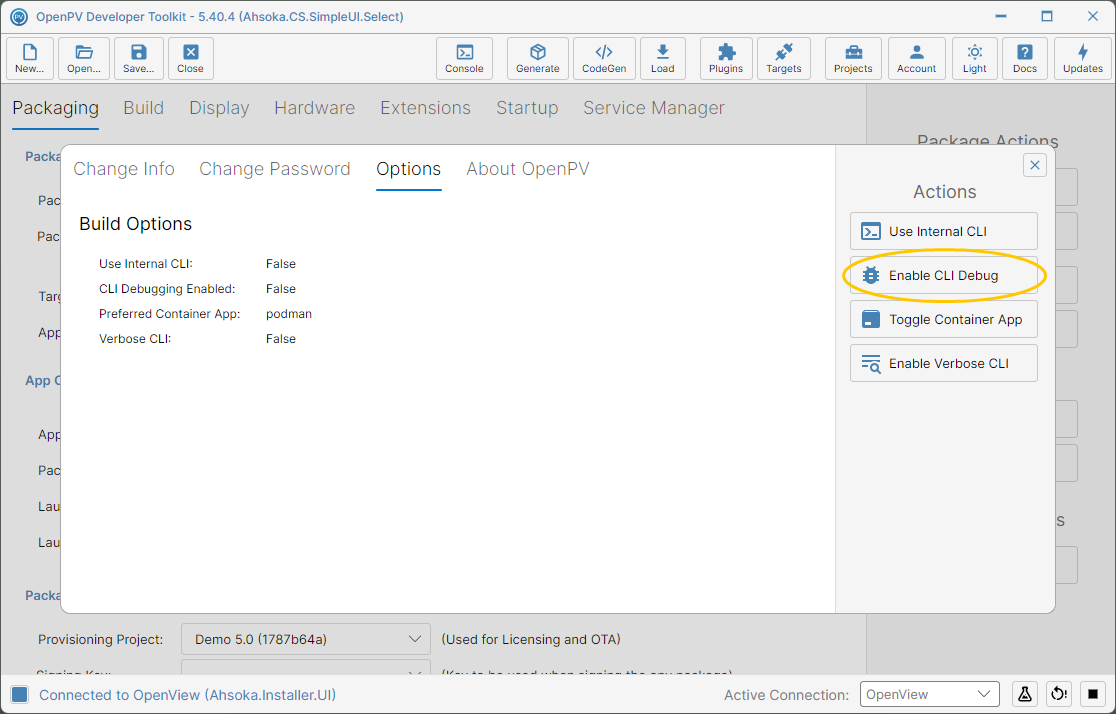
The Enable CLI Debug button -
CLI Debugging Enabled changes to True, and the button changes to Disable CLI Debug. Close the dialog.
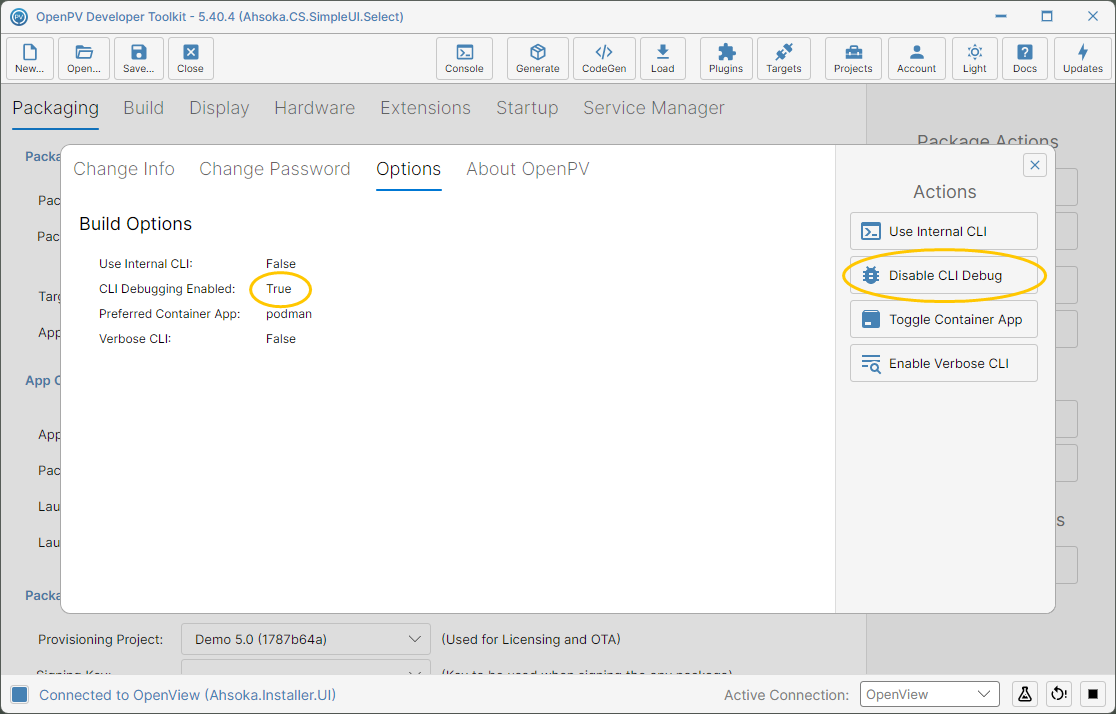
CLI Debugging Enabled set to True -
On the Packaging panel, click Generate Package.
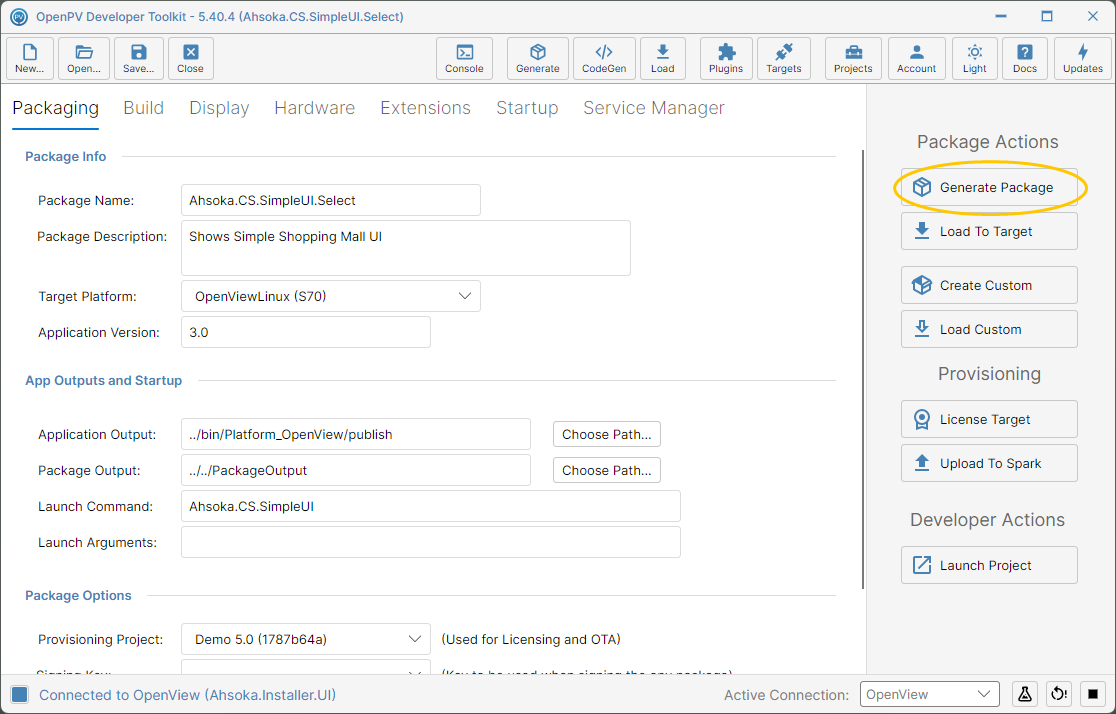
The Generate Package button -
The Console opens, and the CLI stops at Waiting for Debugger to Attach. It waits until a debugger attaches — it doesn't time out.
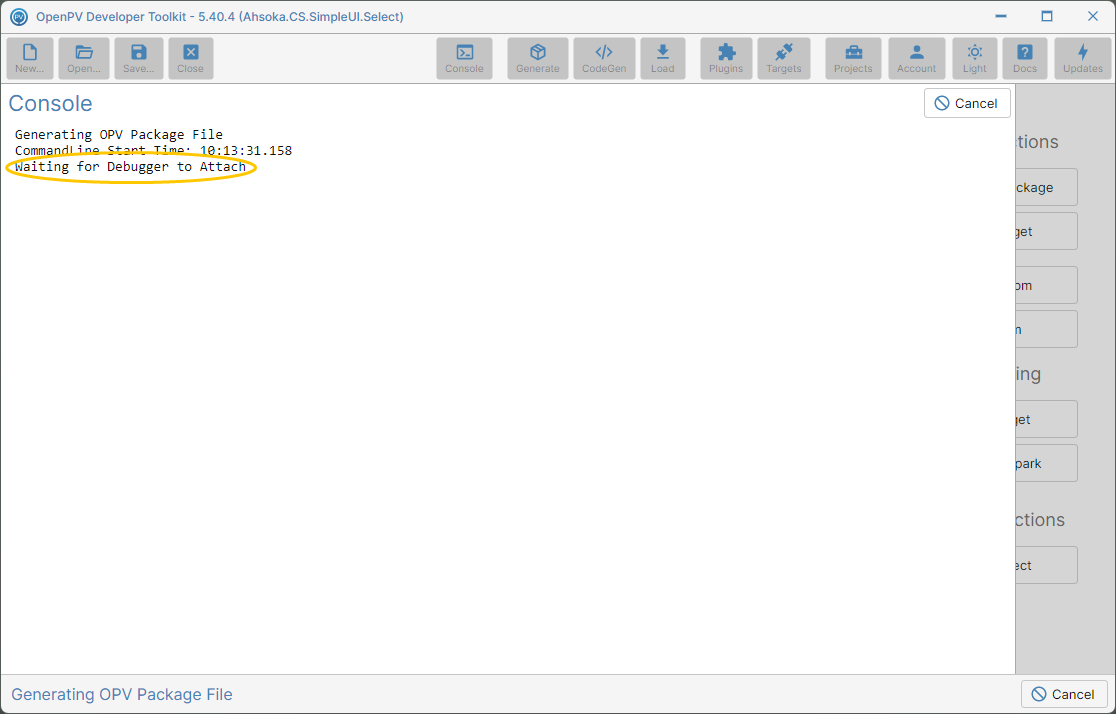
The CLI waiting for a debugger -
In Visual Studio, choose Debug → Attach to Process.... Filter the list on Ahsoka.CommandLine, select Ahsoka.CommandLine.exe — not OpenPV.DeveloperToolkit.exe, the toolkit itself — and click Attach.
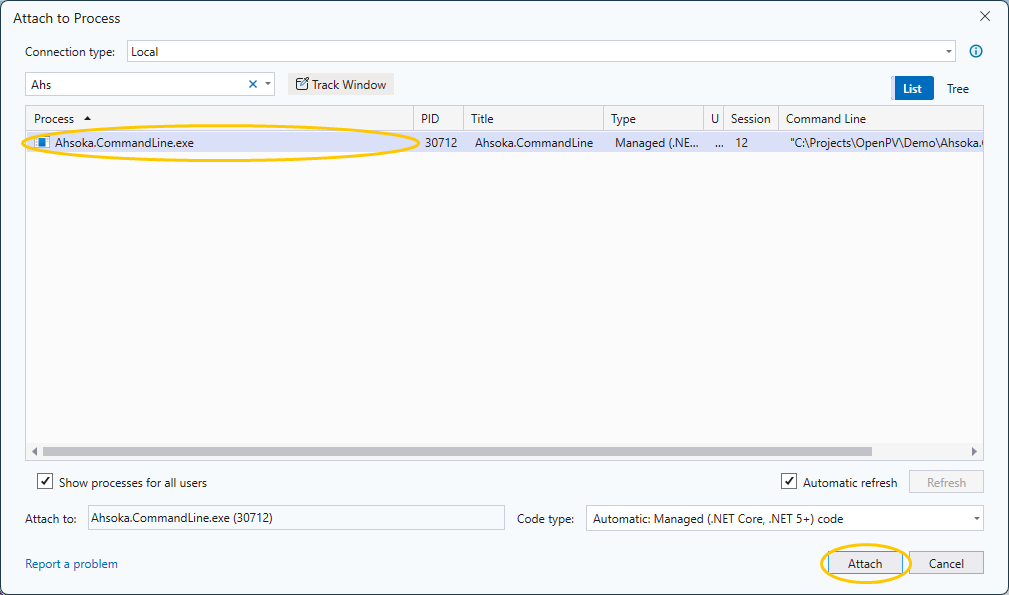
Attaching Visual Studio to Ahsoka.CommandLine.exe -
The Console shows Debugger Attached, and the job carries on with Visual Studio attached to the CLI.
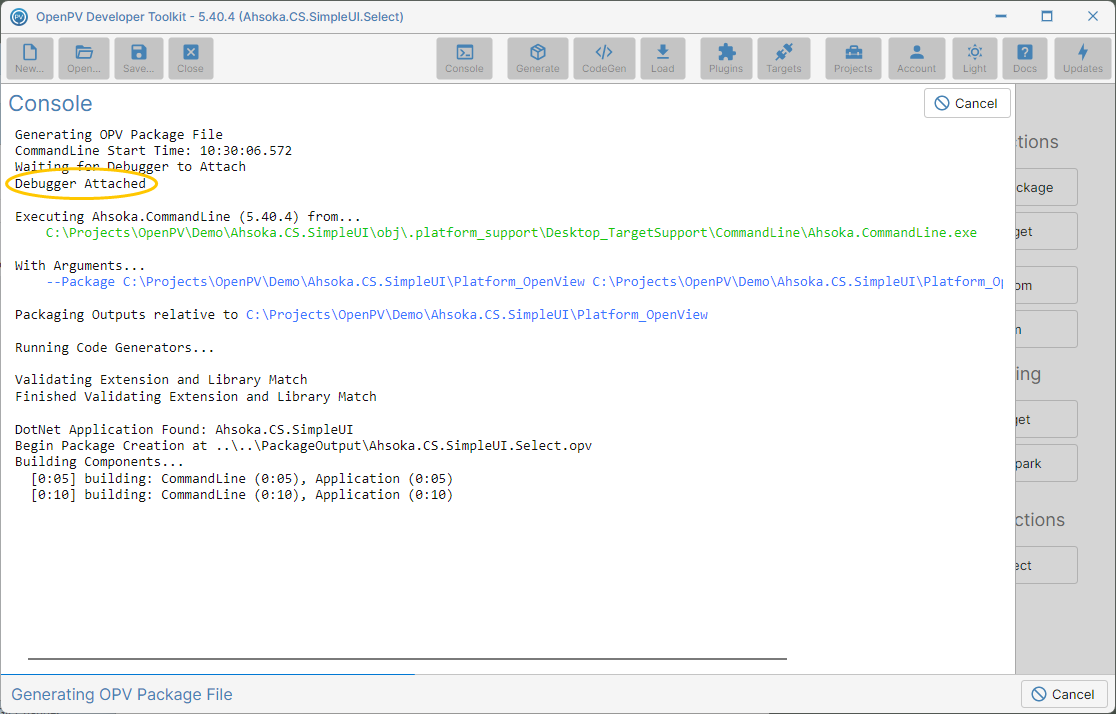
Debugger Attached -
When it finishes, the log ends with OPV Generation Completed: True.
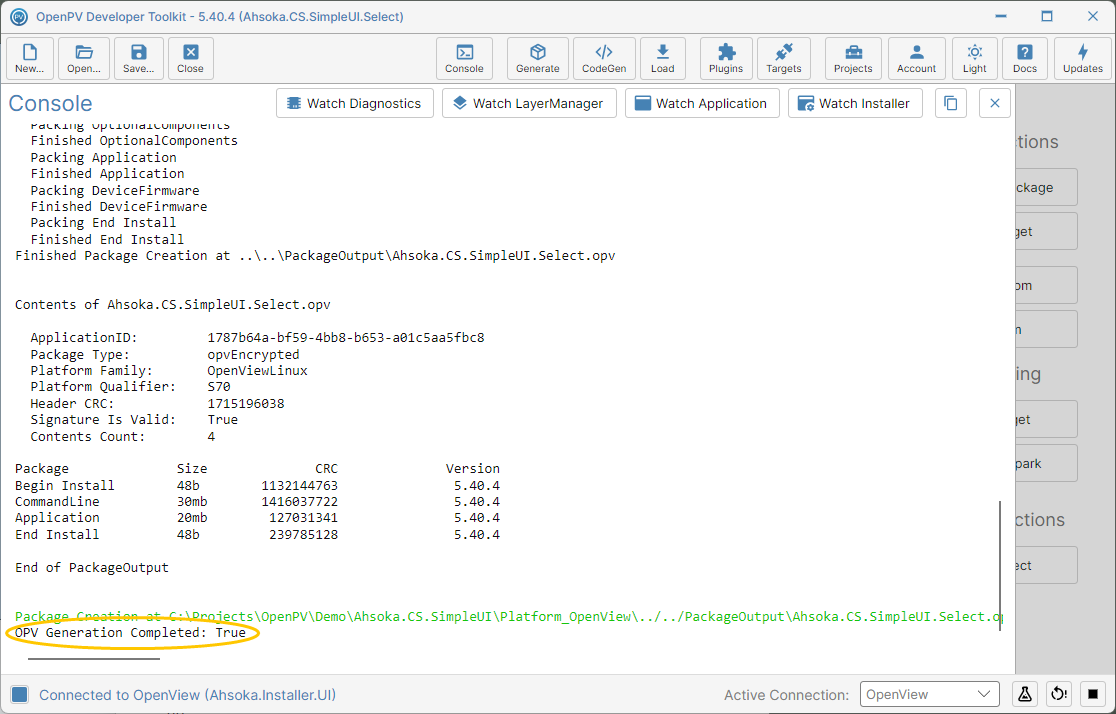
The package generated with the debugger attached -
When you're done, go back to Account → Options and click Disable CLI Debug, so later jobs don't stop and wait.
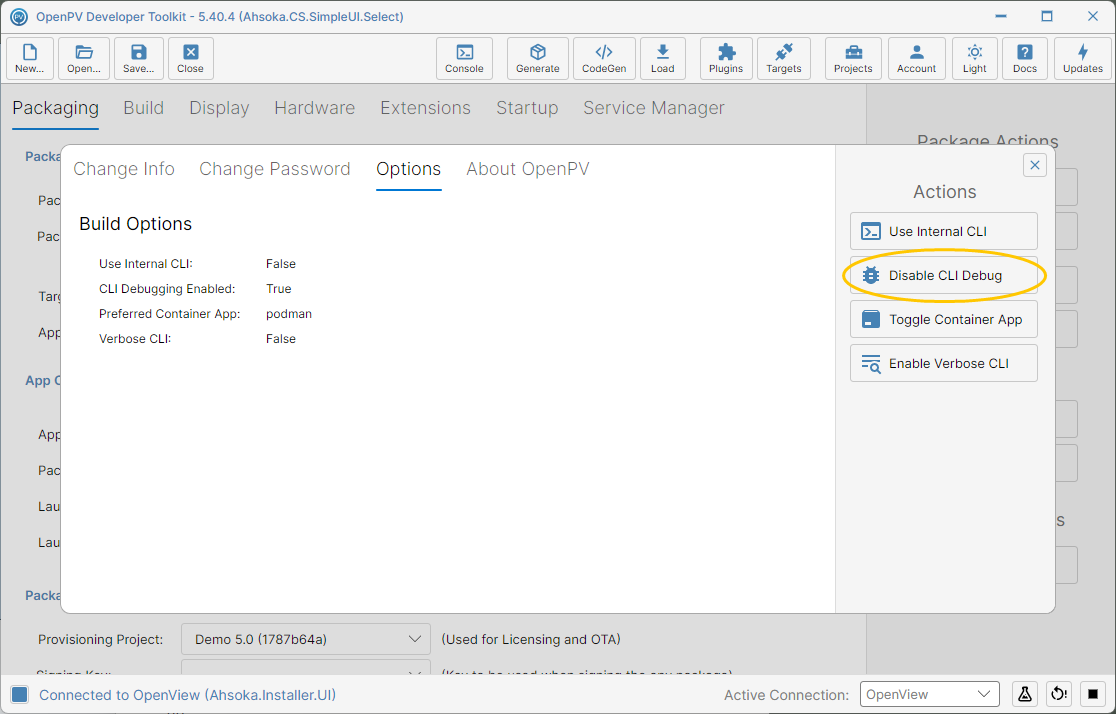
The Disable CLI Debug button -
CLI Debugging Enabled is back to False.
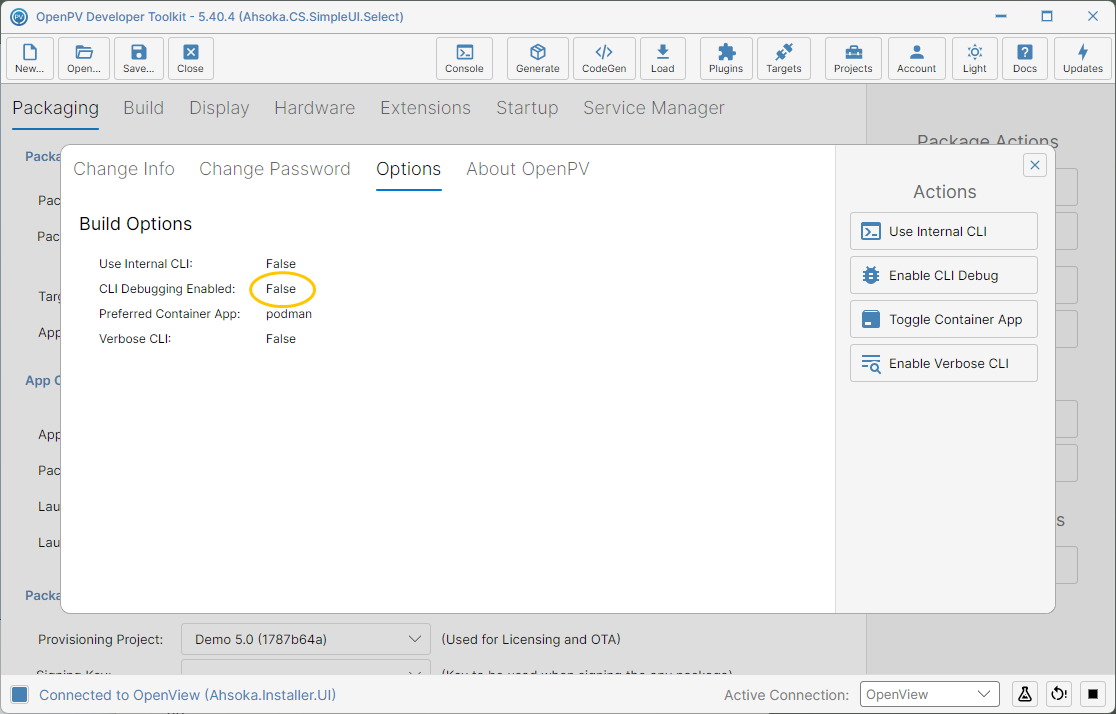
CLI Debugging Enabled set back to False