Module Setup
Utilities Projects Requires: internet connection
Enable software modules for your project, and see how many licenses each one has.
On the toolbar, click Projects, then click MANAGE MODULES on the Module Setup card. Modules Licensed lists the modules enabled for the project — none yet, for a new project.
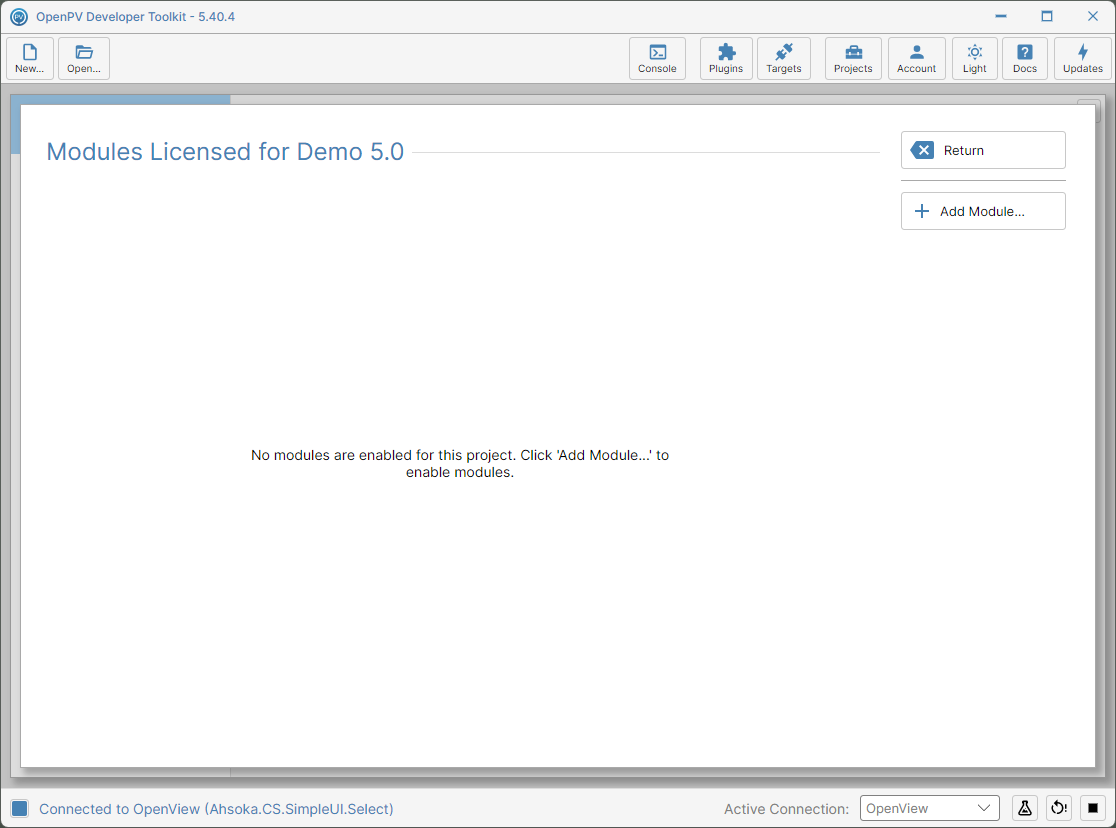
Add Module
-
Click Add Module....
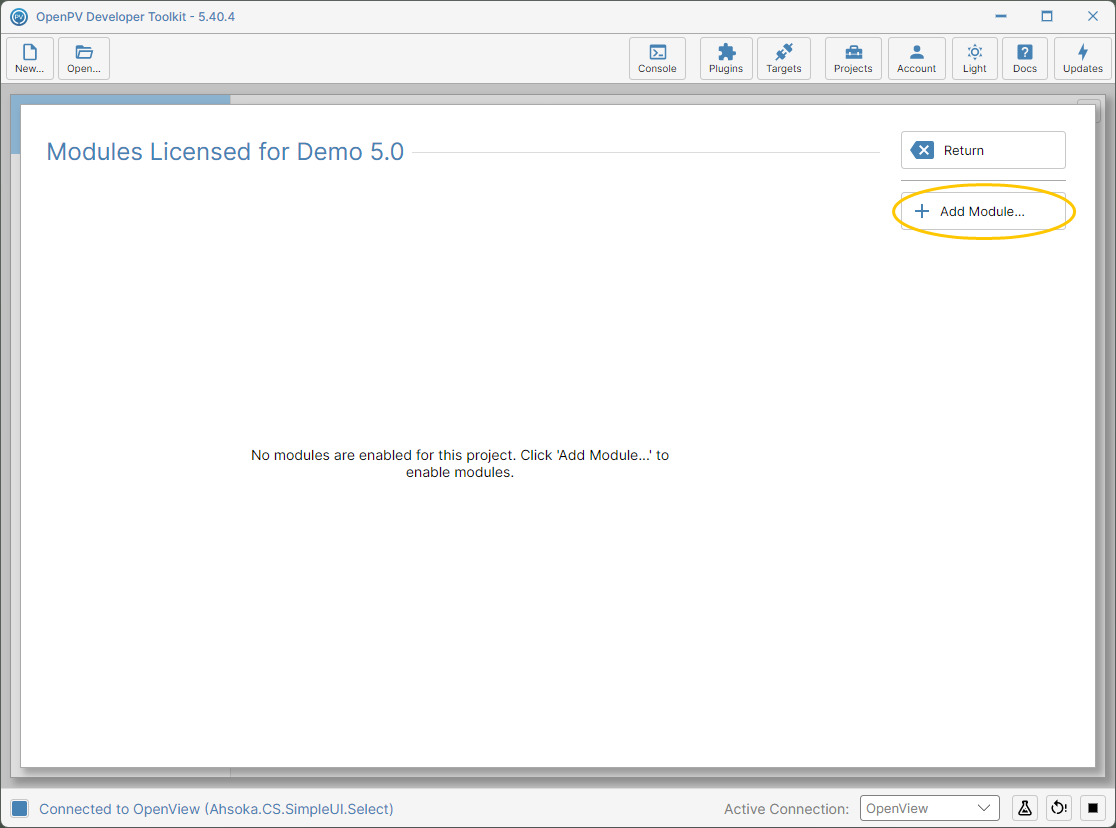
The Add Module button -
Add Modules for Project lists the modules you can enable. Modules the project already has aren't listed.
- Storyboard Runtime — for devices that use the Crank Storyboard UX: a license for the Storyboard runtime, and the Storyboard client APIs in OpenPV apps.
- OTA Cloud Service — lets licensed devices connect to OpenPV Cloud Services to download and install software updates. Upload To Spark on the Packaging panel needs it.
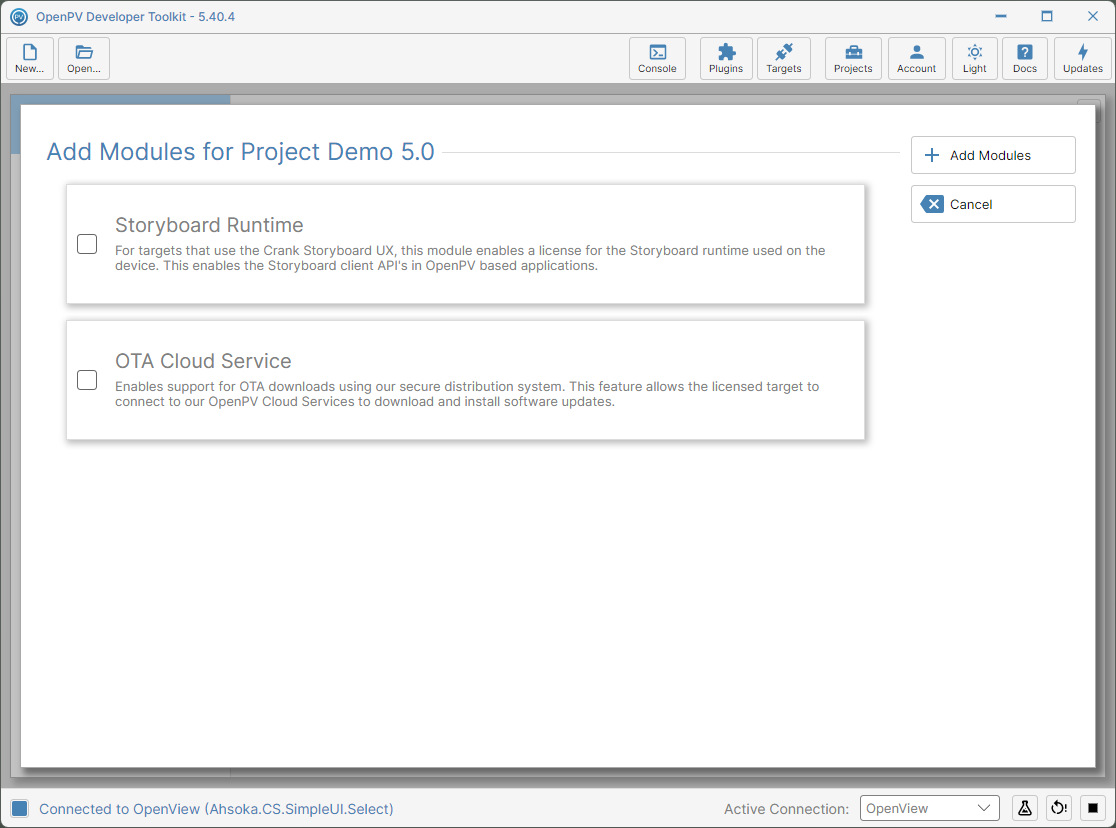
The Add Modules dialog -
Tick the modules you want — here, OTA Cloud Service — then click Add Modules.
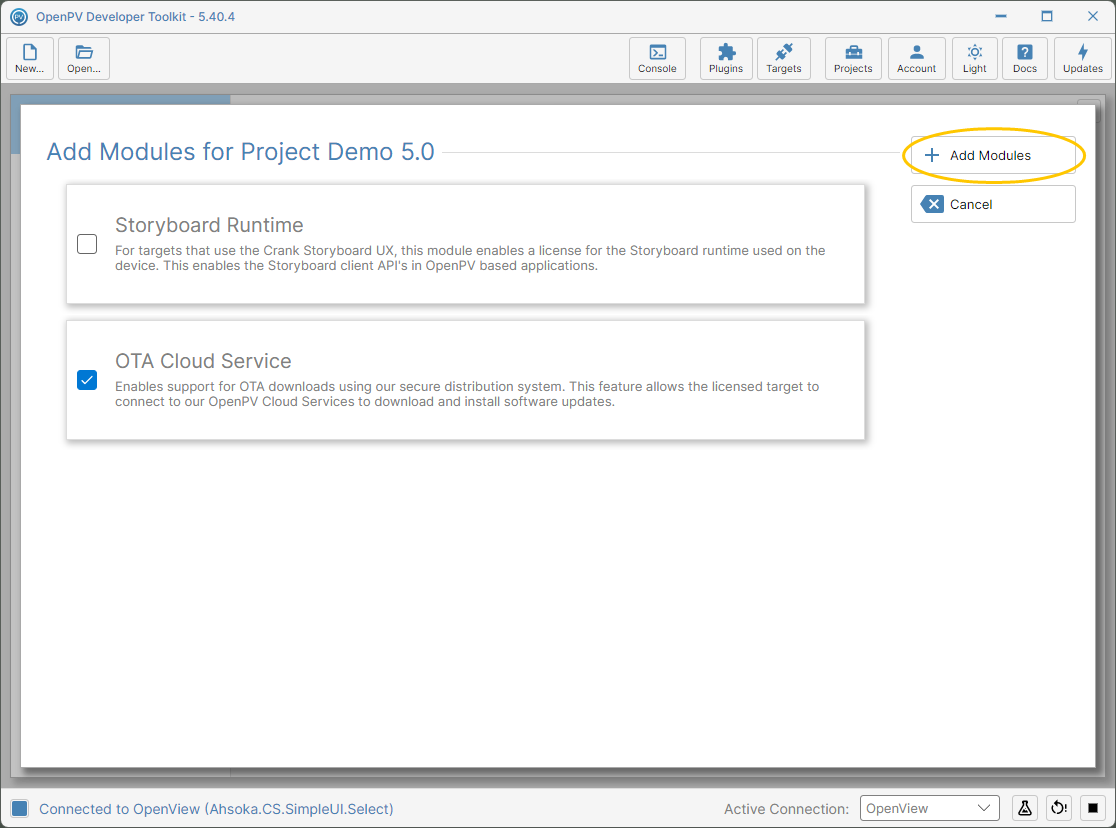
OTA Cloud Service ticked, and the Add Modules button -
The module is enabled straight away. Its banner shows Licenses: None Assigned, because the project has no licenses for it yet.
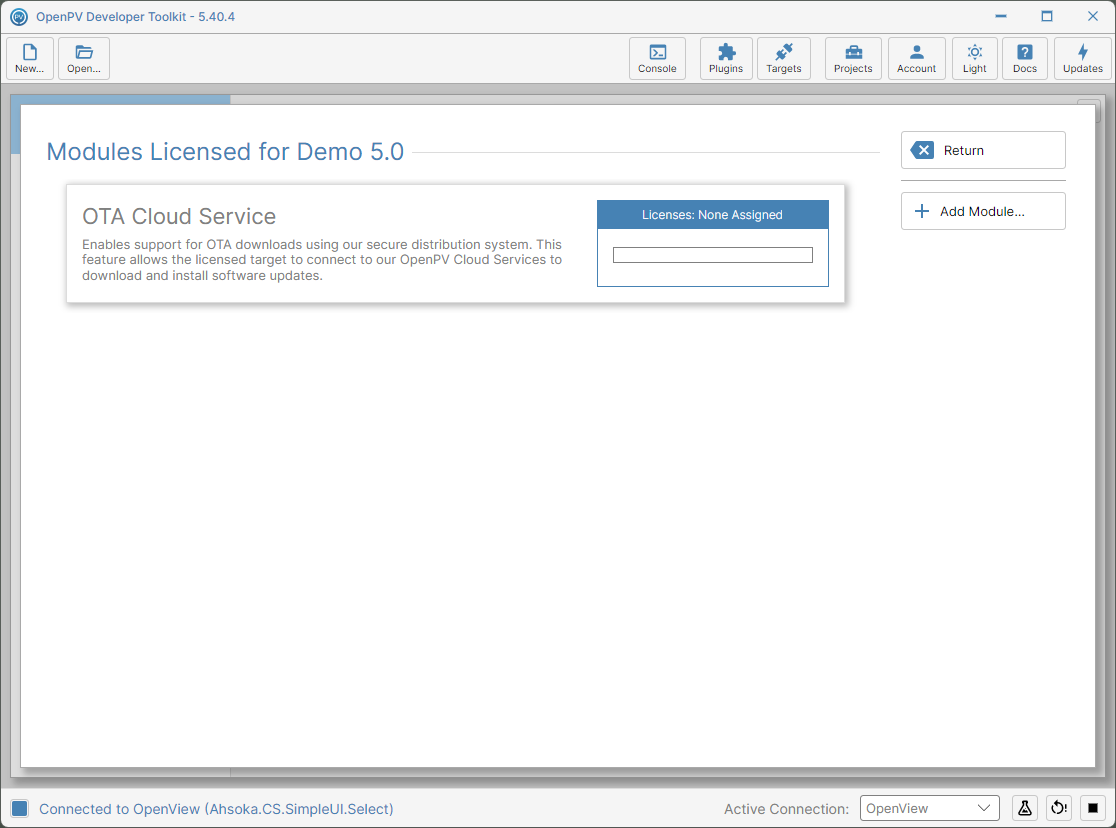
OTA Cloud Service enabled for the project
Note: Enabling a module doesn't purchase licenses for it. Contact your Enovation Controls sales representative to buy them. Once the project has licenses, the banner shows Licenses: … of … Remaining, and its bar changes color when more than 80% are used.
Note: The toolkit can't remove a module from a project, so only enable the modules you need.
Note: Without licenses, you can still add devices under Add Device — leave the license boxes unticked.