Change Password
Utilities Account Requires: internet connection
Change your account's sign-in password.
Enter your Old Password, then your New Password and Confirm New Password, and click Update Password. This tab is only available while you're online.
-
Click the Change Password tab.
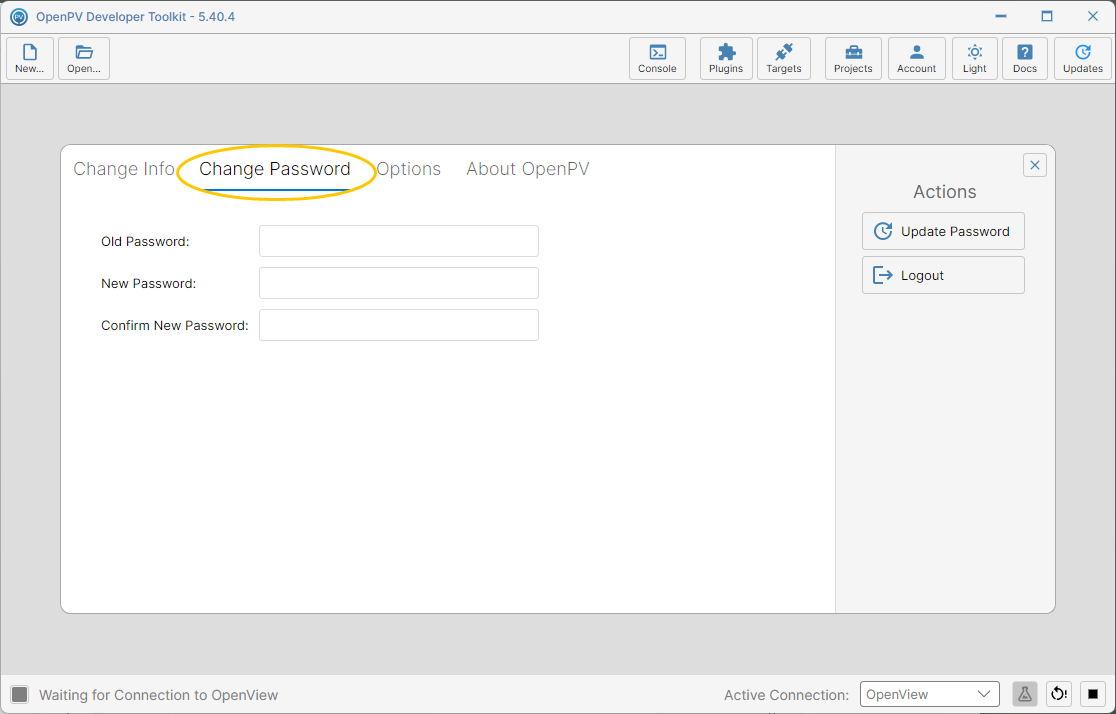
The Change Password tab -
Type your current password into Old Password.
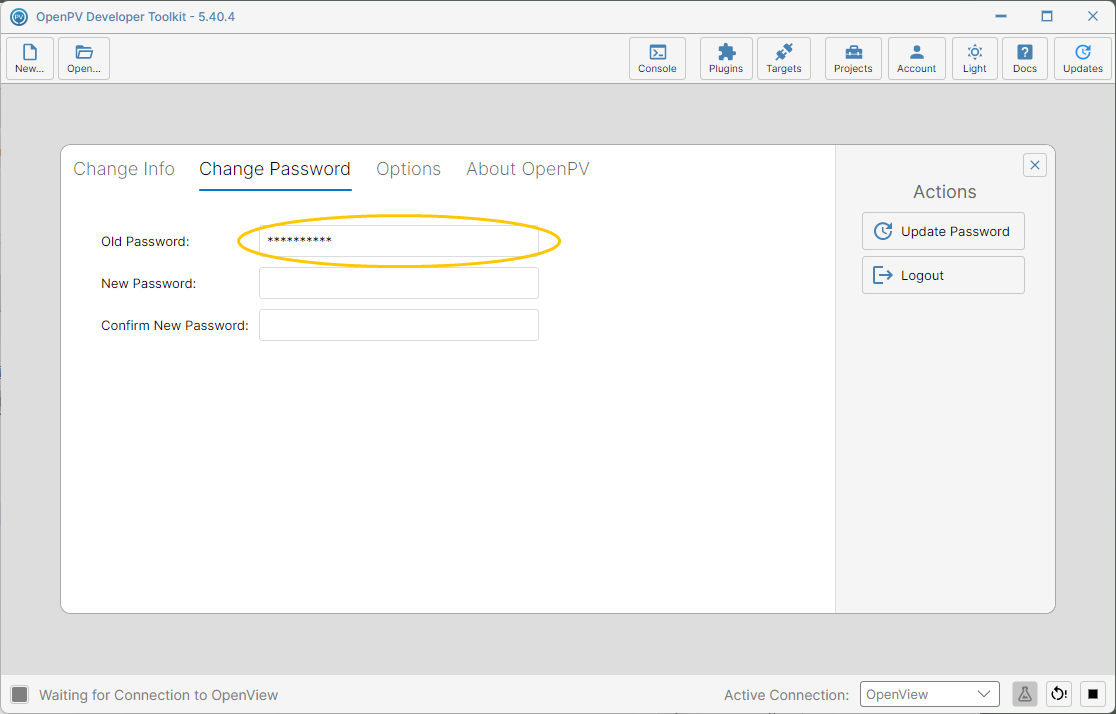
Old Password entered -
Type your new password into New Password.
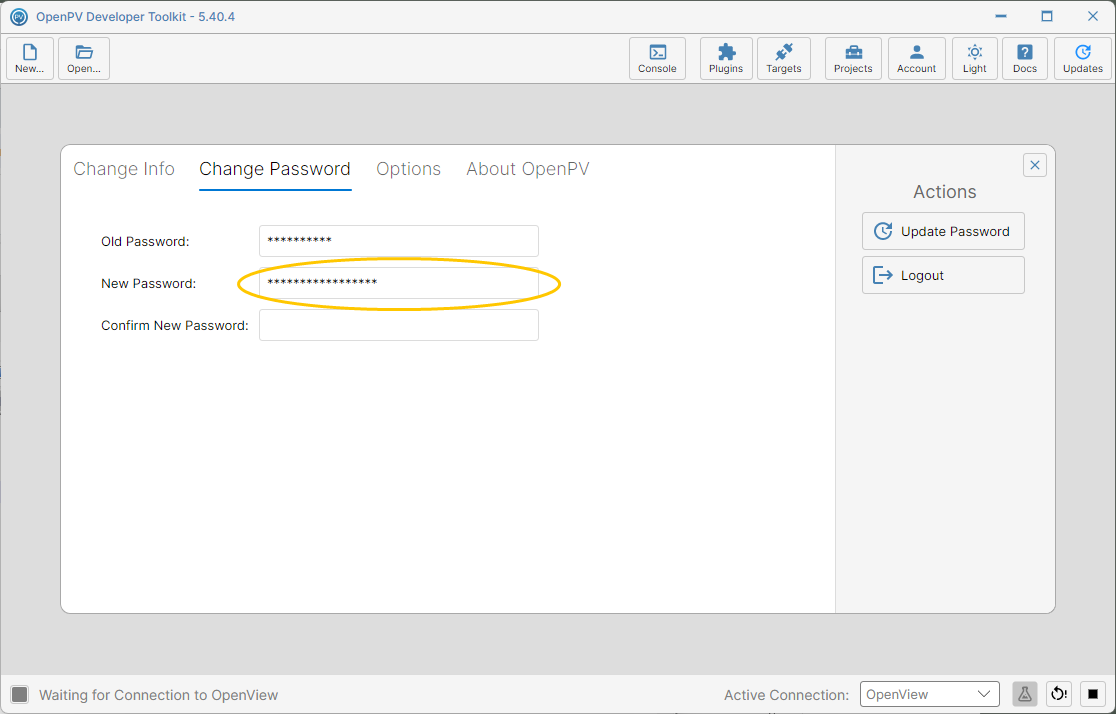
New Password entered -
Type the same new password again into Confirm New Password to confirm it.
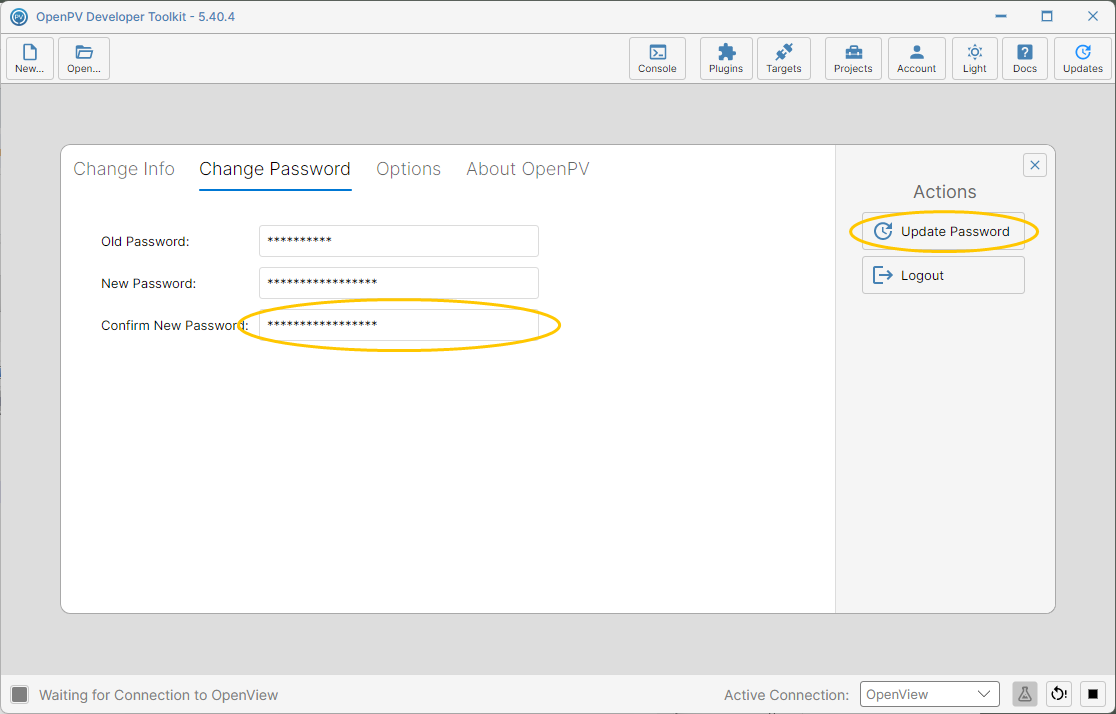
Confirm New Password entered -
Click Update Password. A dialog confirms the change.
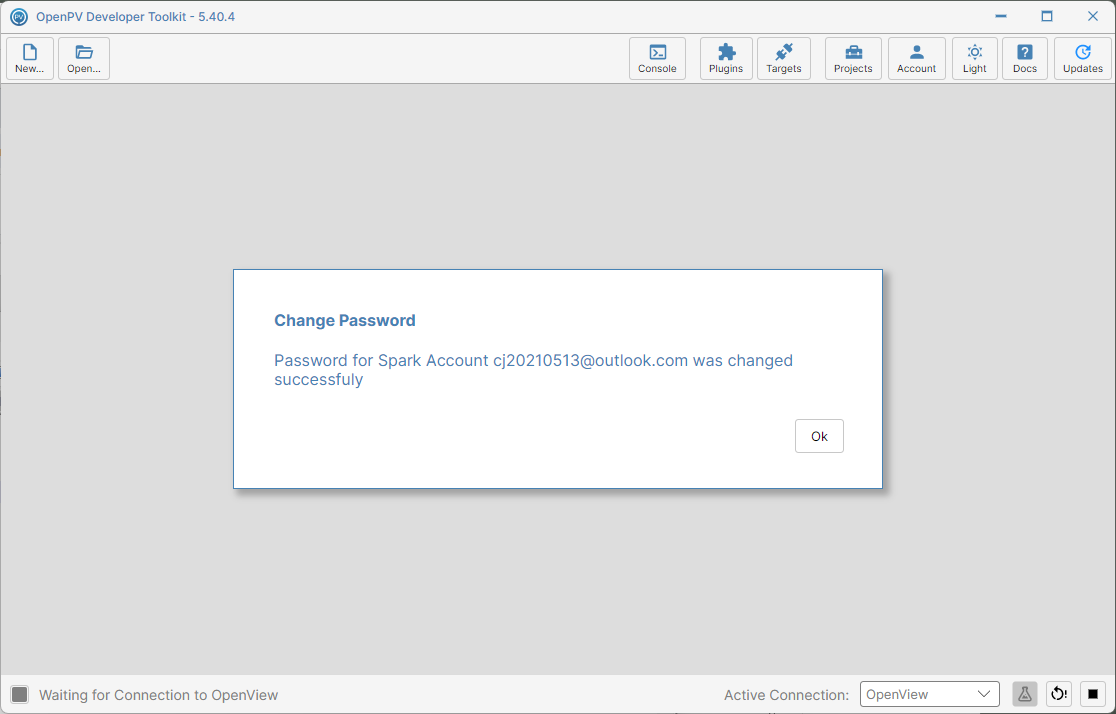
Password changed successfully
Note: Clicking Ok on the confirmation dialog closes the Account panel entirely, rather than returning you to the Change Password tab.
Note: Logout is available here too — see step 4 of Change Info for what it does.