Extensions
Packaging Tools Requires: project open
Add optional services and libraries to extend your project's functionality.
Extensions are optional services and libraries you can add to your project to extend the Core OpenPV Functionality. On the right, Service Actions offers Refresh Versions, Add an Extension..., Remove Extension..., Configure Extension..., and Docs & Help.
Add an Extension
-
The Extensions panel lists the extensions added to your project — here, none yet, in the Ahsoka.CS.SimpleUI project. Click Add an Extension... in Service Actions.
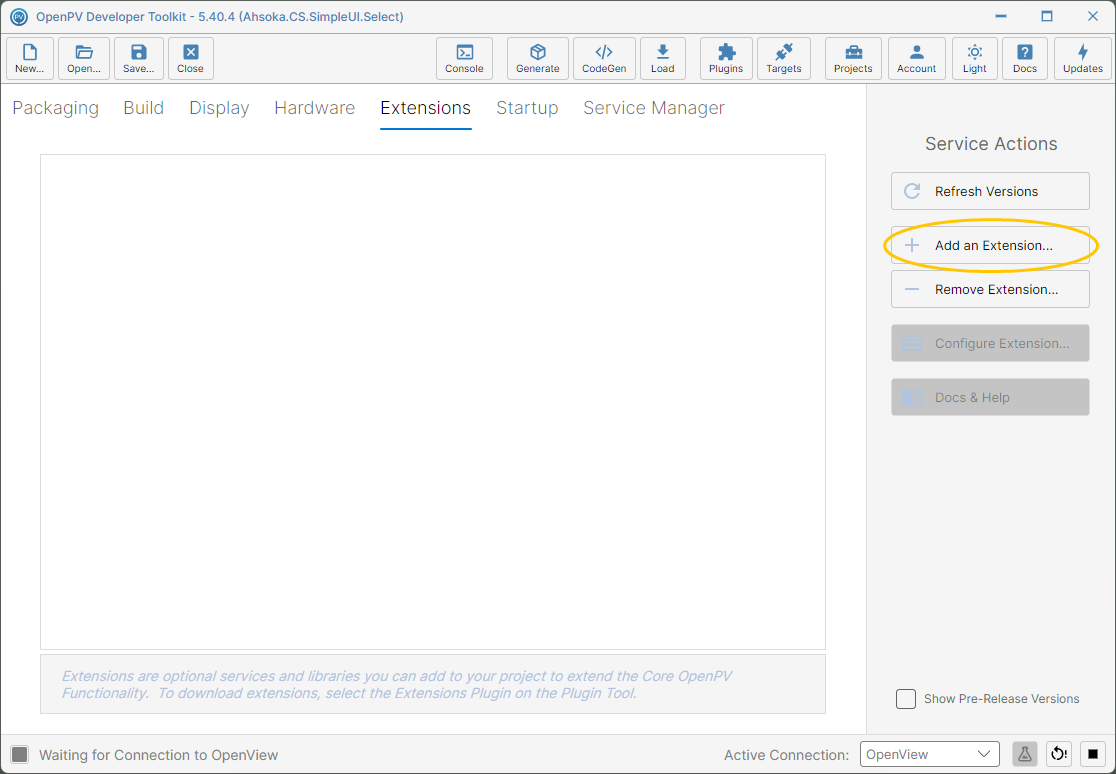
The Extensions panel, with no extensions added yet -
A dialog lists every extension available to add, with its available version.
Which display family each extension supports:
- Bluetooth Extension (Select & Pro)
- Audio Manager Extension (Pro only)
- Control Service Extension (Select & Pro)
- Diagnostic Extension (Select & Pro)
- Storyboard Extension (Select & Pro)
- Video Player Extension (Pro only)
Note: Include Pre-Release Extension Versions controls whether pre-release builds — early versions published ahead of a full release — are listed and installed as well as released ones. It's the same setting as Show Pre-Release Versions on the panel, and it's ticked by default. It's cleared in this walkthrough, so only released versions are installed.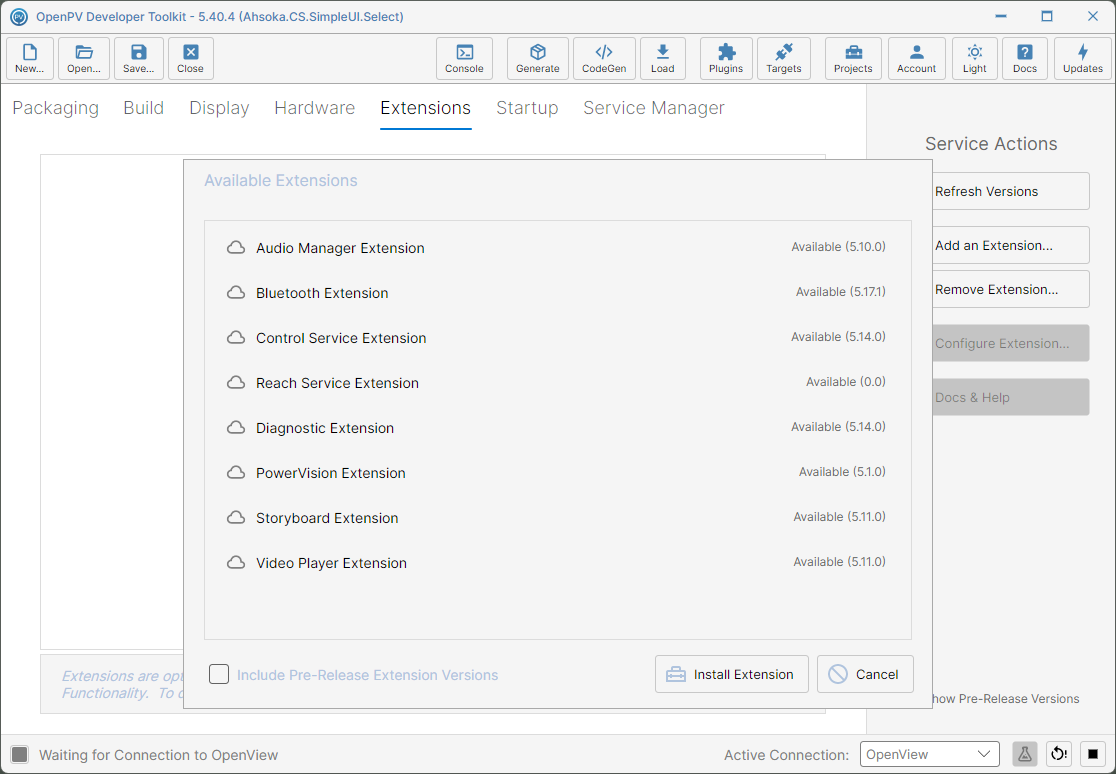
The Available Extensions dialog -
Click an extension to select it — here, Bluetooth Extension — and click Install Extension. A progress bar runs along the bottom of the dialog while it downloads and installs; it often finishes almost straight away if it's already cached on your PC.
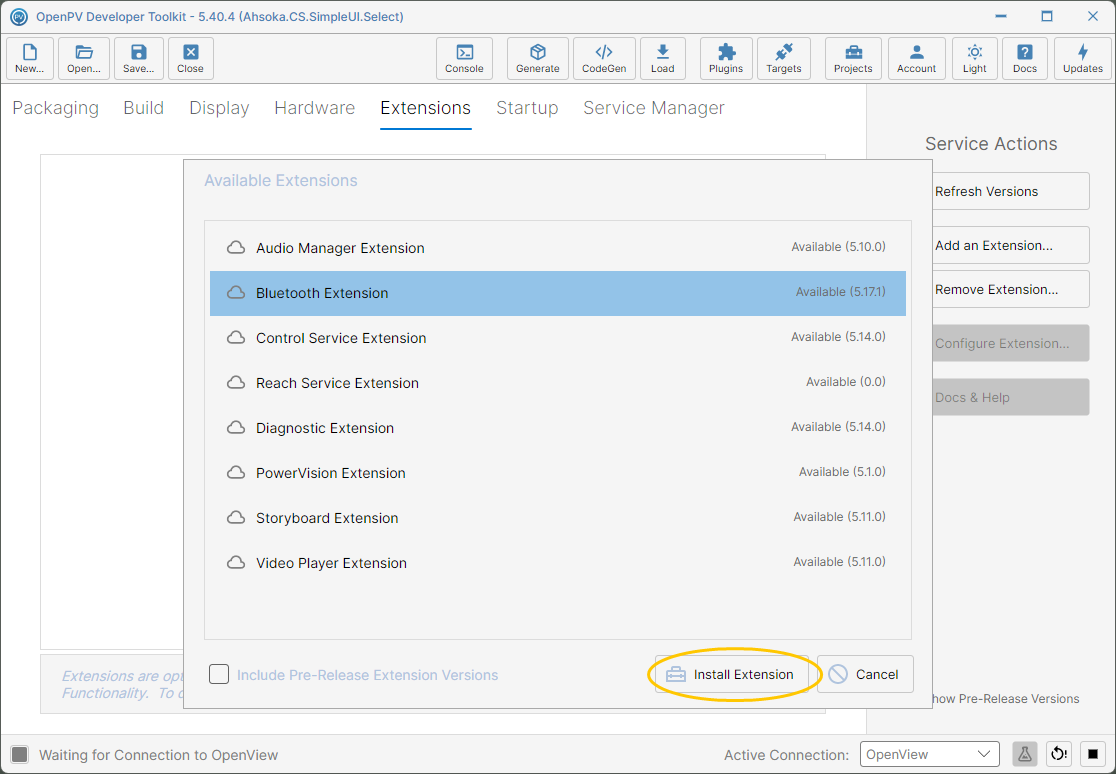
Bluetooth Extension selected -
The dialog closes and the extension appears in the list, with its Installed version — here, 5.17.1.
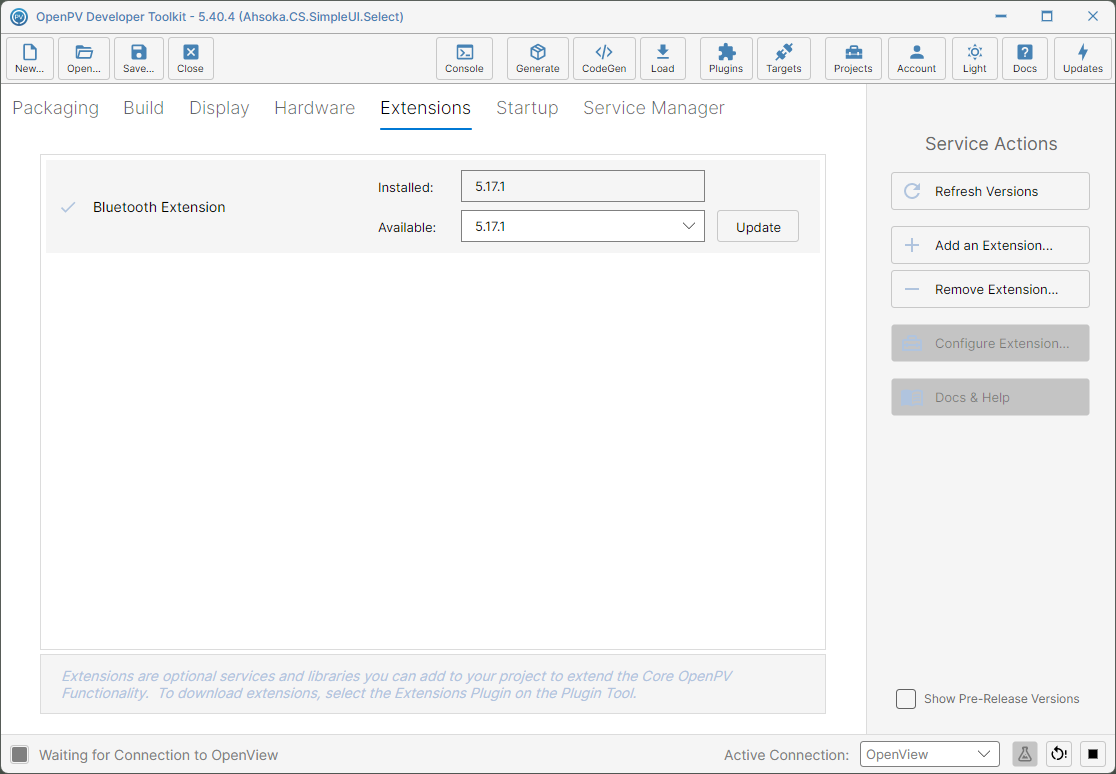
Bluetooth Extension added to the list -
To add another, click Add an Extension... again. Extensions you've already added aren't listed. Select Storyboard Extension, and click Install Extension.
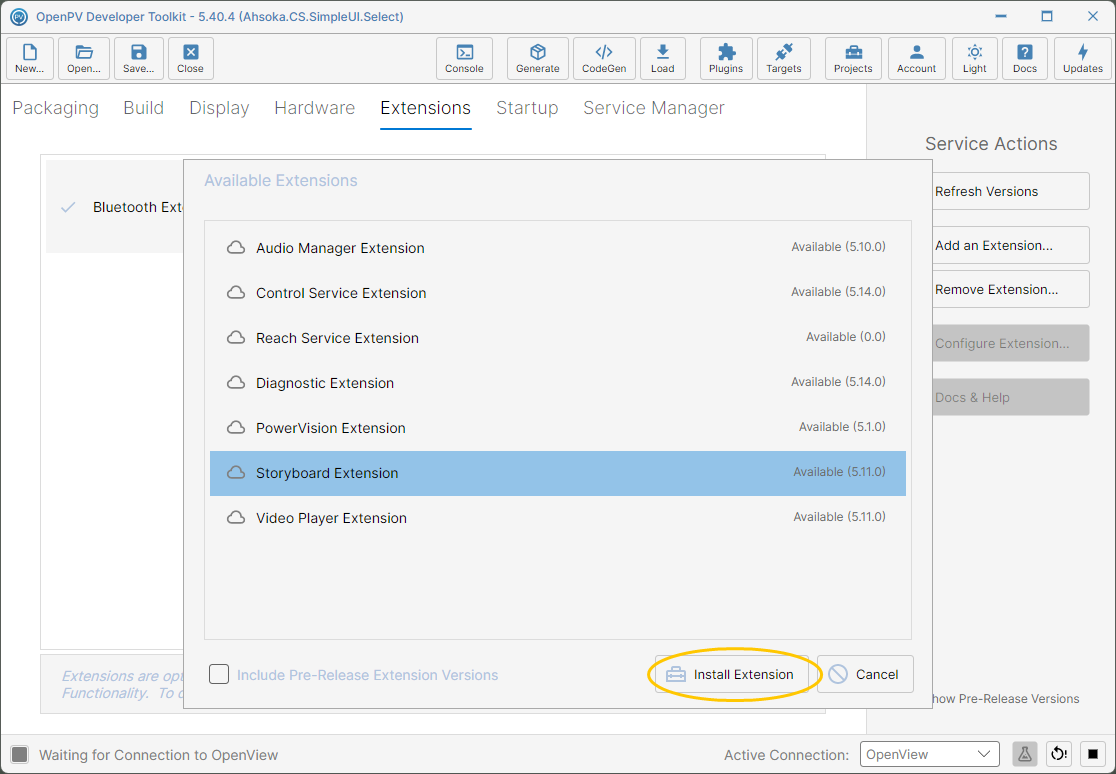
Storyboard Extension selected -
Both extensions are now listed — Bluetooth Extension 5.17.1 and Storyboard Extension 5.11.0.
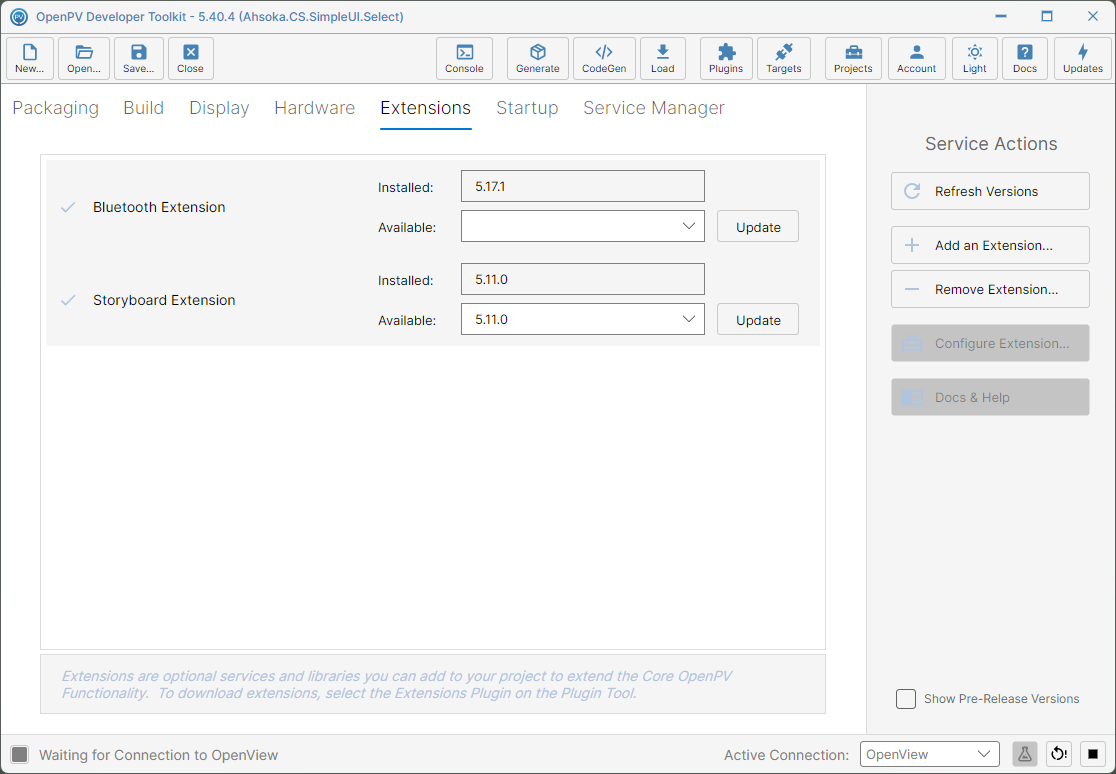
Bluetooth and Storyboard Extensions added
Configure Extension
-
Click a row to select it — here, Bluetooth Extension — and click Configure Extension....
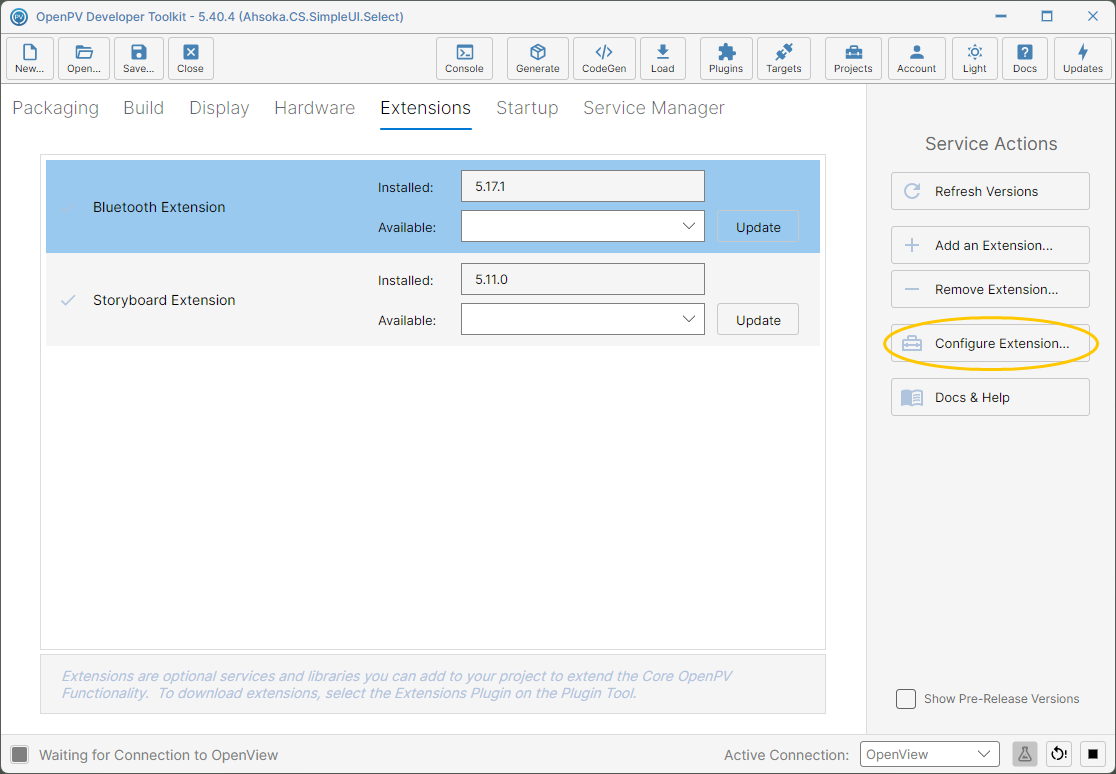
Bluetooth Extension selected -
Each extension has its own configuration options. Bluetooth Extension opens its adapter setup — Connection Setup (local name, adapter index, device path, Bluetooth stack, and phone, headset and data profiles) and Class of Device.
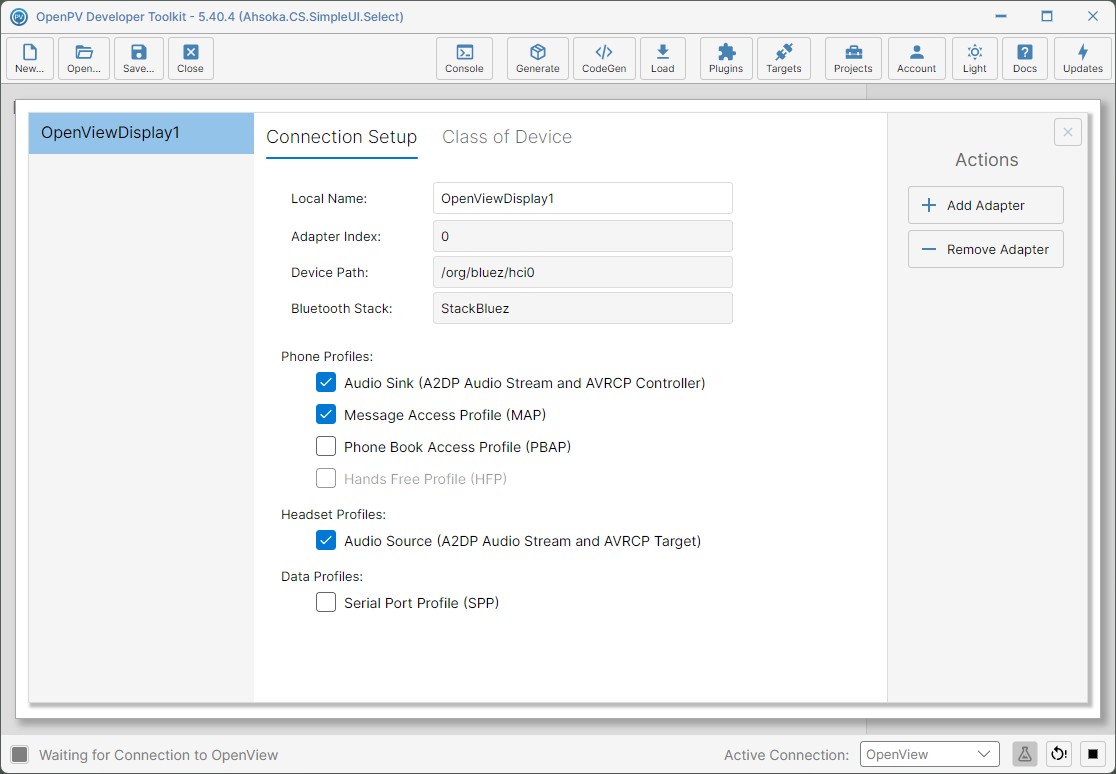
Configuring Bluetooth Extension -
Close it, select Storyboard Extension instead, and click Configure Extension... again.
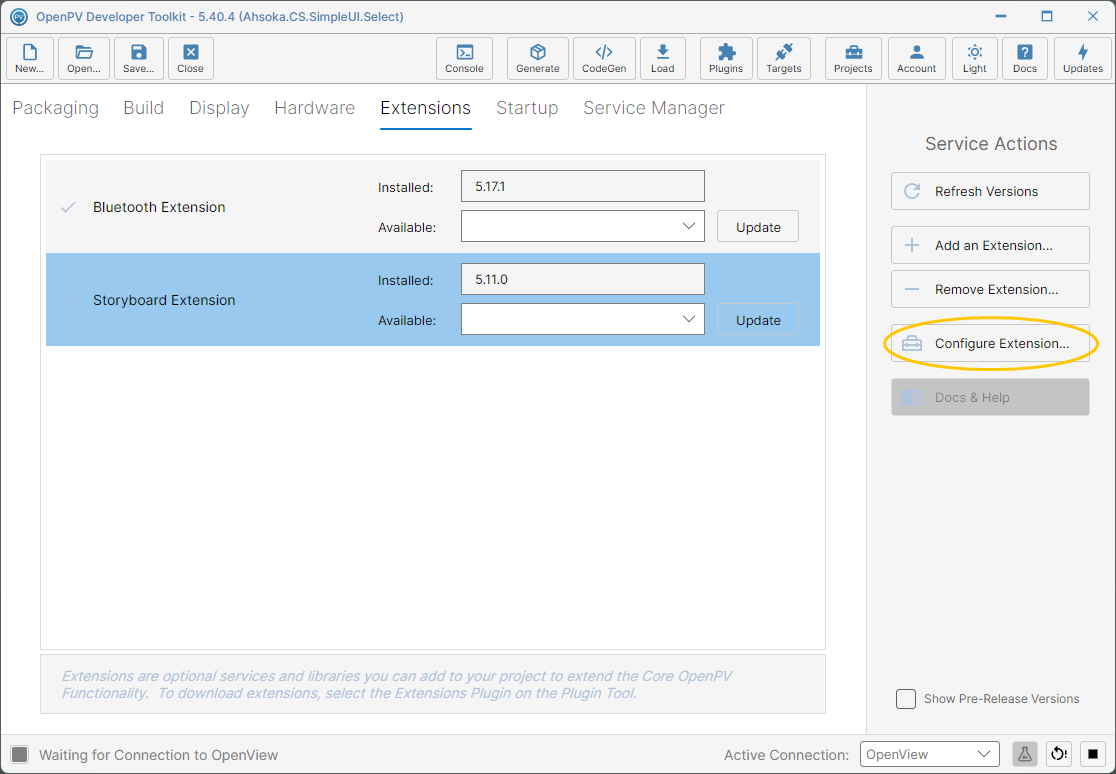
Storyboard Extension selected -
Storyboard Extension opens a completely different dialog, Configure Storyboard — Project (its config file and engine paths), Launch Configurations, and Generator.
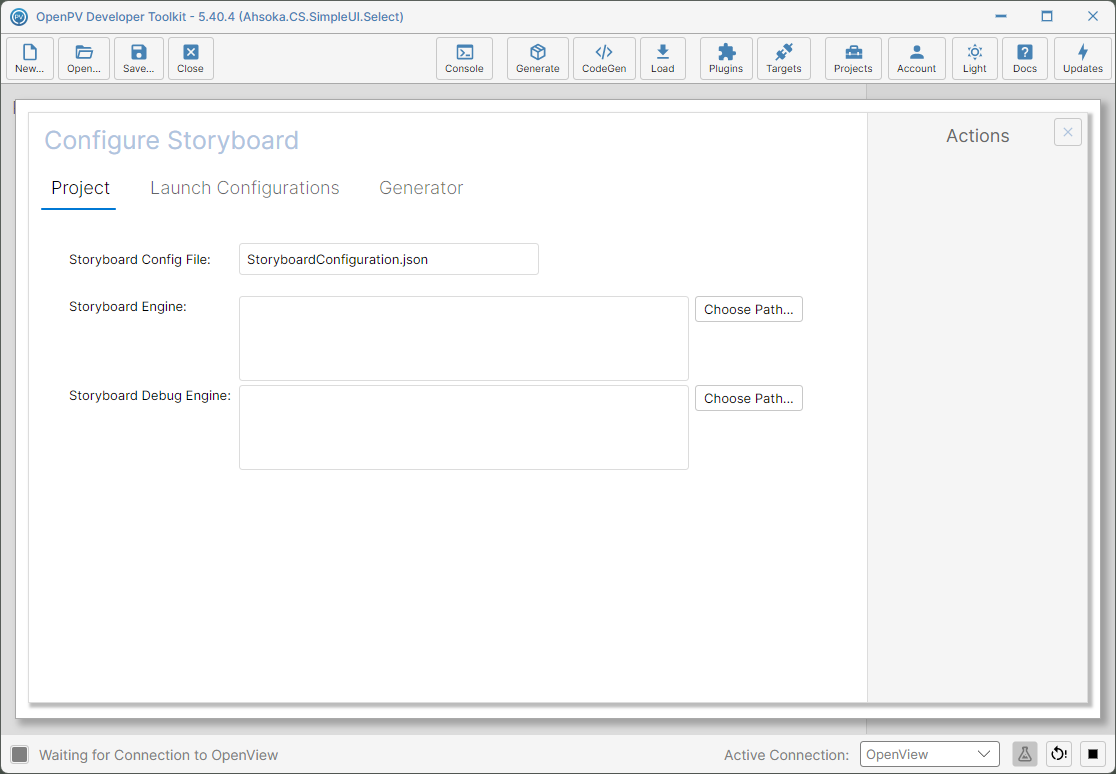
Configuring Storyboard Extension
Docs & Help
-
Click a row to select it — here, Bluetooth Extension — and click Docs & Help.
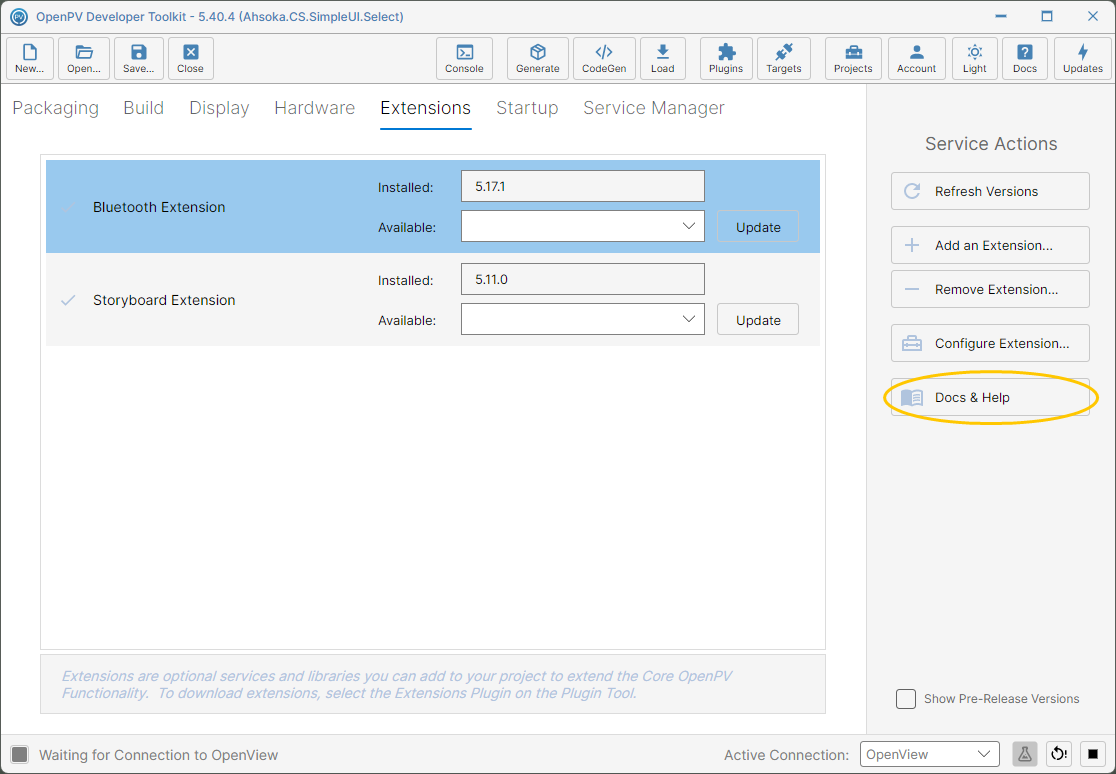
Bluetooth Extension selected -
This opens that extension's own documentation in your browser, matching the version installed in your project — here, a full reference for Bluetooth Extension, covering Getting Started, Core Concepts, Configuration, Troubleshooting and more.
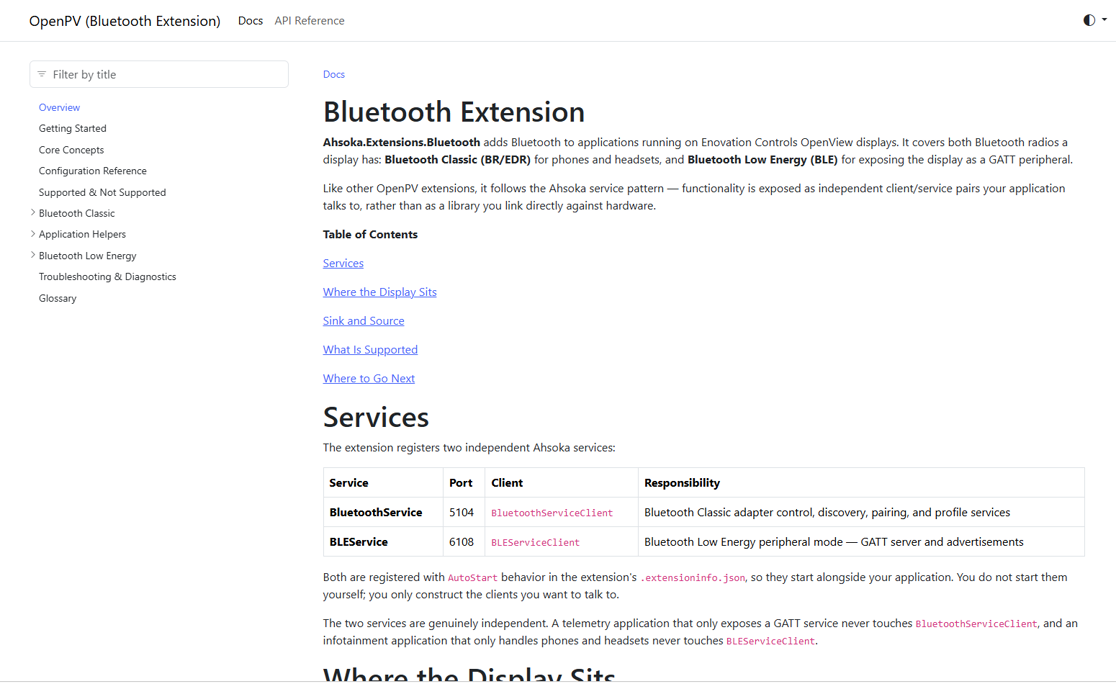
Bluetooth Extension's own documentation, opened in the browser
Remove Extension
-
Click a row to select it — here, Storyboard Extension — and click Remove Extension....
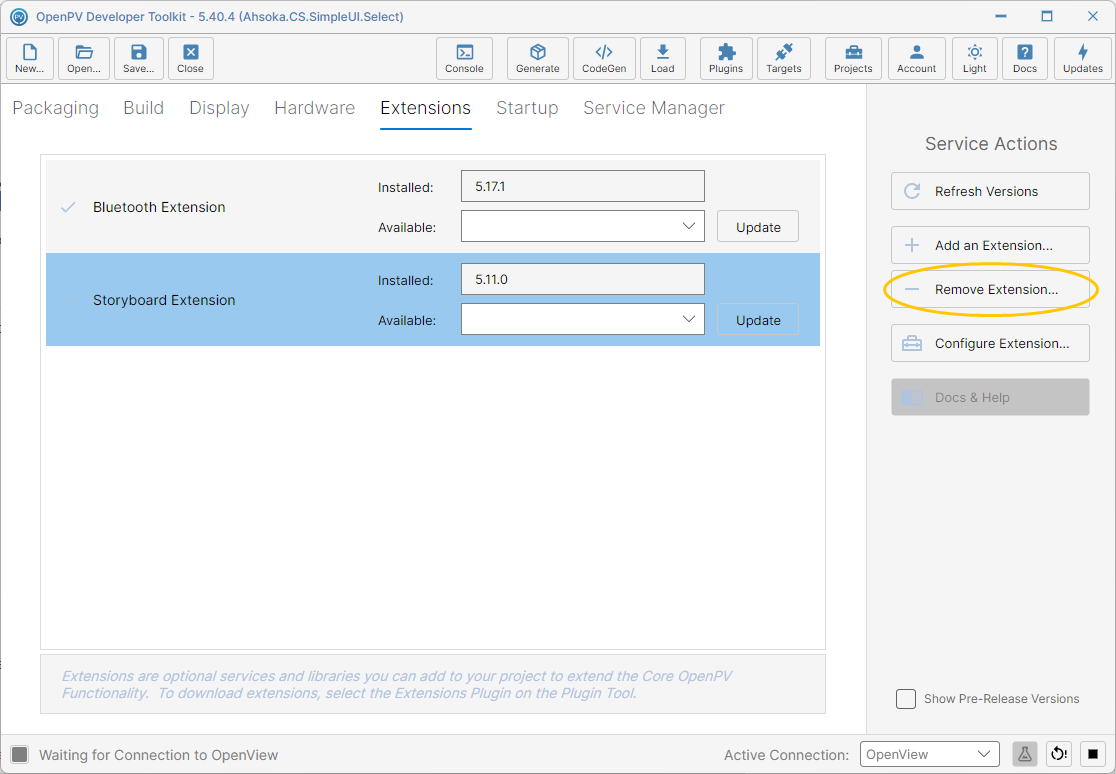
Storyboard Extension selected, ready to remove -
The extension is removed right away — there's no confirmation. The panel goes back to just Bluetooth Extension.
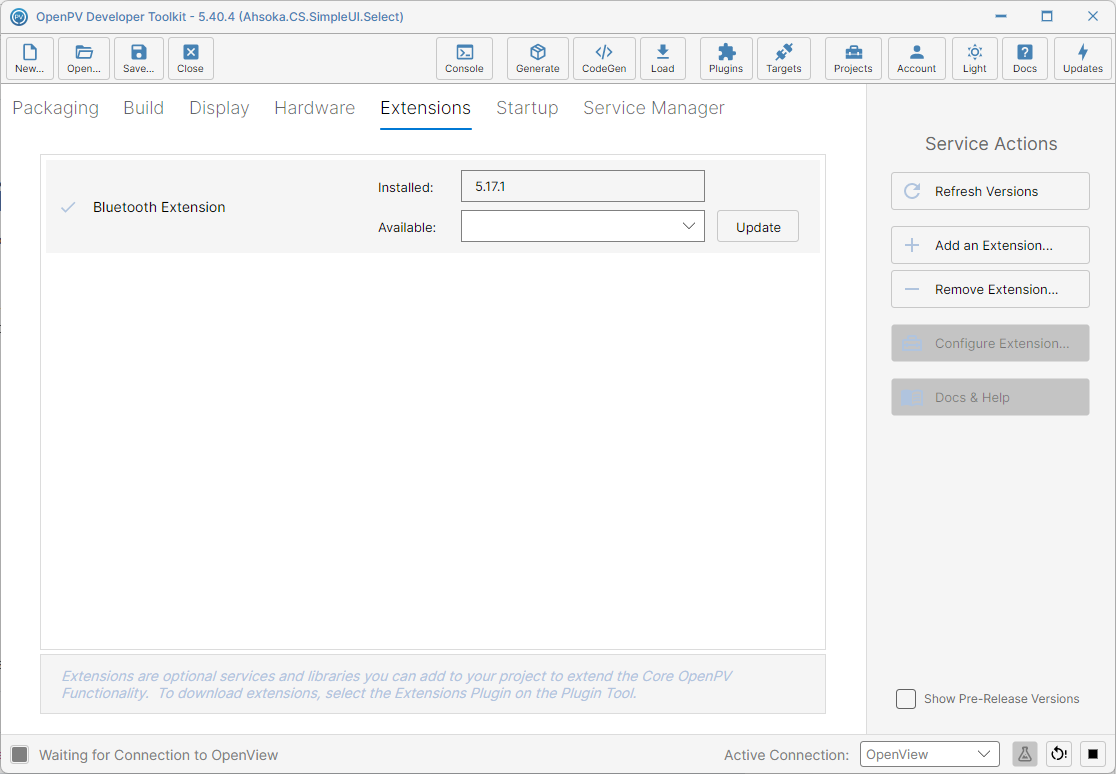
Back to just Bluetooth Extension after removing Storyboard