Logger
Utilities Targets Requires: signed in
Controls which logging groups the connected device reports.
Configure which logging groups are active on the connected device. Toggle a group's checkbox to enable or disable its output; click Fetch Groups to load the current state from the device.
While this tab is selected, the Actions panel offers Fetch Groups in addition to Add/Remove Display.
Fetching and Toggling Groups
-
Before fetching, the list is empty.
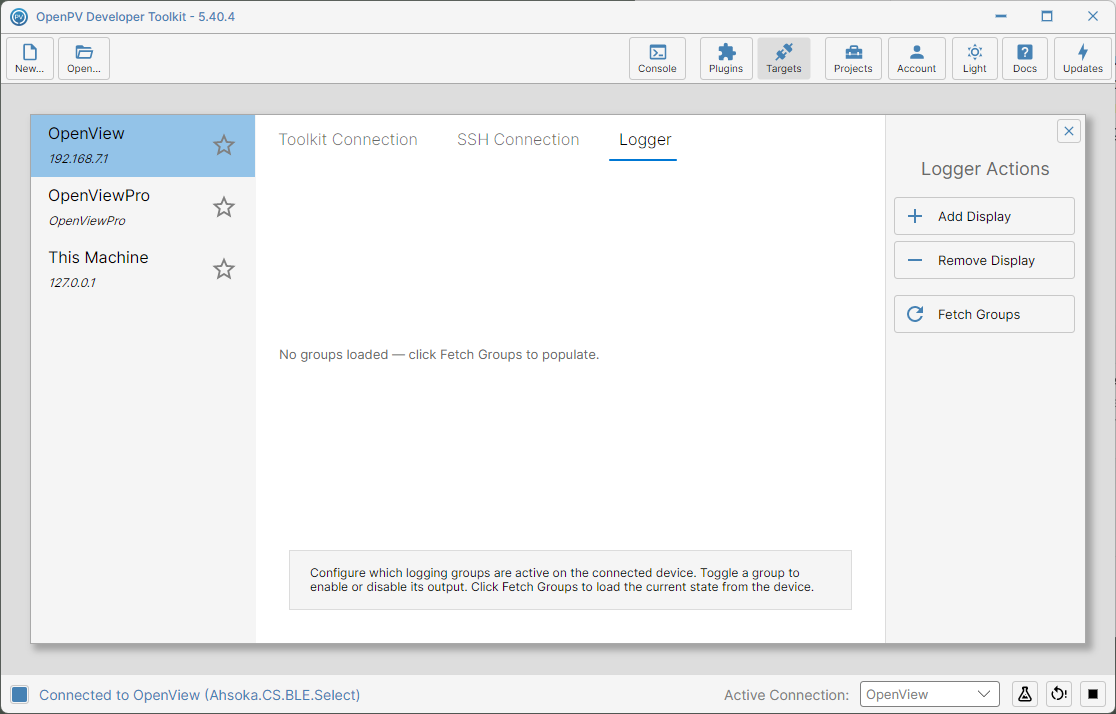
No groups loaded yet -
Click Fetch Groups to load the current state from the device. Top-level groups appear, checked according to their current state — here, Ahsoka, BlueZ, and Services, all enabled. A › arrow means a group has sub-groups.
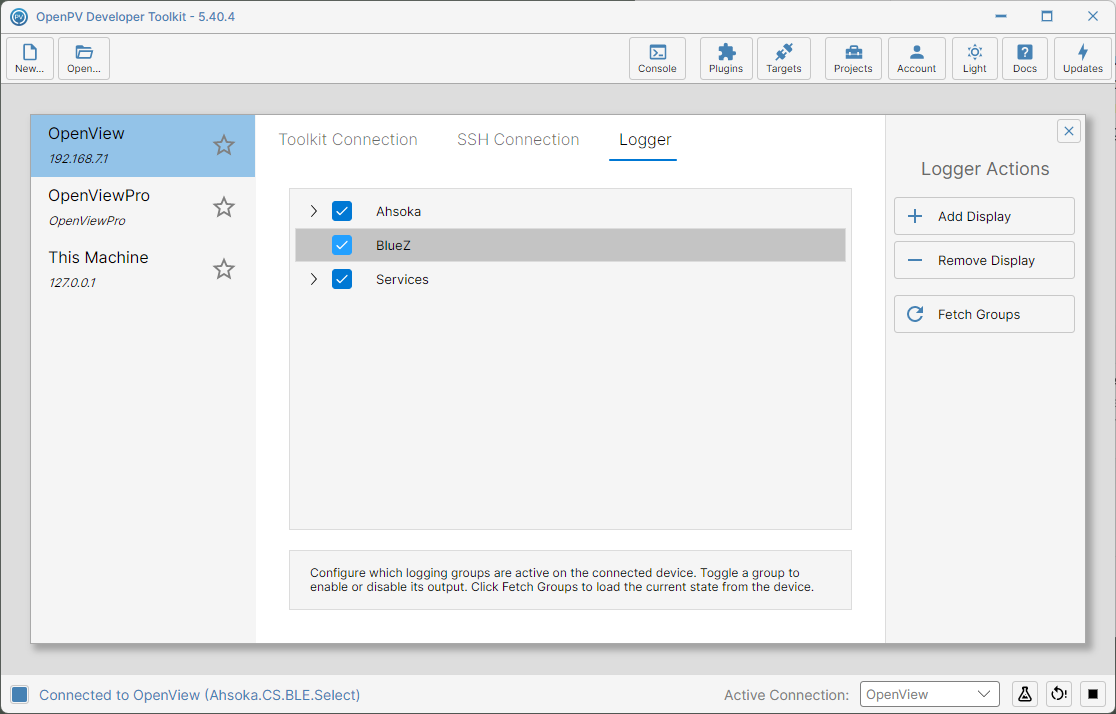
Logging groups loaded after Fetch Groups -
Click the › arrow next to a group to expand it — here, Ahsoka expands to reveal its sub-group, Drawing.
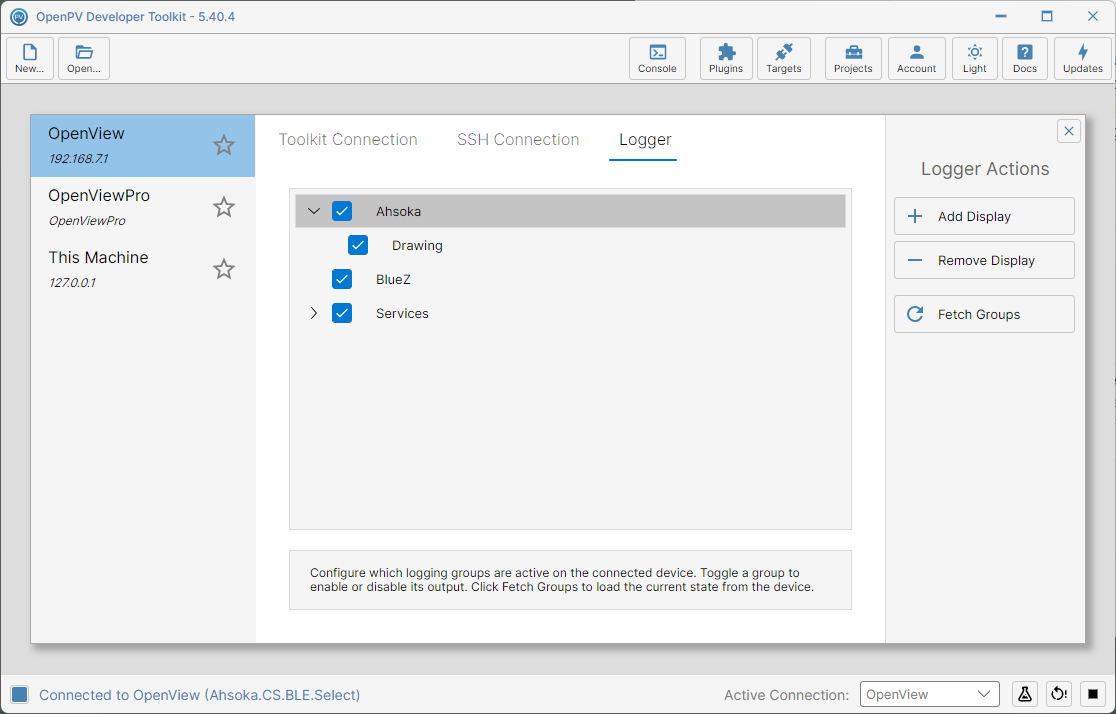
Ahsoka expanded to show its Drawing sub-group -
Click a group's checkbox to toggle it — here, unchecking BlueZ. The change takes effect immediately: no confirmation dialog, and nothing is logged to Console for the toggle itself.
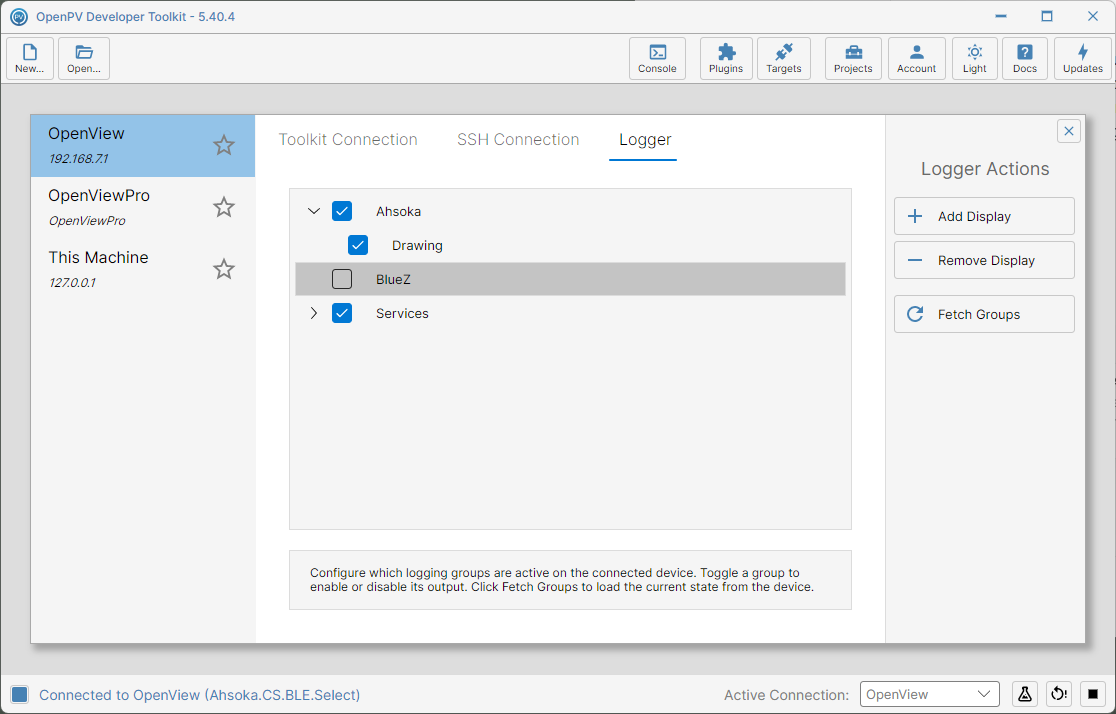
BlueZ unchecked -
The effect shows up elsewhere: in Console, Watch Application streams the connected device's live log — a disabled group's messages stop appearing there too, since they're no longer being produced.
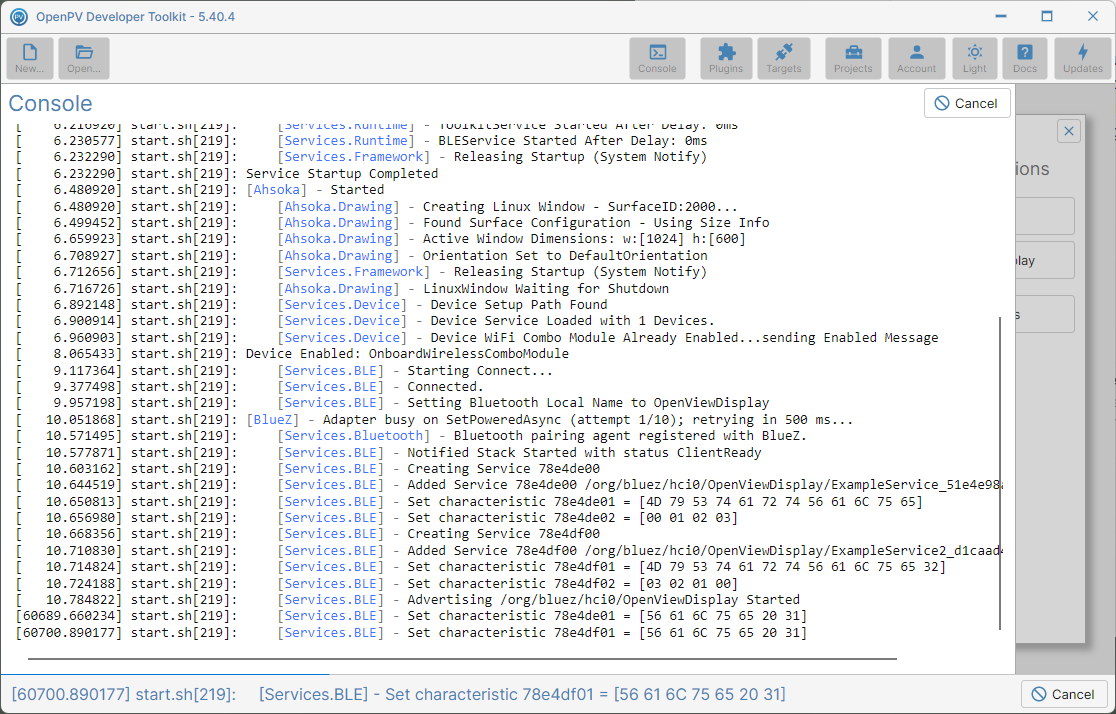
Watch Application streaming the device's live log in Console